New column name
Place a new column name alongside any existing column name you wish to re map. In the example dialog above a column named 'calendar_date' is being renamed to 'order_date' in the view.
Non-Dimension Object Views
QAD Data Warehouse Designer also supports creating views of objects other that dimensions (load tables, facts, stage tables, aggregates, ...).
A fact view is a database view of a fact table. It may be a full, partial view, or a view incorporating both the fact data and some dimensional attributes. It is typically used in cases where a subset of information is to be provided for specific end user communities. It is common that the 'Where' clause be populated in fact views, either to join the dimension tables or restrict the data that the view represents.
Similarly, views may be created over staging tables or any other table object.
The creation of non-dimension table views is the same process as that for dimension views:
1 Drag a table from the right pane into the middle pane.
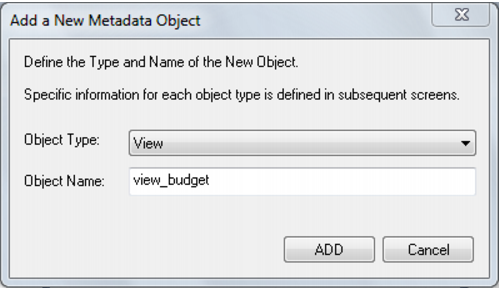
2 The dialog box defaults the object type to a view.
3 Change the view name as required, and click Add.
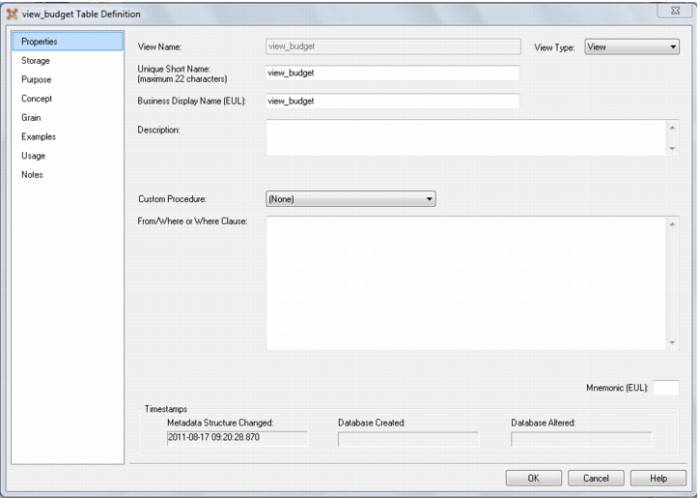
4 The view property defaults dialog will appear. A 'Where' clause could be entered, or done later. Click OK.
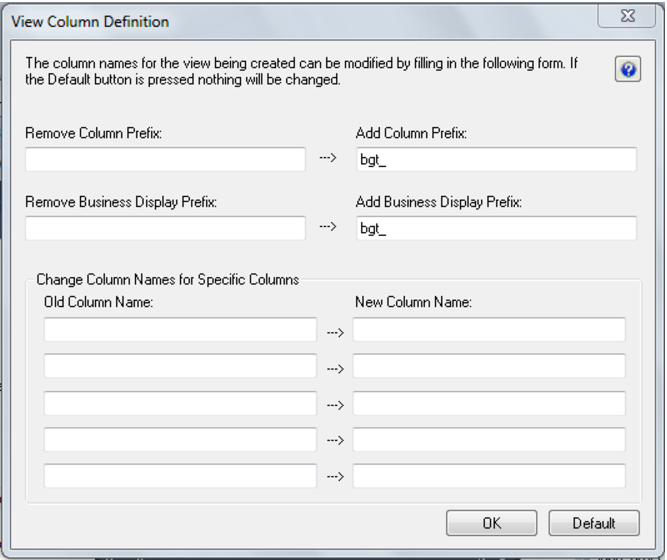
5 The view column definition dialog allows for the automated re-mapping of certain column names. It provides an easy method for changing the column names for a large number of columns when creating a view.
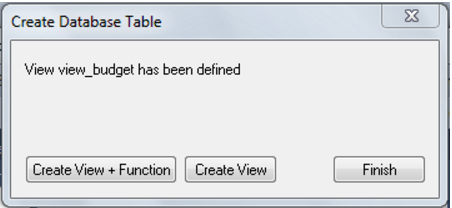
6 A dialog box indicates that the view has been defined. Create the view.
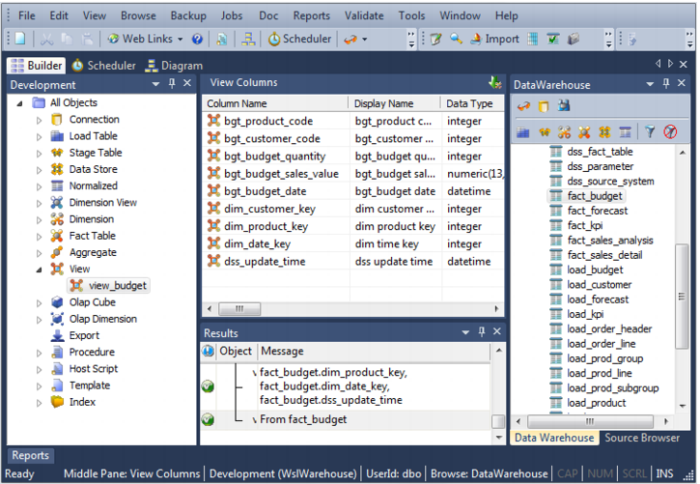
7 The columns of the view table will be displayed in the middle pane.
Note: If dimension attributes are being added (eg: to a fact view) then drag these attributes into the views column list, create the view and edit the 'Where' clause for the view.
Creating a Custom View
A custom view can be created within QAD Data Warehouse Designer to handle views that are not strictly one to one such as where multiple tables are joined or where a complex condition is placed on the view. There are two options for custom views, the first where the columns are defined in QAD Data Warehouse Designer and the 'Select' component of the view is customized. The second option is where the view is totally customized and no columns need to be defined in QAD Data Warehouse Designer, although it is good practice to still define the columns for documentation purposes.
To create a Custom or 'User Defined' view proceed as follows:
1 Create a view in the normal manner either by dragging a table in or adding a new object.
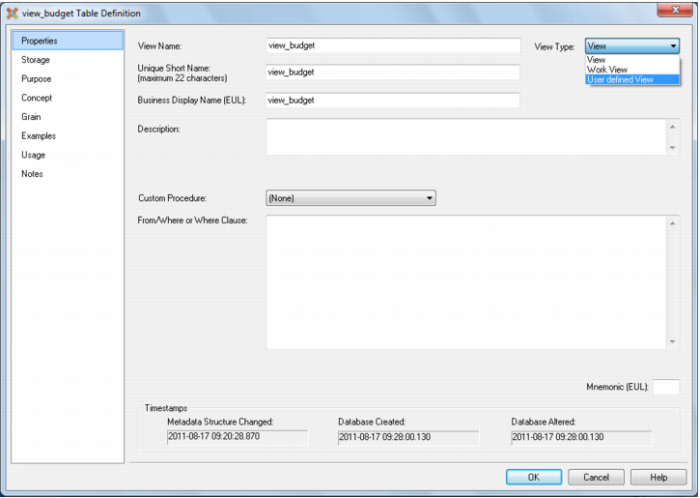
2 Change the 'Table Type' to 'User Defined View' in the properties of the view.
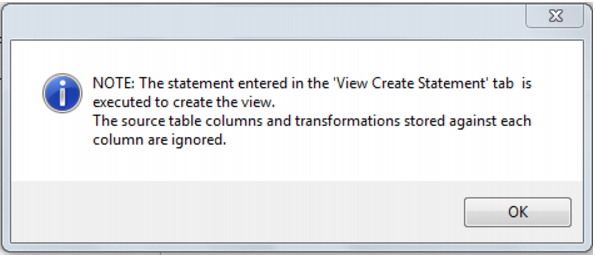
3 The following message is displayed. Click OK.
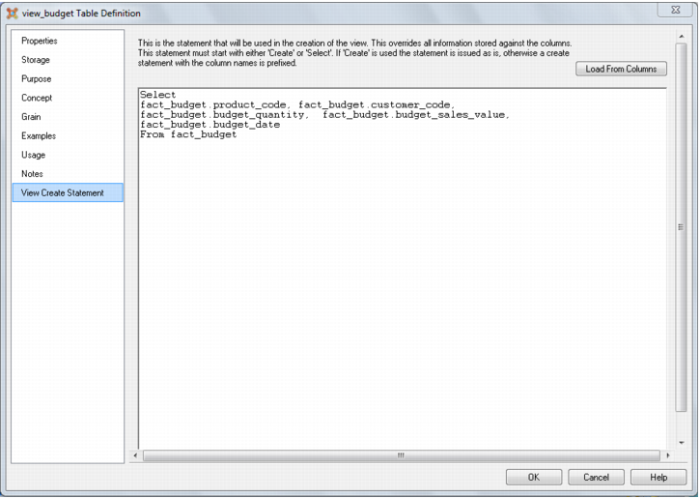
4 Edit the new tab 'View Create Statement' and insert the SQL Statement that will be used to create the view. This SQL Statement must start with either 'Create' or 'Select'. If 'Create' is used then the columns in the view are ignored and the statement will be issued to create the view. If the statement starts with 'Select' then QAD Data Warehouse Designer will build up a view create statement from the column names and the supplied 'Select' clause. A button 'Load from Columns' is available to get a sample 'Select' statement based on the columns in the view and any transformations.
Dimension View Language Mapping
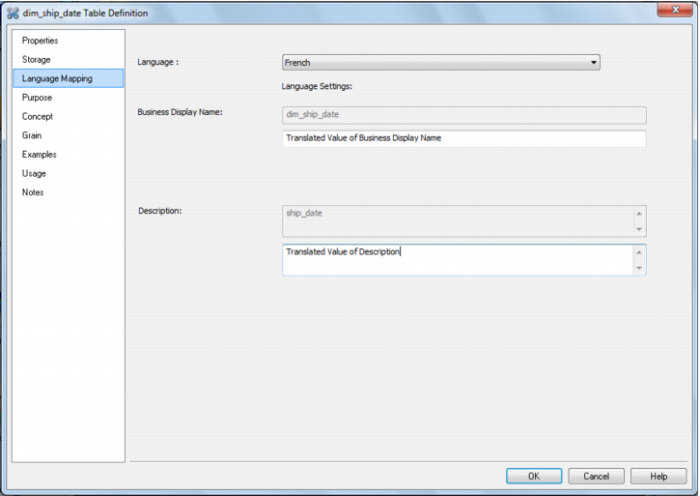
The Dimension View Properties screen has a tab called 'Language Mapping'.
Select the language from the drop down list and then enter the translations for the Business Display Name and the Description in the chosen language. The translations for these fields can then be pushed through into OLAP cubes.