Using outdated metadata in drag and drop
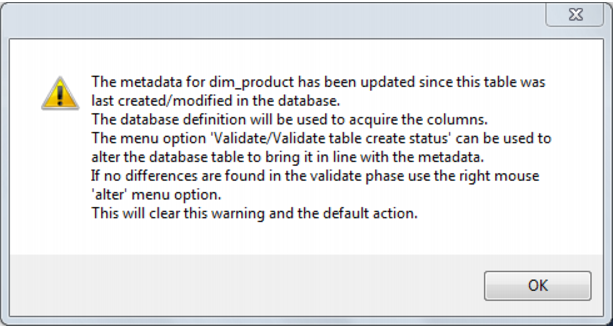
When dragging from a data warehouse table to create another data warehouse table (e.g. load table to create dim table) a check is made to ensure that the metadata matches the database table. If the two are found to be out of sync the following message will appear
If a subsequent validate of the table in question shows that it validates, this message will mean that the dates are somehow out of sync. This can occur for example after an import where the metadata has been replaced, but the underlying table still matches the metadata. Another common occurrence is where a new column is added and then deleted. To prevent the message from reoccurring in such a situation proceed as follows. Use the right mouse menu and select 'alter table' when positioned on the table name in the validate results screen (event though the table validates OK). The metadata update time will be set back to that of the last database table create.
Validating Source (Load) Tables
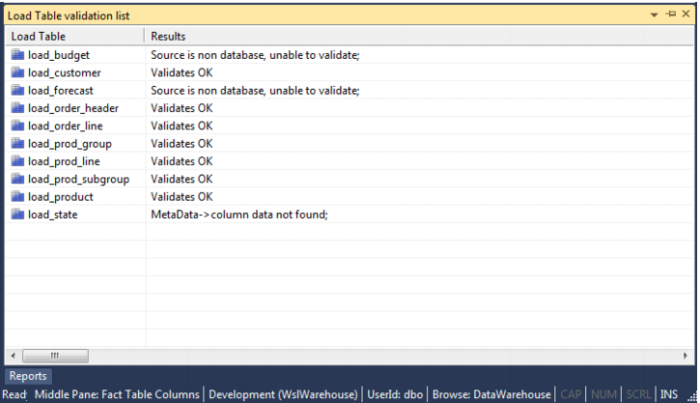
Changes to the source systems from which the data warehouse is built can be detected to a limited degree. The menu option Validate/Validate Load Table Status allows a comparison between load tables and the source tables from which they were built. This comparison is not available for flat file or script based loads. A load table or group of load tables are selected and the results are displayed in the middle pane. An example screen from a load table validate is as follows:
The tables load_budget and load_forecast are Windows file loads and as such cannot be validated.
If a table shows additional columns in the source table; such a scenario will not cause problems for the continued operation of the data warehouse. It simply means that more columns are present in the source table than have been loaded into the data warehouse. This may have been the result of an initial partial selection or as a result of new columns. Further investigation of the source table would be required to ascertain if there was new information available.
The table load_state reflects a problem for the continued operation of the data warehouse. The source table does not have a column that was previously identified as having come from that table. This will probably cause the load of that table to fail. This scenario would also require an investigation into the source table. The resolution may be to delete the column. The potential impact on later tables (dimension, stage and fact) and procedures in the data warehouse can be ascertained by using the right mouse menu when positioned over a load table name.
Validating Procedures
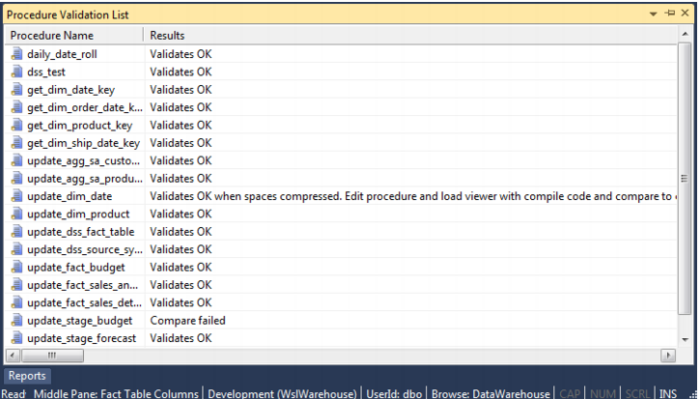
The menu option Validate/Validate Procedure Status compares procedures as stored in the metadata with those compiled and running in the data warehouse. This option provides a listing in the middle pane of each selected procedure and its status. The status will be 'Validates OK', 'Not compiled', or 'Compare failed'.
Where a procedure is marked as 'Not compiled' this means that the procedure exists in the metadata but has not been compiled into the database.
Where a procedure fails to compare, the Procedure Editor must be used to find the actual differences. Start the editor by double clicking on the procedure name in the left pane. Use the Tools/Compare to user source menu option to display the differences between the procedure in the metadata and that compiled in the database.
Altering Tables
The previous section covered the process of validating a table as defined in the metadata with the physical table as defined in the database. If a table is found to be different it is possible to alter the table.
Note: Care should be taken when altering large data warehouse tables. A number of factors such as the time required to perform the alter, access to the table and the optimum storage of the table come into play.
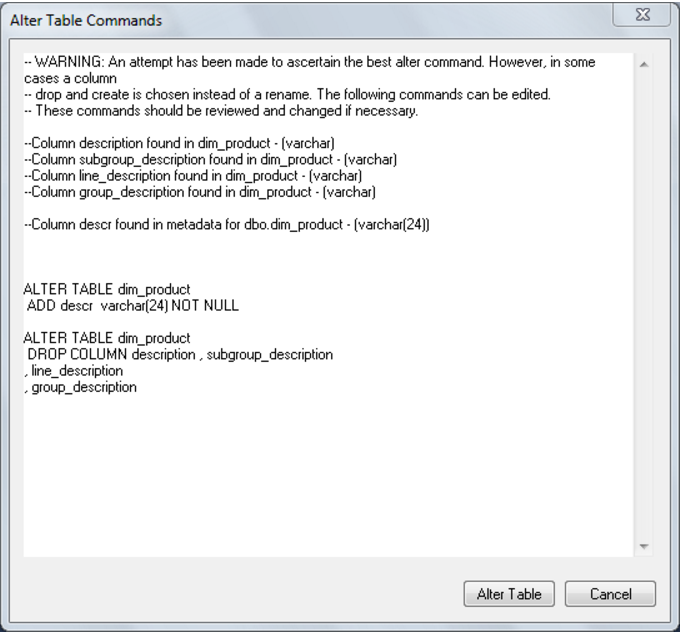
To alter a table first validate the table through the Validate/Validate Table Create Status menu option, or the right mouse menu option from the object name. Then in the middle pane (the validation listing) select the table that has not validated. Position on the table name and using the right mouse, select the Alter table pop-up menu option. A screen similar to the one below will appear advising of the planned changes.
In this example the dim_product table is to be altered. Comments at the top of the screen shown the reason(s) for the alteration and the actual alter command(s) follow.
The alter table window is an edit window. The command to be executed can be changed or additional commands entered. The command may also be cut to be executed in some other environment or at some later stage.
Pressing the Alter Table button will proceed to alter the table. In effect it will execute any command in the window.
Validating Indexes
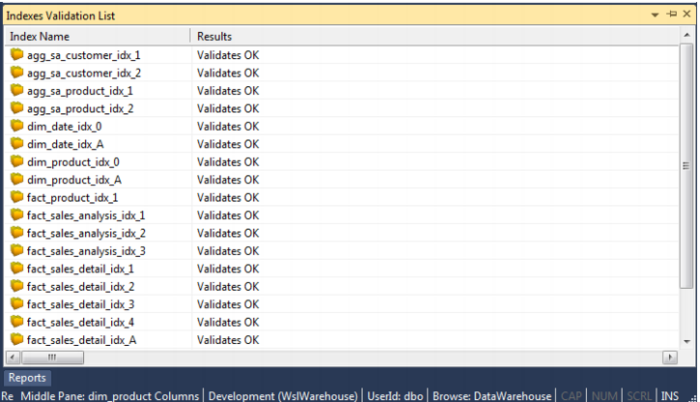
The menu option Validate/Validate Index Status checks the metadata definition of an index against that in use in the database. It checks to ensure that the index exists and that the index type and columns are the same.
The results are listed in the middle pane with the status of each selected index shown.
If an index differs, then the only option provided is to drop and create the index either via the scheduler or through the right mouse menu options for the index.
Recompiling Procedures
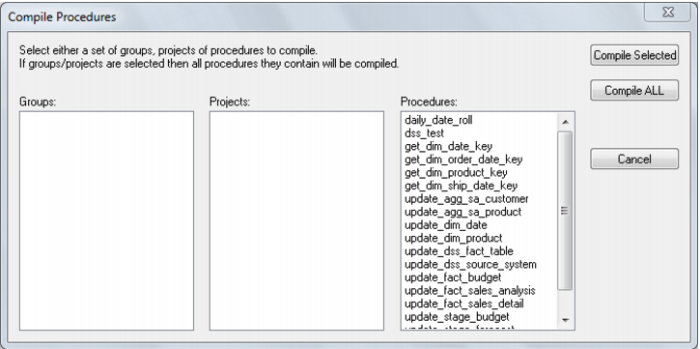
Procedures can be invalidated as a result of changes to underlying tables, or child procedures. A procedure can be recompiled through the procedure editor or via the menu option Tools/Compile Procedures. This menu option will load the following dialog box:
All procedures in the metadata can be compiled, or a selected group of procedures may be compiled. Selection is done via standard Windows multi selection using the shift and CTRL keys. By selecting a project or group it is possible to compile all procedures associated with the project or group.
As each procedure is compiled it is displayed in the middle pane of the builder window. If a procedure fails to compile a failure message is displayed along side the procedure name. Procedures that fail to compile will need to be investigated through the procedure editor, as no specific error information is provided by this bulk compiler.