How QAD improves salesperson productivity
Calendar
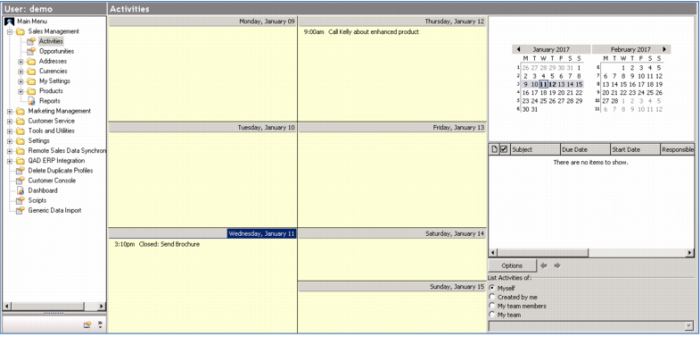
If you were a sales representative, your day typically would start with a look at your calendar. Are there any things that you need to be sure to do today?
That’s right – you met one of your customers at a conference last week and she asked for a quote on your new product. You had better get that out today!
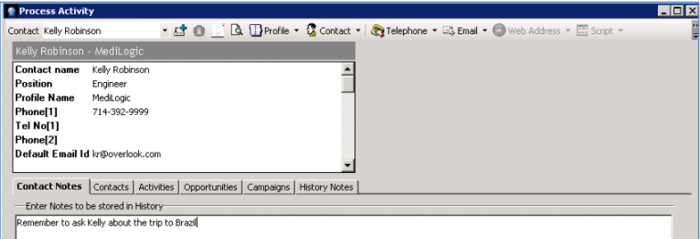
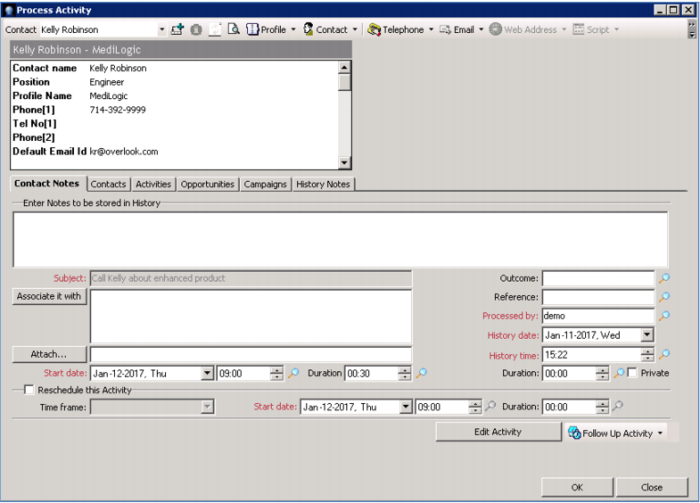
By entering this as an activity in your calendar here (rather than on a sticky note) you immediately have access to all of the information about this customer - not just the phone number, but all of the information about the company, installed products, service history & issues, and open sales opportunities – inquiries, outstanding quotes, open orders.
You can also track any notes you might have, right here!
Demo
Key Points
• Microsoft Outlook Style Calendar views
• Linked to all profile information – contact info, phone, address, opportunities, installed base, campaigns
• Can generate additional activities from this one – call, email, letter, meeting
• Complete activity history
• Great customer response, builds trust
Customer Profile
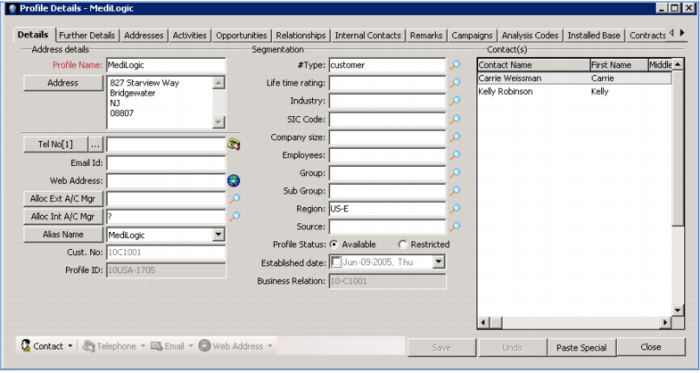
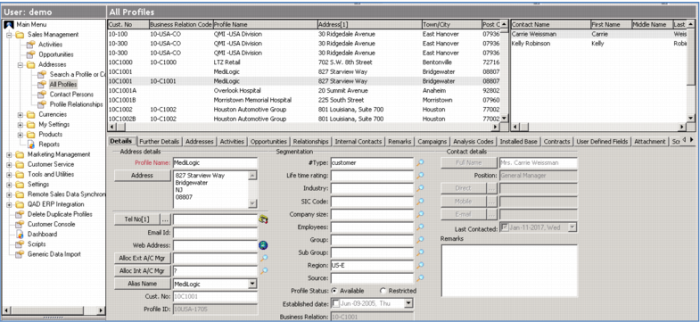
Profile information is available from within the call, as you just saw, or from the menu.
Sales representatives will use this regularly to look up information on any contact – customer or prospect – names, address, activities, opportunities, quotes, installed base, call history. It provides a 360-degree view of a customer including interactions derived from sales, marketing, customer service, and support.
For existing customers, much of their information is comes directly from the QAD Enterprise Application, including order history, prices, terms, installed base information, and service records.
When a customer or prospect calls, you have all the information at your fingertips so you can respond promptly and knowledgeably. And you can prepare before a customer call or visit, ready to show your customer you understand and value their business, and making sure there aren’t any outstanding issues that will catch you by surprise!
Demo
Key Points
• Central repository of all information derived from sales, marketing, customer service and support
• Knowledgeable response to inquiries; prepare for calls or visits
• Show customer you understand and value their business; Avoid surprises
 icon
icon