Configuring AdminService Settings
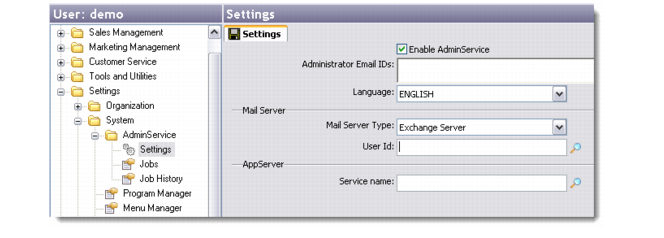
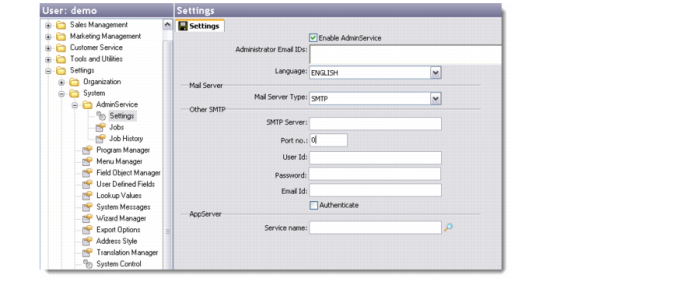
After defining the settings in the AppServer Service Maintenance screen, you must set up the AdminService Settings screen in the QAD CRM system. To configure these settings, go to Main Menu|Settings|System|AdminService|Settings. The Settings screen displays.
Settings Screen - Exchange Server
Settings Screen - SMTP
Settings
Enable AdminService
Select this check box to enable AdminService and enable the other fields in this screen.
Administrator Email IDs
Enter the e-mail IDs of the system administrators. Separate Multiple e-mail IDs with commas or semi-colons.
Language
Choose the language you want to use for this service.
Mail Server Type
Specify your mail server type: Exchange Server or SMTP.
User ID
QAD AdminService requires a user on your Windows network for communicating with the mail server. If the mail server is an Exchange Server, the user is required to have a mailbox. Create a user account and enter the user logon name.
When you select SMTP as the mail server type, the associated settings for SMTP server are displayed.
SMTP Server
Enter the SMTP server address.
Port no.
Enter the SMTP port number for outgoing mails.
User ID
Password
Enter the password for the AdminService user.
Email ID
Enter the e-mail ID of the AdminService user.
Service name
Enter the service name of the AppServer to which you want QAD ADS to connect.
Save the settings you have recorded for the AdminService Settings and restart QAD CRM. You can now start the QAD ADS service.