Customer Relationship Management 6.7
>
Administration Guide
>
Organization Setup
>
Setting Up Business Units
Setting Up Business Units
An organization may have branch offices, subsidiaries, or business partners whose data may need to be maintained in the system. QAD CRM provides features for managing business unit data.
Using the Business Units component, you can maintain details of as many business units as required to meet the needs of your organization. System users can only access the data for a business unit when their user profile is associated with that business unit profile.
All users in the system must be associated with at least one business unit in order to log in. A user that is associated with multiple business units can choose which business unit to access at login. A user cannot switch business units during a session—they must log out of the system and then log in again.
The name of the active business unit displays at the far left of the application status bar during the user session, as shown in
Active Business Unit.
Active Business Unit
To access the Business Units component, choose Main Menu|Settings|Organization|Business Units. The Business Units pane displays showing the units currently defined in the system.
Domains and Business Units
Prior to QAD CRM 6.3, there was an indirect mapping between a single QAD CRM Business unit and a single Enterprise Application domain.
From QAD CRM 6.3 onward, QAD Enterprise Applications domains have been implemented by extending the usage of QAD CRM Business units. When it is integrated to QAD Enterprise Applications, QAD CRM maps a Domain to a Business unit in QAD CRM of the same name.
Details Tab
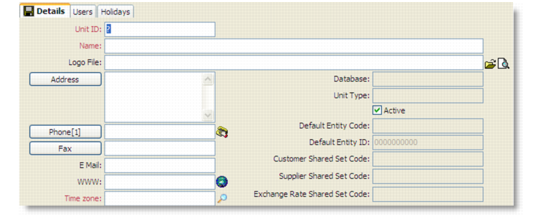
Business Units - Details Tab
Unit ID
Enter a unique code for the business unit.
Name
Enter the name of the business unit.
Logo File
Enter the location and name of the graphics file containing the logo of the company. Click the Open Folder icon to select the graphics file. To view the specified file, click the View icon.
Note: The selected image displays in the main application workspace when no application menu item is selected. For example, you can select a graphic of your company logo and it will display when the application opens.
Address
Enter address details as required. Country information is mandatory.
Phone
Enter telephone details as required.
Note: If you have a modem connected to your computer, you can click the icon to the right to use the dial-out facility.
Fax
Enter fax details as required.
E-mail
Enter an e-mail address.
WWW
Enter an Internet address. You can click the icon to the right to launch your Internet browser to the specified address.
Time zone
Enter a time zone for the business unit.
A time zone must be specified when defining a business unit. Time zones are defined in relation to Greenwich Mean Time (GMT); for example, the GMT-8 time zone, which applies to the west coast of the United States, is 8 hours behind GMT.
Note: For planning activities, the system uses a hierarchy to determine which time zone to use. First the system checks the time zone specified in the user’s Preferences|My Settings module. If there is no time zone specified, the system uses the time zone specified in the user’s database record. If the record does not specify a time zone, the system uses the time zone specified for the business unit associated to the user.
Database
Displays name of the database where the domain is located if QAD CRM is integrated with QAD Enterprise Applications.
Unit Type
Displays the type of domain if QAD CRM is integrated with QAD Enterprise Applications.
Active
Indicate whether this business unit is currently active.
• Yes (the default): This business unit can be associated with users and selected at log-in.
• No: This business unit is not active. Users cannot be associated, and the business unit is not selectable at log-in.
Default Entity Code
Displays default entity code of the domain if QAD CRM is integrated with QAD Enterprise Applications.
Default Entity ID
Displays default entity ID of the domain if QAD CRM is integrated with QAD Enterprise Applications – Enterprise Edition.
Customer Shared Set Code
Displays customer shared set code attached to the domain if QAD CRM is integrated with QAD Enterprise Applications – Enterprise Edition.
Supplier Shared Set Code
Displays supplier shared set code attached to the domain if QAD CRM is integrated with QAD Enterprise Applications – Enterprise Edition.
Exchange Rate Shared Set Code
Displays exchange rate shared set code attached to the domain if QAD CRM is integrated with QAD Enterprise Applications – Enterprise Edition.
For information on the QAD Enterprise Applications business model, see QAD Enterprise Applications Financials User Guide.
Users Tab
Use the Users tab to associate a user profile to the business unit profile. Every user must be associated with at least one business unit in order to log in to the system. For details of associating users and business units, see
Setting Up Users.
Holidays Tab
Use the Holidays tab to define a holiday schedule for a business unit. You specify details of non-working days to a business unit the same way as you do for a user. For details, see
Holidays.