Program Manager
Use the Program Manager to maintain system programs and customize the system to your requirements. You can maintain the objects associated with a program by using the Objects tab.
Important: Using the Program Manager to customize your system programs requires prior experience with Progress systems, as well as in-depth technical knowledge of the QAD CRM system. It is recommended you contact QAD Services for assistance with customizing your system.
To access the Program Manager, choose Main Menu|Settings|System|Program Manager.
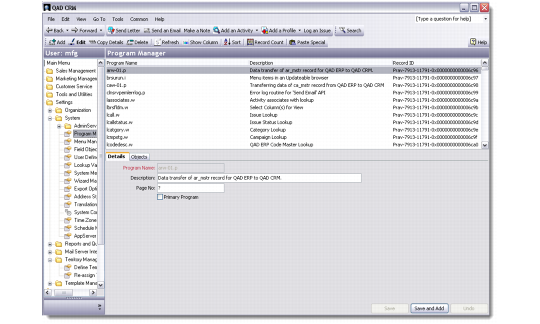
The Program Manager pane displays the programs defined in the system and a description.
Program Manager
Details Tab
Use the Details tab to maintain program details such as descriptions, page number, and so on. You also can indicate if a program is a primary program. Only primary programs can be accessed from the application menu.
Program Manager - Details Tab
Program Name
Enter the name of the program, including the extension (.i, .w, or .p). Once the record is saved, the program name cannot be changed.
Description
Enter a short description of the program.
Page Number
If required, specify the page number for the program. An incorrect page number may cause an error when the program is executed, so the value entered here must be correct.
Primary Program
Select the check box to indicate that this is a primary program that will be executed by selecting the program shortcut from the application menu.
Note: Only primary programs can be added to menus as shortcuts by using the Menu Manager. For details, see
Menu Manager.
Note: Other tasks must be performed to implement the program successfully. Depending on implementation requirements, this may include changing program code and recompiling.
Deleting Programs
You can use the Program Manager to delete programs from the system.
Important: Before deleting a program, make sure you understand the consequences of doing so. After deleting the program, you must also remove any references to the program in the application menu.
To delete a program, right-click the program and then choose Delete. The system prompts you to confirm the operation. Click Yes. The system deletes the program.
Objects Tab
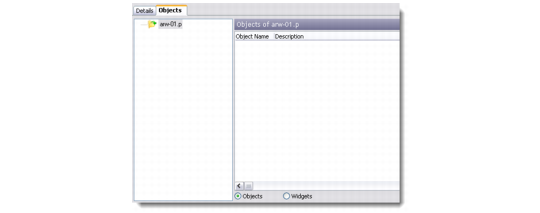
Use the Objects tab to view the tab-level and procedure-level objects associated with the programs defined in your system. You also can access the Object Details dialog box used for maintaining objects associated with a program or a tab.
Program Manager - Objects Tab
The Objects tree hierarchy displays the program and associated tab objects for the program selected in the Program Manager browser. Select a tab object in the Objects tree hierarchy to display the procedure objects associated with that tab in the right-hand pane.
You can click the Widgets option at the bottom of the Objects tab to display widgets associated with the selected item. For details of configuring widgets, see
Widget Details.
Note: A program can have objects and widgets. Objects are represented by tabs—for example, Details, Further Details, and so on. Widgets are non-database fields, such as the text in a field for address details.
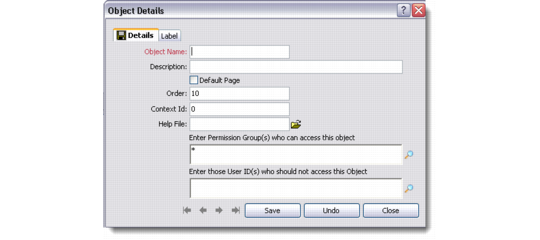
To add a new tab object to a program, right-click the program in the Objects tree hierarchy and then choose Add. (Or, to add a new procedure to a tab object, select a tab object.) The Object Details dialog box displays, showing fields appropriate to tabs or procedures.
Note: You can also copy details of an existing program entry and edit it as required. This is useful if you want to customize programs for different users. To copy a program, select the program in the List tab and then click Copy on the toolbar or menu. The Details screen displays with the option to Copy only page objects (tab objects only) or Copy all objects (tab and procedure objects).
Object Details Dialog Box
Use the Details tab to describe tabs or procedures and to specify their behavior. The fields available in this box change according to whether a tab or a procedure is selected in the Program Manager. Use the Labels tab to specify a label for a tab or procedure.
Object Details
Object Name
Enter the name of the object. For example, type PAGE 1 for the first tab in the program interface. Once the record is saved, the object name cannot be changed.
Description
Enter a brief description of the object.
Default Page
Select the check box to indicate that the tab page should display when users run the program. Only one default tab page is allowed for a program interface. (Tab only.)
Context ID
Enter the context ID number for the tab screen. This ID is used to map the tab screen with the help system. (Tab only.)
Help File
Enter the path and name of the context-sensitive help file that should open when the help is invoked. If the default help file is to be used, skip this step. (Tab only.)
Object Type
Enter the type of procedure object. (Procedure only.)
The types (File, Edit, View, and Go To) represent the menus on the main menu bar. A menu object can be invoked from three places (a right-mouse click in the browser, from the toolbar, and one of the submenus). The submenus change according to the context. If you choose the Add command on the File menu, the object will be added to the File menu on the menu bar.
Internal Procedure
Enter the name of the internal procedure if required. For details, contact QAD Support. (Procedure only.)
Order
Enter a value to represent the sequence in which the tab should display, using the format [Order Number]0. For example, to display the tab as the first tab from the left in the program interface, enter 10.
Display in Toolbar
Select this check box to display the option in the toolbar.
Display in Menu
Select this check box to display the option in the menu.
Default Action
Select the check box to have the option execute automatically when users start the program. Only one default action is allowed per object/tab page.
Permission Groups
Specify the permission groups permitted to access the object. By default all permission groups (*) are given access.
User IDs
Specify the users you want to prevent from accessing this object. If a user is a member of a group listed in the Permission Groups field but is specifically excluded in this field, the exclusion takes precedence.
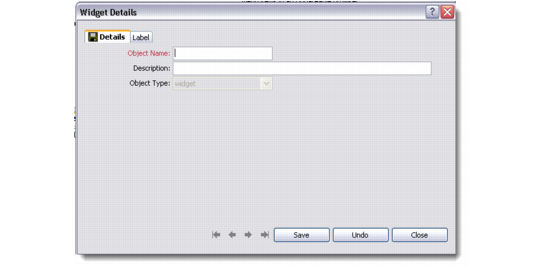
Widget Details
Use the Widget Details box to describe widgets.
Widget Details
Object Name
Enter the field name of the widget; for example, lbl_contact_toolbar.
Description
Enter a description for the widget.
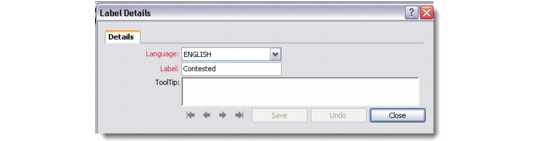
Label Details
Use the Label Details tab to specify a label for a tab object or procedure object. Tab labels display as text in the tabs. For procedure objects, labels display in the toolbar and menu.
Label Details
Language
Enter the supported language for the label. When logging in to the system, users choose a language. The label specified for the object displays.
Label
Enter the label in the specified language.
Tooltip
Enter the Tooltip for the label.