Menu Manager
Use the Menu Manager to maintain system menus and shortcuts to executable programs, and to assign menus to users and permission groups.
Depending on their roles within an organization, users typically have different access privileges to system menus. When a user logs in to the system, the application menu displays only those menus and associated shortcuts that are appropriate for that user. You use the Menu Manager to configure system menus and assign them to your system users.
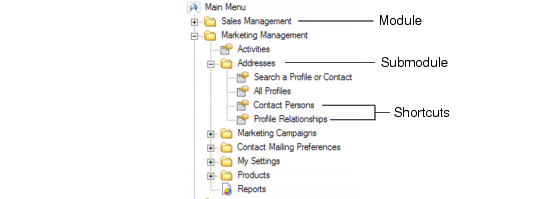
System Menu displays a typical menu and its shortcuts.
System Menu
A menu consists of the items described in the table below.
Menu item | Description |
Menu | A list of options arranged in a tree hierarchy that displays in the left pane of the main application window. A menu contains modules, submodules, and/or shortcuts to executable procedures. |
Module | Containers that hold submodules and shortcuts to executable programs. In the tree hierarchy, modules occupy the top level. Modules can be expanded or collapsed to view or hide the submodules and program shortcuts they contain. |
Submodule | Containers within a module that hold shortcuts to executable procedures and/or their submodules. Submodules, like modules, can be expanded or collapsed. |
Shortcut | Shortcuts to executable system procedures or third-party procedures. A user clicks a shortcut to invoke an executable procedure, which usually starts its program in the right main window pane. |
You can create menus for individual users and for permission groups. Menus are assigned to users and permission groups through user profiles. A user can be assigned more than one menu; if a user has multiple menus assigned, the user can select which menu to use during login. The system determines the menus that are available for a user by using the login ID.
To access the Menu Manager, choose Main Menu|Settings|System|Menu Manager.
Note: You can also define menus by using the Copy Menu Wizard to copy an existing menu, and then edit the menu details as needed. For details, see
Copy Menu Wizard.
Typically defining a menu consists of three steps:
1 Define the menu in the system by providing basic details (Details tab). See
Defining a Menu.
2 Define the modules, submodules, and shortcuts for the menu (Menu Configuration tab). See
Configuring the Menu.
Menu Manager
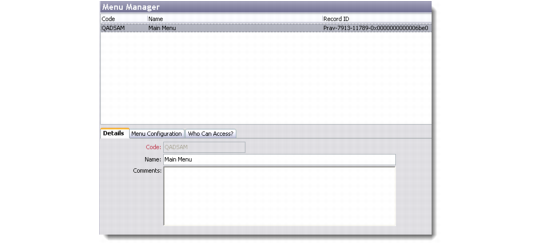
The browser displays the menus already defined in the system.