Configuring Mandatory Information
You can configure the system with mandatory information using the Configuration Wizard, which is available when you first start the QAD CRM after installation. The Configuration Wizard leads you step by step through entering the mandatory data.
After configuring the system with mandatory information, log in using the admin user name and password. Then configure the system with function information.
To configure the system using the Configuration Wizard:
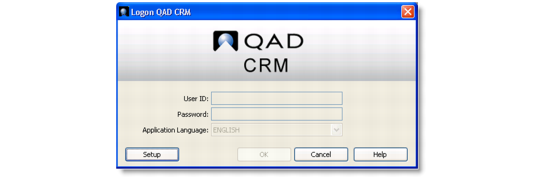
1 Start QAD CRM.
Starting the Wizard
2 Click Setup. The Configuration Wizard screen appears.
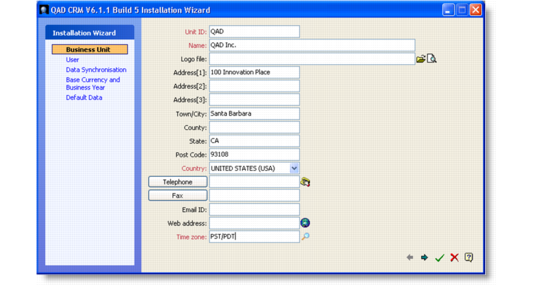
Installation Wizard - Business Unit
3 Enter your business unit details.
4 Click Next.
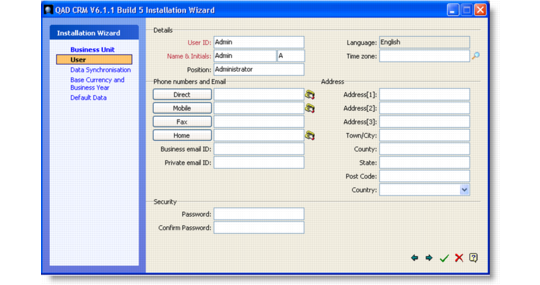
5 Enter details for the system administrator user profile.
Administrator Details
6 Click Next.
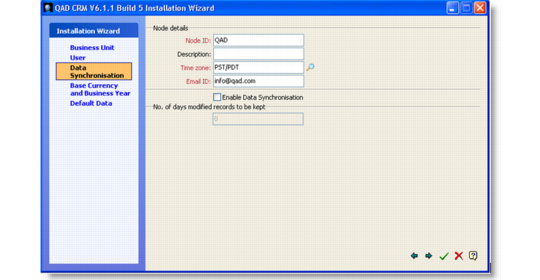
Node Details
7 Enter host node details.
Note: A node is a database that the system uses. The host node is the main central database to which QAD CRM connects. Once the Node ID has been created, it cannot be changed. A Node ID is used in CRM to identify the database and also forms a prefix to certain keys generated by the system in various modules. Select the Node ID carefully before proceeding further.
8 Click Next.
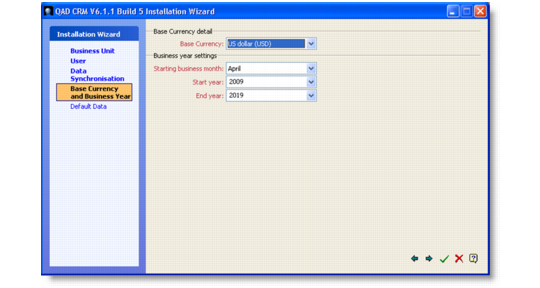
Selecting Base Currency
9 From the Base Currency drop-down list, select the base currency that your company uses for business.
10 Click Next.
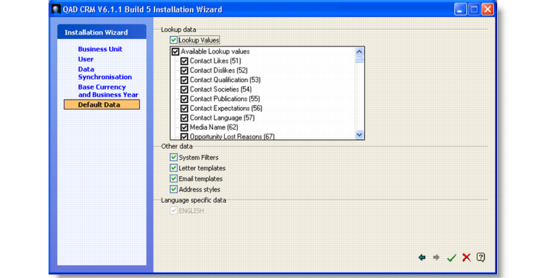
Setting Lookup Values
11 Select the required options to configure look-up values and select the languages that the system must support.
12 Click Save.
If you leave any mandatory input fields empty, the Configuration Wizard does not let you save the information. In this case use the Back and Next buttons to complete the information, then click Save.
The system is now configured with mandatory information.
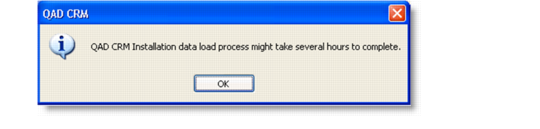
13 Click OK. The message below appears.
Data Load Process
If necessary, you can modify the configuration from the System Setup module. See QAD Customer Relationship Management Administration Guide for details.
Warning Before modifying any mandatory information, analyze the results. For example, changing the base currency can adversely affect product pricing and exchange rates.