Advanced Features
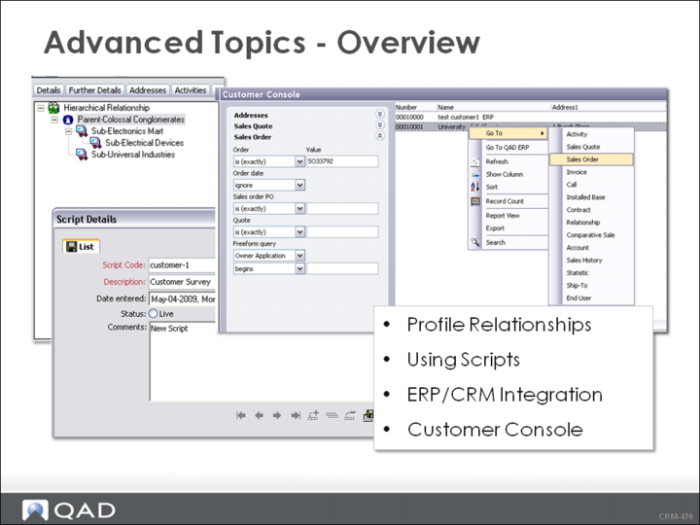
This chapter provides information of advanced features in QAD CRM and shows how the concepts introduced in the previous chapters are all used together.
Overview
This chapter contains a number of QAD CRM advanced features that build on the knowledge gained earlier in the training.
Learning Objectives
By the end of this chapter, you are able to do the following
• Define Profile Relationships
• Explain and use scripts
• Use the Customer Console
• Explain the ERP/CRM Integration
Profile Relationships
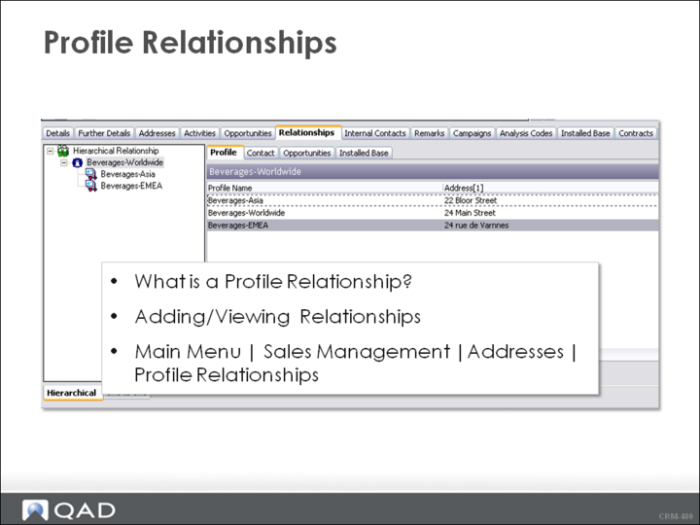
The organizations that you do business with can relate to one another in an organizational hierarchy. For instance, there could be a parent company with many subsidiaries.
Your organization might want to manage all related companies under one account management structure or at the least understand how the entire customer organizations are doing business with you.
The Relationship tab on the Profile Record allows you to represent your Profiles Relationships. You can add, maintain, and delete organizational hierarchies. The Relationship tab allows you to see all Profiles, Contacts, Opportunities, and Installed Base Records (products installed at the profile site) for those Profiles that are related.
Scripts
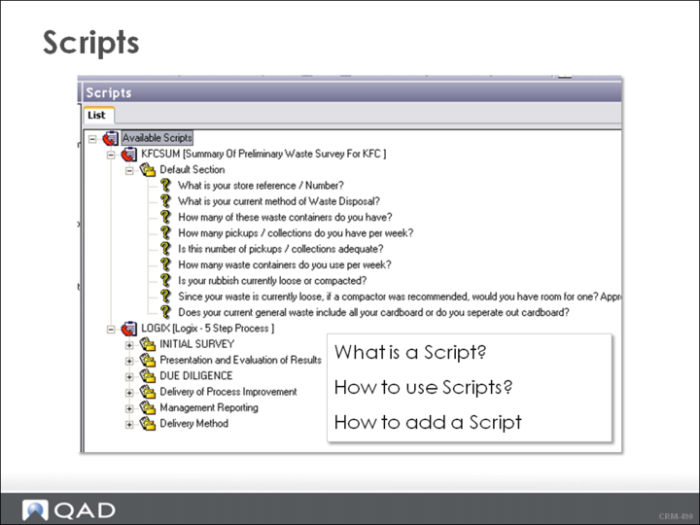
A Script is a series of predefined questions designed to streamline and add consistency to your communications with your customers.
Typically System Administrators or power users create scripts for use in various departments.
For instance, Customer Service would enter service-related questions in a script that is used by customer service representatives to survey the customer base.
Sales can use a script during a new product release to queue sales representatives as to the important questions to ask a customer. Sales can also find a script useful to query customers on reorder amounts for certain products that a customer reorders on a regular basis.
Typically the sequence of script-related events in your system would occur in the following sequence:
1 Maintaining your scripts. This step involves tasks such as creating or editing sections, subsections, questions, and subquestions.
2 Attaching scripts to targets (profile/target combinations).
3 Processing scripts. This step involves contacting the profiles/contacts that are your targets to capture their responses to your script.
4 Analyzing script responses. This step involves using search criteria to focus on the targets that responded to your scripts in a way that facilitates your marketing efforts.
For more information on using scripts, see User Guide: Customer Relationship Management.
ERP / CRM Integration
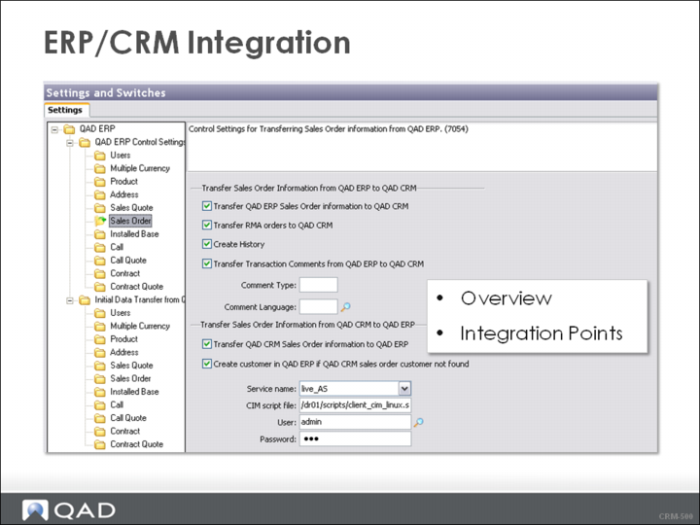
QAD CRM runs in stand-alone mode as a CRM Application or can be integrated with QAD ERP applications.
Your System Administrator sets up this integration according to your business rules and processes. For instance, your organization might want to restrict the flow of data from QAD CRM to QAD ERP for certain processes.
Once integration is defined and set up, the data synchronization is automatic. Database and session triggers update the data.
In the Training Environment, you are prompted whether you want to send this Profile to QAD ERP. However, when you change the Opportunity stage from Enquiry to Quote, the Quote is automatically sent to QAD ERP.
The following modules can be integrated:
• Product
• Address
• Sales Quote
• Sales Order
• Installed Base
• Call
• Contract
• Contract Quote
• Call Quote
• Multiple Currency
• Users
As a sales or an account manager, you would not set up this integration, but you want to access the data in QAD ERP sometimes.
In the followed Customer Console, we introduce how you can easily toggle and share information between QAD ERP and QAD CRM.
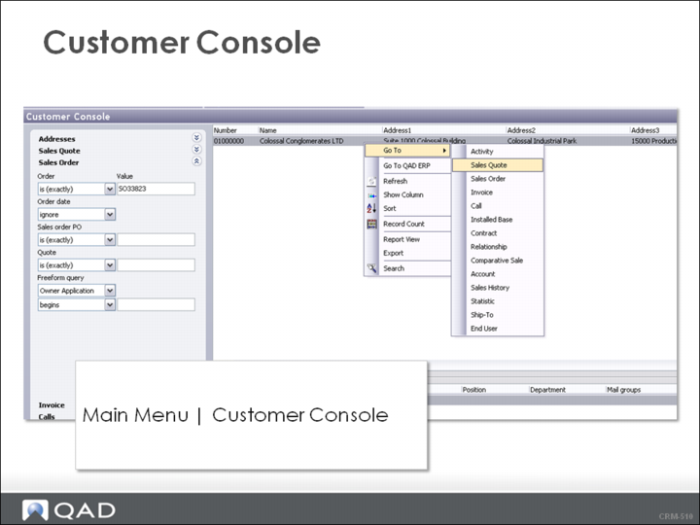
Customer Console
The Customer Console uses data from both QAD ERP and QAD CRM. This application or module provides a 360-degree view of your customer when QAD ERP integration is enabled.
The Customer Console Screen is designed and operates like the Search a Profile or Contact Screen.
The Customer Console searches QAD ERP based on your input and returns the appropriate data. You can also use the options of Go To QAD ERP or Go To a particular screen in QAD ERP, such as the Sales Order or Sales Quote screen.
Note: To use the Go To options, ensure that you have access to QAD ERP and that QAD ERP integration is enabled.
Master Questions
1 You do not need a login to QAD ERP when you Go To QAD ERP from QAD CRM. (True or False?)
2 Scripts are considered activities in QAD CRM. (True or False?)
3 The list the information shared among Profiles that have relationships defined:
i _____________________________
j _____________________________
k _____________________________
l _____________________________
4 The Customer Number in the Profile is updated when the Profile is added to QAD ERP. (True or False?)
5 The integration between QAD CRM and ERP is enabled on demand from QAD CRM. (True or False?)
Wrap-Up
• Profile Relationships are set up in hierarchies and show the relationships between customers.
• You can add hierarchies to a relationship or you can attach existing hierarchies to a relationship.
• Once a Profile Relationship is set up, all Profiles in the relationship share the following data: Profiles, Contacts, Opportunities, and Installed Base from the Relationship Tab.
• All roles can sue scripts in your organization - sales, marketing, customer service, etc.
• Scripts are a series of questions when processed record the answers in QAD CRM.
• Scripts can be attached to a target (Profile/Contact) from the Script Tab or they can be added as an Activity.
• The Customer Console allows you to easily verify and share information between QAD CRM and QAD ERP.
Exercise
Use the following scenario to set up profile relationship.
Your customer Houston Automotive Group has purchased the following organizations that you do business with:
• ABC Automotive
• Auto-Plas International
You have also learned that Autoliv France SNC is a spin-off of the ABC Automotive.
Let us set up these relationships!
1 Navigate to the Profile for Houston Automotive Group. Select the Relationships Tab.
2 Right-click Hierarchal Relationships and Add Hierarchy. Name the Hierarchy: Parent-Houston Automotive Group.
3 Right-click in the Relationships Profile Tab and add the Profile Houston Automotive Group.
4 Review the following Houston Automotive Group information:
• Opportunities tab
• Relationship Opportunity tab
• Relationship Contact tab
Note: The information contained in the Houston Automotive Group record is also displayed in the appropriate tab under Relationships.
5 ABC Automotive and Auto-Plas International are both companies that report to Houston Automotive Group. Right-click the Parent-Houston Automotive Group and Add a Sub-Hierarchy named Sub-ABC Automotive.
6 High-light Sub-ABC Automotive in the Hierarchal Relationships and attach the Profile in the Relationship Profile tab.
7 Repeat for Auto-Plas International. Make sure that they are both equal “subs” in the Hierarchy.
8 Auto-Plas International is the “parent” company of Autoliv France SNC. Right-click Sub-Auto-Plas International and add Autoliv France SNC.
9 Navigate to any of the Profiles in the hierarchy and check the Relationship tab. Check and uncheck the Include Sub Hierarchies box at the bottom of the screen - what data do you see?