Opportunities
This chapter provides an overview of opportunities and how to manage your business opportunities using QAD CRM
Overview
In this chapter, you learn how to manage your business opportunities using QAD CRM. Opportunities begin as business leads generated by your sales organization and marketing department.
Learning Objectives
By the end of this chapter, you will be able to do the following
• Describe the Opportunity Record.
• List the data that is contained in an Opportunity Record.
• Search for an Opportunity using the Opportunity Screen, Profile Opportunity Tab, or Customer Console.
• Discuss the business opportunity management process stages.
• Add an Opportunity.
• Maintain an Opportunity.
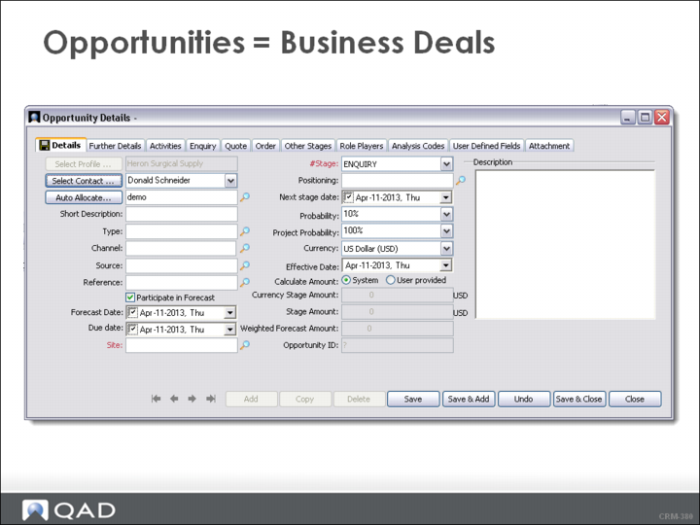
Opportunities = Business Deals
• An Opportunity is a business “deal” that managed effectively to turn the prospective “deal” or lead into an actual sale or order.
• Make sure that you associate Opportunities with a Profile, Contact, and Sales Representative.
• Typically Opportunities are managed through a staged business process which can include: identifying, follow up, sending quotes/negotiating deals, finalizing orders, and offering post-sales service.
• QAD CRM supports the staged business process through the values defined in the required Stage Field: Enquiry, Quote, and Order. QAD CRM also supports user-defined stages. In our training system, we have added the following stages: Installed base, Invoiced, Lost, and Dead.
What information is contained in an Opportunity?
• Opportunity Records contain information related to the business deal.
• Information is displayed on-line in the following tabs: Details, Further Details, Activities, Enquiry, Quote, Order, Other Stages, Role Players, Defined Fields, Attachments, and Scripts.
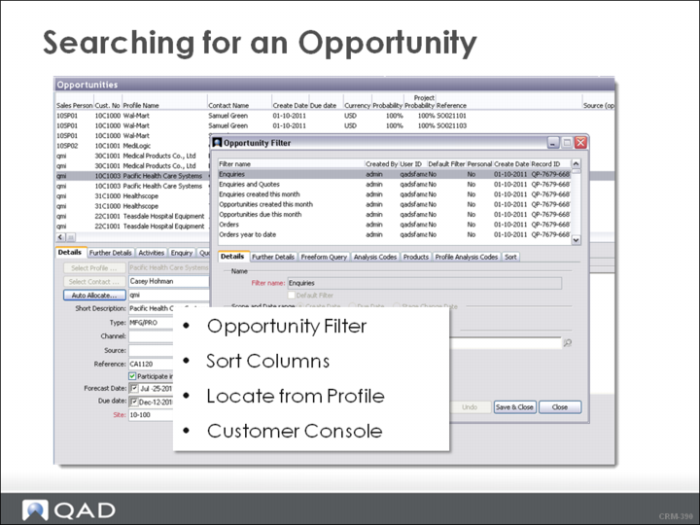
Searching for an Opportunity
QAD CRM Opportunities are accessed from the Opportunity Screen, the Opportunity Tab in the associated Profile Record. If CRM/ERP Integration is active and the Opportunity Stage is set to Quote or Order, you can also access the opportunity screen from the Customer Console. In the Customer Console, you cannot view the opportunities that are in the Enquiry Stage.
Opportunity Filter
All the Opportunities for your organization are listed in the Opportunity Browser on the Opportunities Screen. The Opportunity Filter is similar to Profile Filter and Contact Filter. You can either use the existing filters or create your own filters to locate a subset of Opportunities.
Sort Columns
You can sort the Opportunities in the Opportunity Browser by clicking the column heading. You can also change the order or the fields displayed in the Opportunity Browser (as you can with any record browser) by using the Show Column feature.
Profile Record - Opportunity Tab
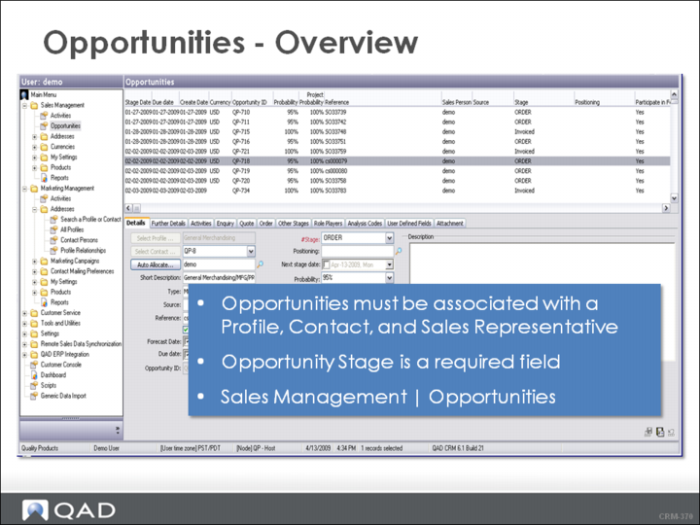
Opportunities must be associated with a Profile, Contact, and Sales Representative. The Opportunity Tab for each Profile has a list of all Opportunities associated with that Profile. You can sort and report on the Opportunities from the Opportunity Tab.
Customer Console
The Customer Console provides an all-around view of a customer record, as the screen displays a combination of data from both QAD ERP and QAD CRM.
The Customer Console can only be used if QAD ERP/CRM Integration is active. In addition, Opportunities are displayed in the Customer Console depending on the Opportunity Stage field (Quote Stage or beyond).
Opportunity Management
Managing business opportunities is a part of business generation efforts. Every organization has a business and selling process to ensure their success. Many of these processes are designed based on the business sector.
QAD CRM is designed to accommodate and enhance your organization’s selling process. You can manage a list of opportunities, specify opportunity details, identify key people involved in the opportunity, maintain quotes and orders, and keep a historical record of all customer activities.
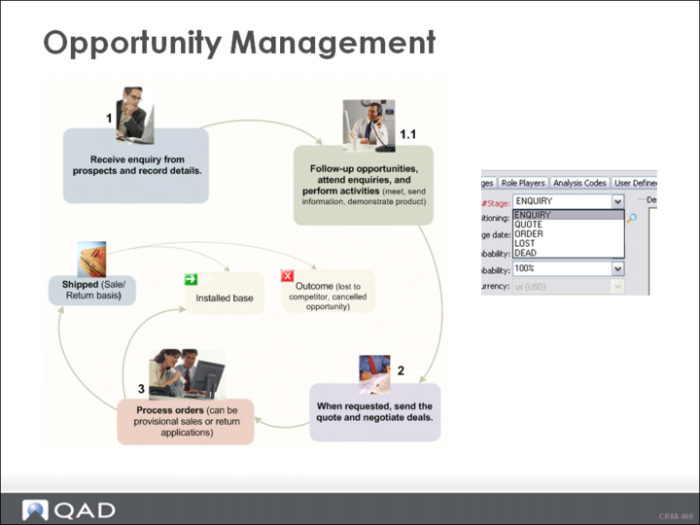
Typically the opportunity management process has the following stages:
• Identifying Opportunities
• Following Up on Opportunities
• Sending Quotes and Negotiating Deals
• Finalizing Orders
• Offering Post-Sales Service.
The Opportunity Stage Field is a required field. The value of this field indicates where the opportunity is in the management process. The ENQUIRY, QUOTE, and ORDER Stage Values are required when using QAD CRM. Your organization can also add other stage values to help you manage your Opportunities.
Adding an Opportunity
Opportunities are identified for new or existing customers. Depending on your organization’s sales process when an Opportunity for a new customer is identified it can be referred to as a lead or a prospect.
It is most important that you enter any identified Opportunity into QAD CRM so you can manage and record your actions and progress in turning the Opportunity into an order.
There are multiple ways to add an opportunity:
• On the Opportunities screen, click the Add button on the toolbar.
• On the Opportunities screen, right-click in the Opportunity Browser and choose Add.
• On the All Profiles screen, right-click in the Opportunities tab of a selected profile and choose Add.
Note: Similar options are available for Add, Copy, and Delete.
We go through the detailed tab of Opportunity Details screen in the succeeding exercise. For more information on each tab of Opportunity Details, see User Guide: Customer Relationship Management or CRM Online Help.
Changing Opportunity Stages
The standard or fixed stages for a QAD CRM opportunity are:
• Enquiry: It is the starting point for any opportunity and is mandatory.
• Quote: This stage corresponds to the QAD Enterprise Applications sales quote. It is only required if CRM will generate quotations or if sales quotes are used in QAD Enterprise Applications and visibility of those quotes is required in QAD CRM. You can print the quote from QAD CRM.
• Order: This stage corresponds to the QAD Enterprise Applications sales order. It is only required if CRM needs to create sales orders in Enterprise Applications or if visibility of sales orders created in QAD Enterprise Applications is required in QAD CRM.
• Invoiced: This stage corresponds to an order in Enterprise Applications as invoiced. When the sales order corresponding to a CRM opportunity is fully invoiced in Enterprise Applications, the stage of the opportunity is set to Invoiced.
An opportunity is initiated with the status of Enquiry. During your follow-up activities, you change the opportunity stages due to the progress of communication between you and your customer. We use a scenario in the exercise in this chapter to practice how to change the stages.
Master Questions
1 An Opportunity must be associated with a Profile, Contact, and Sales Representative (True or False?).
2 List the Opportunity Stage values that are predefined in QAD CRM.
d _____________________________
e _____________________________
f _____________________________
3 The Opportunity Reference Field contains the following values:
a ERP Sales Quote Number
b User-Defined Value
c Blank
d ERP Sales Order Number
e All of the above.
4 Opportunities in the Enquiry Stage can be viewed in QAD CRM (True or False?)
Wrap-Up
• Opportunities are business “deals” that are managed from identification until they are turned into sales orders, lost, or postponed.
• Opportunities are in the Sales Forecast when the Include in Sales Forecast Check Box is checked on.
• An Opportunity must be associated with a Profile, Contact, and Sales Representative.
• The Opportunity Stage is a required field that enforces opportunity management and your organization’s selling process.
• Opportunities that are in the Quote or Order Stages are sent to QAD ERP and assigned a Sales Quote Number and a Sales Order Number.
• Quotes can be printed from QAD CRM.
Exercise
Task 1. Use the following scenario to create an opportunity for an existing customer.
You receive a call from Gene Artuso at Houston Automotive Group. Gene would like to learn more about the automotive connectors. You promise to send Gene some literature and to call Gene after Gene has had a chance to review the product literature in more detail. Make sure that you create a follow-up telephone activity.
1 Navigate to the Houston Automotive Group Profile and select the Opportunity Tab.
2 Right-click in the Opportunity Window and choose Add from the menu.
The Opportunity Details Screen displays. A number of fields are either pre-filled or defaulted Let us review and update the fields in the Opportunity Record starting with the Details Tab.
Fields flagged with an “*” are pre-filled based on information in the Houston Automotive Group Profile or the User ID of the individual adding the Opportunity.
• *Profile = Houston Automotive Group
• *Contact = Gene Artuso
• *Auto Allocate = Defaults to Your User ID
You can change this field to another Sales Representative by using the look-up or the auto-allocate button which selects an account manager based on territory allocation.
• Short Description = Automotive connector
The Short Description field can be positioned using the Show Columns feature so you can easily identify what products are being considered from the Opportunity Browse Screen.
• Type = Automobile Industry
• Source = Customer Inquiry
Enter the Type and Source Fields with the help of the look-ups provided or simply type a value in. These fields are primarily for analysis and reporting.
• Reference = leave blank
The Reference Field can be populated by using the look-up, typing in a value, or system generated with the ERP Quote Number when an Opportunity is sent to QAD ERP and the Reference Field is empty. Opportunities are sent to QAD ERP when they Opportunity Stage has progressed beyond the ENQUIRY Stage.
• Participate in Forecast = Selected by Default
If you do not want the Opportunity to be considered in the Sales Forecast, unselect this field. There can be times when you want to enter the Opportunity in QAD CRM for easy tracking but do not want to report on the Opportunity until you have more information.
• Forecast Date = Today’s Date
• Due Date = Today’s Date + 2 months
• Opportunity ID = System Generated
The Opportunity ID is generated when the Opportunity is saved. The Opportunity Id is used within QAD CRM and is not integrated with QAD ERP.
• Stage = ENQUIRY
The Opportunity Stage Field determines where the Opportunity is in the Opportunity Management Process. Typically an Opportunity follows the path of ENQUIRY, QUOTE, and ORDER, however, there is no set order. An Opportunity can be entered as an Order. As previously mentioned, QAD CRM allows you to add custom Opportunity Stages that match your business process.
• Positioning = Literature Sent
• Next Stage Date = One week from today
It is an approximate date when the opportunity is likely to progress to the next stage.
• Probability = 70%
A sales representative assigns the probability based on the likelihood of translating an Opportunity into an actual sale. The value in this field acts as a weight on the ENQUIRY and QUOTE Stages. An accurate Probability ensures a more realistic Forecast. An example is an Opportunity valued at $10,000 with 80% probability has a forecast value of $8,000.
• Project Probability = 70%
The value in this field acts as a separate weighting factor that works cumulatively with the Probability value and can modify the sales forecast. This field could be used by the Sales Manager when the Sales Manager thinks the Sales Representative is overly optimistic about closing the sale.
• Currency = Defaulted to US
• Effective Date = Today’s Date
This date is used by the system to calculate the exchange rate.
• Calculate Amount = System
By selecting System, the next three fields are populated by the system.
• Currency Stage Amount, Stage Amount, Weighted Forecast Amount
Refer to the QAD CRM User Guide definitions of these fields.
• Description = Opportunity for the automotive connectors
3 Save the Opportunity.
4 Review the Opportunity from the Detail Tab. Notice that the Stage is set at ENQUIRY and the Opportunity ID is system generated
5 Select the Activity Tab. Right-click and add the Telephone Follow-up Activity for next week. Save and review the Activity. The Activity is automatically associated with the Opportunity. Review the Activity on your Calendar.
Task 2. Use the following scenario to change the opportunity stages.
A week has passed and Gene Artuso at Houston Automotive Group has received and hopefully read the information you forwarded concerning the automotive connectors. It’s time to call Gene. In this scenario, we access the Telephone Activity that we created and actually record all our work in the system while processing the activity.
Navigate to the Telephone Activity in the All View of your CRM Activity Calendar. Right-click the activity and choose Process from the Menu.
1 Locate phone number of Gene from the Activity. You can record your conversation with Gene directly into the Opportunity on QAD CRM by opening the Opportunity from the Associate it with field. Double-Click Automotive connector, which is the Opportunity Short Description.
2 As you chat with Gene, Click the Further Detail Tab in the open Opportunity and record the Strengths and Weaknesses of this opportunity.
3 You ask Gene if Gene has investigated any of the competition. Click the Role Players Tab and record Gene’s answer by entering the Competitor Gene has researched. The Competitor must be a Profile in QAD CRM. Right-click Competitor and choose Add. Click Select Competitor, the Profile Search Screen appears. Search for a Profile Type of Competitor. If it does not exist, add the Profile (Profile Name = ABC Automotive).
4 Gene is explaining the products that Gene is interested in. Select the Enquiry Tab, right-click, and choose add to add these Products to the Enquiry.
5 Choose the Automotive Connector product ID 02001 for 10,000 Units.
6 Click Save & Close to close the Opportunity Lines Details window.
7 On the Enquiry tab, right-click and choose Change Opportunity Stage.
8 The Opportunity Change Screen appears with the Stage set to QUOTE and the Preliminary Radio Button “on”. Select the Opportunity Lines (Products) that you want to copy to the QUOTE stage and click OK.
QAD CRM notifies you that the Enquiry Lines are converted to a Quote.
9 Select the Quote tab to see that the automotive connector line is now moved to the QUOTE Stage of the Opportunity.
10 Select the Details Tab and check the Reference Field. The Reference Field now contains the ERP Quote Number. When the Opportunity was moved to the QUOTE Stage, it was sent from QAD CRM to QAD ERP. QAD CRM was updated with the ERP Quote Number.
You can view the Sales Quote in the ERP Sales Quote Browse Screen by searching with the ERP Quote Number in the Reference Field. You can also view the Sales Quote by using the Customer Console. We review the Customer Console in a later chapter.
11 Save the Opportunity Record. You return to the Process Activity Record where you launched the Opportunity. Update the Telephone Activity with the results of the call.
12 Using the look-up, populate the Outcome Field as Successful and select the Follow-up Activity in the lower right-hand corner.
13 Save the Telephone Activity Record. The Telephone Activity is Processed and Closed. Processed and Closed Activities are displayed with strike-thru text.
One week later, Gene decided to purchase the automotive connectors and placed an order. What you are going to do is to change the stage from Quote to Order.
1 From the All Profiles screen, select the Houston Automotive Group profile and go to the Opportunity tab.
2 Open the automotive connector opportunity and go to the Quote tab.
3 Right-click the record that you want to change the stage and choose Change Opportunity Stage.
The Opportunity Change Screen appears with the Stage set to ORDER.
4 Select the product line that you want to change to Order stage and click OK.
The system notices you that the sales order has been successfully created in QAD ERP.
5 Select the Details Tab and check the Reference Field. The Reference Field now contains the ERP Sales Order Number. When the Opportunity was moved to the ORDER Stage, it was sent from QAD CRM to QAD ERP. QAD CRM was updated with the ERP Sales Order Number.
You can view the Sales Order in the ERP Sales Order Browse Screen by searching with the ERP Sales Order Number in the Reference Field.
You can continue to change the stages as your company’s process.