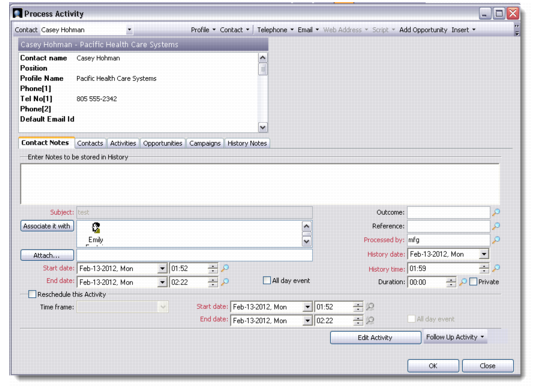
Tab | Action |
Contact Notes | You can use the Contact Notes tab to enter notes that get stored in the history notes. For example, you can prepare a visit report for a completed appointment call. Some field values are picked up by default in this tab based on the profile you have selected. You can reschedule or edit the selected activity here, or set up follow-up activities for later. In case you select Letter type activity, two additional buttons display. Use the Export Header and Data and the Mail Merge buttons to generate a letter from this tab. |
Contacts | The Contacts tab lists the contacts associated with the selected profile. It lets you add and edit contacts as well. |
Activities | Use the Activities tab to view a list of activities or to see the activity transaction history. You can choose the View Reading Pane option if you want to see the comments recorded with each activity record. To access this option, either right-click the Activity tab area and select from the menu, or choose from the Options button. |
Opportunities | The Opportunities tab displays a list of opportunities that are associated with the selected profile. |
Campaign | Use the Campaign tab to see the campaigns associated with the contacts of the selected profile. You can add associates to the activity you are processing through the Associate It With button that displays the Select Associates screen. |
History Notes | Use the History Notes tab to view associated history notes for the contact. |