Maintaining Opportunities
The Opportunities module lets you manage a list of opportunities, specify opportunity details, identify key people involved in the opportunity, and maintain details of quotes and orders. It also allows you to specify and perform various activities related to opportunities and view transaction history. You can attach files related to opportunities, and set up and use user-defined frames. Choose Main Menu|Sales Management|Opportunities to open the Opportunities screen.
You can also manage business opportunities from the All Profiles module. Go to Addresses|All Profiles|Opportunities tab. Right-click and choose to add, edit, copy, or delete an opportunity from the menu displayed. The Opportunities screen displays.
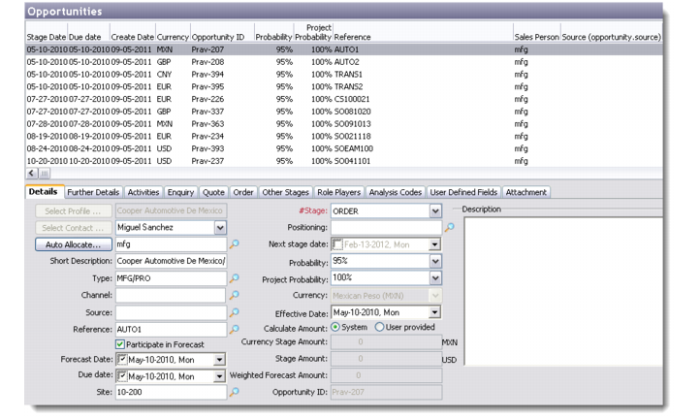
The Opportunities screen has two parts—the top half is a browser displaying the list of opportunity records in the database, while the bottom half opens the selected record in edit mode.
Opportunities
There are multiple ways to edit an opportunity. Select the record and do one of the following:
• Click the Edit button on the toolbar.
• Right-click and choose Edit.
• Choose Edit from the File menu.
Note: Similar options are available for Add, Copy, and Delete.
Details
Use the Details tab to record basic information about a new opportunity.
Select Profile, Select Contact
Use these buttons to select the profile and contact who you want to add as an opportunity.
Auto Allocate
This button lets you select an account manager for the opportunity depending on the territory allocation defined in Territory Management. Alternatively, you can use the look-up to select a sales representative to service the opportunity.
Short Description
Enter a short description of the opportunity you are creating.
Type, Source, Reference
Enter the type, source, and reference fields with the help of the look-ups provided.
Channel
Enter the sales channel associated with this opportunity if any. This field is used in the Sales Quote and Sales Order functions in Enterprise Applications for the allocation of sales accounts when advancing opportunities in CRM to the Quote or Order stages respectively. Once the sales order or quote has been created in Enterprise Applications from CRM, then the channel field should be updated from the Sales Quote or Sales Order function to ensure that sales account values are correctly updated.
Participate in Forecast check box
Select this check box if you want the opportunity you are creating to participate in sales forecasts. Reports that display forecast information will exclude opportunities that have this box unselected.
Forecast Date, Due date
Select the forecast and due dates from the calendar provided. The forecast date is used primarily by reports that show forecast information.
Site
Enter the default Site for Shipment and Pricing calculation (if any). This field defaults from the site value on the Profile, which in turn is synchronized with the customer default site value in the Customer Data Maintenance function in Enterprise Applications. This value provides the default for opportunity lines and ultimately the default for Sales Quotes and Sales Orders created in Enterprise Applications.
Stage
Use the drop-down list to select the current stage of the opportunity in the overall cycle. Opportunity stages can be any of the QAD pre-defined stage types or stage values set up for your implementation. These stage values are identified in the Stage Lookup defined in the Lookup Values function (lookup number 153).
Positioning
Use the look-up provided to enter the details pertaining to possible sub-stages. Typically the stage for an opportunity reflects a significant milestone in the sales process (quote, order, and so on), whereas the positioning refers to the significant actions required within the stage to progress to the next stage. For example, for an opportunity at Quotation stage there may be a preliminary quotation sent, negotiations take place, and then a final quote is generated. Positioning can be used to record these required events. QAD supplies predefined positioning values for the predefined opportunity stages, but these should be tailored during implementation and setup.
These stage values are identified in the Stage Lookup defined in the Lookup Values function (lookup number 153).
Next Stage Date
Enter an approximate date when the opportunity is likely to progress to the next stage. This value drives some sales reporting along with the alerting function, which can e-mail selected individuals when opportunities have become (or are about to become) past due. See the Admin Service section in the CRM Administration Guide for more details on how this can be configured.
Probability
Choose an appropriate probability percentage from the drop-down list. Probability refers to the likelihood of translating an opportunity into an actual sale and is used by the system (in conjunction with project probability) when calculating the Weighted Forecast amount for the opportunity. The Probability value can be set to default based on the current stage (lookup number 153). This is useful in organizations where management has identified that the likelihood of a confirmed sale can be mapped directly to the stage and positioning within the sales cycle. It ensures that forecast (funnel) reporting is consistent.
Project Probability
Choose an appropriate project probability percentage from the drop-down list. Project probability can be used as a general purpose modifier of the Probability value.
This example indicates the difference between the Probability and the Project Probability fields.
• Probability: When salespersons manage their opportunities they need to assign a probability to the business. This acts as a weight on the inquiry and quote. By recording the probability percentage as accurately as possible you can ensure that the forecast that emerges is more realistic. Suppose an inquiry is valued at 10,000 with 80% probability. In such a case the forecast value becomes 8000, and the salesperson’s funnel also becomes 8000.
• Project Probability: This value acts as a separate weighting factor that works cumulatively with the Probability value, and can further modify the forecast. It could be used as a measure for:
• The seriousness of the customer regarding the project—are they just looking around for ideas or do they have the funds to invest?
• The competence of the salesperson in accurately gauging the client response—the Sales Managers can use this field in case they think their sales team is being too optimistic.
Currency
Enter the base currency of the transaction in case this opportunity turns into a sales order.
Effective Date
Select the effective date of the transaction from the calendar. This date is used by the system to calculate the exchange rate if the opportunity results in a quote or an order.
Calculate Amount
Select the appropriate radio button. If you select System, the next three fields are populated by the system. Otherwise you must manually enter the field details.
Currency Stage Amount
Enter the currency stage amount, which becomes the transaction currency.
Stage Amount
Enter the stage amount; this is always in the same currency as the base currency of transaction.
Weighted Forecast Amount
The system calculates this as the product of the Stage Amount, the Probability percentage, and the Project Probability percentage.
Opportunity ID
This is a system-generated ID that works as a unique identifier for each new opportunity record created.
Description
Use this text field to enter any description that you want to record related to the opportunity.
Further Details
Win/Lost/Dead reason code
You can record the Win/Lost/Dead reason code here to indicate how the opportunity was resolved. The system automatically prompts for this information when advancing the opportunity to a Win Lost or Dead stage. Stages are identified as Win Lost or Dead in the Stage Lookup defined in the Lookup Values function (lookup number: 153).
SWOT
Use these fields to make a note of the strengths, weaknesses, opportunity, and threats for the new record you are creating. This analysis is useful for marketing purposes and for determining the reasons in case an opportunity is lost.
Profitem ID
Use the look-up provided to enter the profitem for the new opportunity. The profitem ID is the same as the installed base ID.
Campaign ID
Use the look-up provided to enter the campaign ID for the new opportunity. If the opportunity was created directly from a marketing campaign in Campaign Processing, then the campaign ID would be defaulted in this field.
Activities
You can use this tab to view and manage activities associated with the contact. You can also process activities from this tab directly.
Two views at the bottom of this window let you view both planned activities and activity history.
You can choose the View Reading Pane option if you want to see the comments recorded with each activity record. To access this option, either right-click the Activity tab area and select from the menu, or choose from the Options button. History displays not only processed activities but also the history of the opportunity.
Enquiry
Use this tab to record the line details (specific products) associated with this opportunity including pricing and quantities. You can also change the opportunity stage from this tab once the opportunity advances to a new stage (such as Quote or Order) by selecting the first opportunity inquiry line record in the browse, selecting the right click menu and then selecting the option Advance Opportunity Stage.
Add a new record by right-clicking in the Enquiry tab screen and selecting Add from the menu. This displays the Opportunity Lines Details window. Enter the product details, cost details, and other pricing information and save the record.
Quote
This tab displays a list of quotes associated with the current opportunity. Since each opportunity can have multiple quotes, the screen allows you to add separate opportunity lines for all products that the customer is interested in.
You can use this tab to work with quotes from the Quote Details window and to manage opportunity lines through the Opportunity Lines Details window. From this tab it is also possible to advance the opportunity stage from quotation to a new stage (for example, order) by selecting the Quotation record in the browse, selecting the right-click menu, and then selecting the option Advance Opportunity Stage.
Order
This tab displays a list of orders associated with the current opportunity. It is possible to generate multiple orders for the same opportunity by releasing the opportunity lines in multiple batches. Since each opportunity can place orders for multiple products, the screen allows you to add separate product lines for all products that the customer is interested in.
You can use this tab to manage orders from the Order Details window and to work with product lines through the Opportunity Lines Details window.
Using this tab you can view details of all opportunity stages associated with a record. Select which stage you want to view through the drop-down list provided.
From this tab it is also possible to advance the opportunity stage from the current stage to a new stage by selecting the Stage record in the browse, selecting the right-click menu, and then selecting the option Advance Opportunity Stage.
Role Players
Use the Role Players tab to add any one of the four types of role players that can be associated with an opportunity: External, Internal, Competitor, and Partner. You can also manage records of existing role players from here.
Note: By default the first External role player is the Profile contact associated with the Opportunity and the first internal role player is the Salesperson associated with the opportunity as identified in the Details Tab.
You can specify multiple role players of each type for an opportunity. For more details, see
Managing Role Players.
Analysis Codes
Use the Analysis Codes tab to set codes and groups for the opportunity. An opportunity can have multiple analysis codes and analysis groups.
To add a group, select an option from the Select an Analysis Group drop-down list and click the Add button next to it. This displays the associated codes. If you want to select all available groups in the system, click the Select All Groups button.
Select or clear the group code check boxes as required. Click Save to record your selection in the system.
Choose your view options from the radio buttons provided. To view all group codes, select All.
User-Defined Fields
If any user-defined frames and fields are set up for opportunities, you can view them or edit them through this tab. User-defined frames and fields give you the flexibility to add parameters to each record based on your unique requirements.
Only a system administrator can create user-defined frames and fields through Settings|System|User-Defined Fields. For more details, see QAD Customer Relationship Management Administration Guide.
Attachment
The Attachment tab lets you attach a document from your hard disk to the system. Right-click and select Attach Document from Hard Disk from the menu to attach a document of your choice. You can also choose the display view of the attachments by selecting from the options available in the right-click menu.
You can also detach, open, or view the properties of a selected attachment. Right-click and choose the required option from the menu.
Note: In order to share documents from the Attachment tab and view them successfully, make sure that the documents are attached from a shared network drive that is accessible to all users in a team or business unit. If any user attaches a document from a local hard drive to QAD CRM through the Attachment tab, it will not be accessible to others. The current release of QAD CRM does not enable the synchronization of attachments between a remote sales node and the main CRM installation.