Adding Profiles
You can add details for a new profile in different ways. One method is to select the Quick Profile option from the Add a Profile button on the toolbar. This displays the Add Profile screen where you can record some basic details for a new profile.
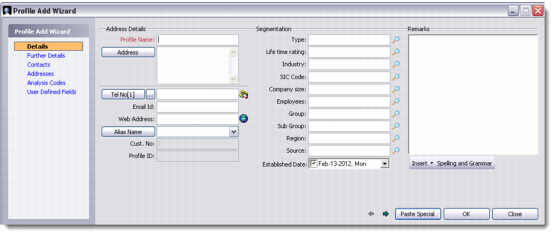
The alternate method is to select the Detailed Profile option from the Add a Profile button on the toolbar. This displays the Profile Add Wizard with the following tab links:
• Details
• Further Details
• Contacts
• Addresses
• Analysis Codes
• User Defined Fields
Enter the required details in these tabs and save the record to add a new profile to the system database.
Profile Add Wizard
Note: If QAD ERP integration is enabled, when you add a new profile the system prompts you to save the new profile record in the QAD ERP application as well. If you choose Yes then the new profile record is updated in QAD ERP.
You can also access the Profile Add Wizard if you right-click the All Profiles browser and choose Add from the menu. Otherwise, click the Add button on the toolbar or choose Add from the File menu to add a new profile record.
You can also add profiles by uploading records from an external source using the Generic Data Import tool. In such a scenario, profile information may be supplied as a database list from a list supplier. For details, see QAD Customer Relationship Management Administration Guide.