Sending Profiles to Campaign
You can send details of profile records directly to marketing campaigns from this module. The profiles and their contacts are used as targets for various campaigns.
1 To send profiles to a campaign, select the required profiles from the browser list.
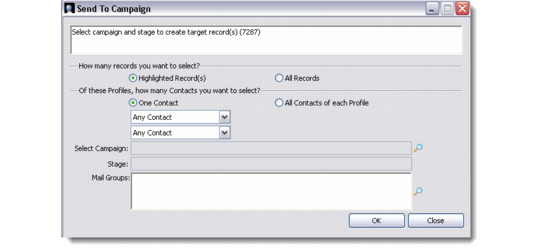
2 Right-click and choose Send to Campaign from the menu. Alternatively, choose Send to Campaign from the File menu or click the Send to Campaign button from the toolbar. The Send To Campaign window displays.
Send To Campaign
3 In the Send To Campaign window, select the number of records you want to include in the campaign. Choose the contacts from the drop-down lists.
4 Select the campaign and the mail group with the help of the look-ups provided.
Note: If you select a mail group, make sure that the selected contacts are included in that mail group. Otherwise the campaign will not consider these contacts as potential targets.
5 Save your selection. The system displays a message confirming the number of targets selected and created, and the campaign that they are now attached to.
When you go back to the All Profiles screen and check the Campaign tab of the selected profiles, the associated campaigns and their stages display there.