Maintaining Products
Use the Product Details screen to maintain information relating to a specific product.
You can group products that are similar into a product line; for details, see
Maintaining Product Lines.
1 Choose Sales Management|Products|Product or Marketing Management|Products|Product. The Product browser displays the products currently defined in the system.
2 Right-click the Product browser and choose Add from the menu. The Product Details screen fields are cleared.
Note: This menu also contains options for maintaining existing products.
Details
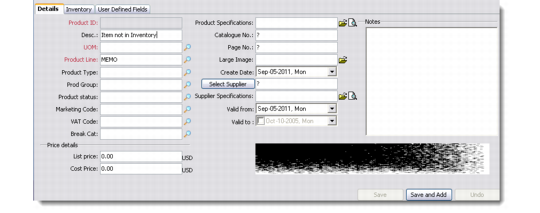
Use the Details tab to record identifying information for a product, such as the product ID, unit of measure, and price details.
Product Details
You can attach an image of the product for visual reference by using the Large Field; the image appears in the lower-right corner of the screen.
Product ID
Enter a unique code for the product.
Description
Enter a description for the product.
Unit of Measure (UOM)
Enter a unit of measure for the product.
Product Line
Enter a product line to associate this product to.
Product Type
Enter a product type for the product. Used for classification purposes.
Product Group
Enter a product group for the product. Used for classification purposes.
Product Status
Enter a product status for this product. For example, Active or Expired.
Marketing Code
Enter a marketing code for the product. This code is used by the QAD Marketing Management module for tracking purposes.
Break Category
Enter a break category code for the product.
Price break categories let you assign volume price breaks for multiple items. Discounts can be calculated based on the quantity or amount ordered on multiple lines of a sales order or quote. Use this field if you offer a discount to customers if a certain quantity of the product is purchased.
Note: This field is used only when QAD CRM is integrated with a QAD ERP application.
Price Details
Enter a Unit Price and Cost Price. The system uses the base (default) currency defined for your organization.
Product Specifications
Enter the location on your system or network of a file containing product specification data.
Catalog Number
Enter the issue number of a catalog that contains advertising for this product.
Page Number
Enter a page number to identify the location of the advertising material.
Large Image
Enter the location of the product image to associate with the product.
Allow selection as brochure/sample
Select this option if a product brochure or product sample is available.
Create Date
Enter the date on which the product details were entered. This field is editable—you can select a future/past date.
Select Supplier
Enter the supplier of the product.
Supplier Specifications
Enter the address of a specification file or Web page.
Valid from
Enter a date from which the product can be sold.
Valid to
Enter a date on which sale of the product should end. After this date has passed the product is no longer available for selection in the opportunity.
Notes
Enter any further identifying information.
Inventory
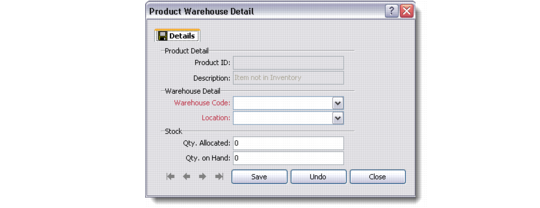
Use the Inventory tab to record inventory and warehouse location information for a product. This information is generally maintained for managing the inventory for marketing materials within CRM and does not integrate or relate to Inventory Details stored in Enterprise Applications.
Inventory Details
Warehouse Code
Enter a code to identify where the stock of the product is stored.
Location
Enter a location for the warehouse.
Quantity Allocated
Enter the quantity of products allocated for distribution. In the Qty on Hand field, enter the total number of products in the warehouse.
Quantity on Hand
Enter the quantity of the selected product in the warehouse.
User Defined Fields
Use the User Defined Fields tab to capture other types of product-related information from the system database as defined by your organization’s marketing requirements.
For details on user-defined fields, refer to QAD Customer Relationship Management Administration Guide.