Using the Go To Option
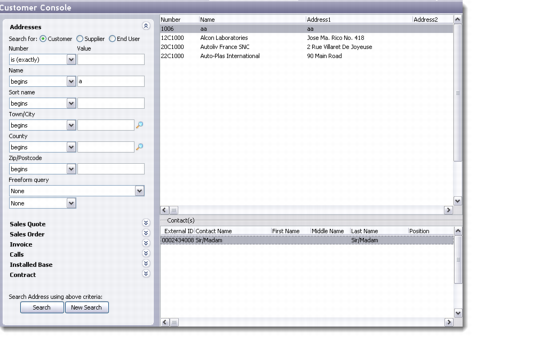
Choose Go To from the right-click menu to display the customer console for the selected record. Depending on your choice of tab, the customer console opens with the selected tab highlighted.
Customer Console
The console displays primary customer information in the Main tab at the top left. Additional tabs include Comments, Invoice, Customer, and Remit-To. These additional tabs are visible only if the required information is available from the QAD ERP application. The top right of the console displays contact, account manager, engineer, and salesperson details. The bottom half of the customer console displays additional tabs:
Activity | Installed Base | Sales History |
Sales Quote | Contract | Statistic |
Sales Order | Relationship | Ship-To |
Invoice | Comparative Sale | End User |
Issue | Account | |
Most of these tabs get their data input from the QAD ERP database. However, the Activity and Relationship tabs receive their data from the system.
The customer console shows up only for those records that have a customer number assigned to them in the QAD ERP application database. The system validates the customer number of the selected record when you right-click and choose this option. Only if a customer record with the same customer number exists in the QAD ERP application database, the system displays the customer console screen. Otherwise, it displays an error message or makes this option appear unavailable.
You can edit only that data in the customer console that is derived from the QAD CRM database. This includes managing activities through the Activities tab, adding or attaching hierarchies and sub-hierarchies through the Relationship tab, and maintaining Contact details by double-clicking the contact name.