Adding Dashboard Components
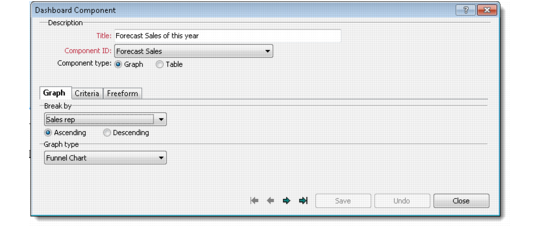
When you add a new dashboard component using the Dashboard Details screen, or edit an existing one using the Components button on the toolbar, the Dashboard Component screen displays.
Record the component description in the Description fields.
Title
Enter a title for the component you are adding. This title displays as the dashboard heading for the selected component.
Component ID
Use the drop-down to select a component ID.
Component Type
Select the appropriate component type—Graph or Table.
Note: The Activity Summary component can display only in table format. The Graph tab does not display for that option.
Graph
Break by
Select a parameter that the system can use to sort data while creating a graph from the selected statistics, and define the sort order.
Graph type
Use the drop-down to select the type of graph display.
Criteria
Use this tab to select the criteria based on which the system displays data on the dashboard. The fields vary depending on the component you choose.
Freeform
Define fields and conditions on the basis of which the system can sort data for display. You can give a maximum of five sort conditions.
Dashboard Component