Adding Questions to Scripts
Questions are the key component of a script. Typically scripts are designed to elicit responses to increase the effectiveness of an organization’s campaigns, or the profitability of its products or services. For example, questions in a script might be designed to determine a customer’s reaction to changes in an existing product. Responses to questions are often recorded for analysis purposes.
Questions can be added to sections and subsections. The questions included within a section or subsection typically are closely related. Questions can also consist of one or more subquestions.
You also can define possible answers that can be given in response to questions.
1 Do either of the following:
a To create questions for a section, right-click the section and choose New Question from the right-click menu.
b To create questions for a subsection, right-click a subsection and choose New Question from the right-click menu.
Note: This menu also contains additional options for working with questions, such as Edit and Delete.
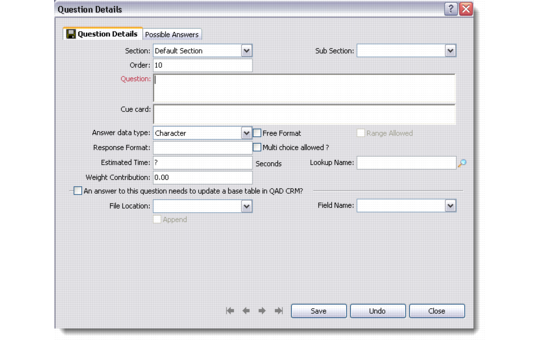
2 The Question Details dialog box displays. This dialog box is identical whether you are entering a question or a subquestion.
Question Details
Question Details
Use the Question Details tab to provide the question text and format.
Section
Enter the name of the section that should contain this question.
Subsection
Enter the name of the subsection that should contain this question.
Order
Enter a value in the Order field to represent the order of the question within the section or subsection.
In order to leave room for additional questions, it is recommended values be entered in increments of 10. For example, enter 10 to make this the first question in the section or subsection, 20 for the next question, and so on.
Question
Enter the text of the question. This field is required.
Cue card
Enter the identifier for the cue card to use when the script is run.
A cue card is a visual prompt that the system displays during script processing when the focus is on a particular question. Cue cards are designed to assist users to provide appropriate responses.
Answer Data Type
Enter the data type for the question. For Decimal and Date options the Range Allowed check box is available.
Note: You also can provide information about appropriate responses for each answer data type by using the Possible Answers tab. For details, see
Possible Answers.
Free Format
If the data type of the question is Character, select this option to indicate that the question can be free format.
Range Allowed
If the data type of the question is Decimal or Date, select this option to indicate that the question can include a range of values.
Response Format
Not currently used.
Multi Choice Allowed?
If the data type of the question is Character, select this option to indicate that multiple choice is allowed for the question.
Estimated Time
Not currently used.
Lookup Name
Enter a program name. Use this field to identify a program to execute when running the script.
Weight Contribution
Not currently used.
Update Base Table
Select this option if an answer to this question needs to update a base table in QAD CRM. You also can provide the file location and field name, and whether the update should be appended.
Possible Answers
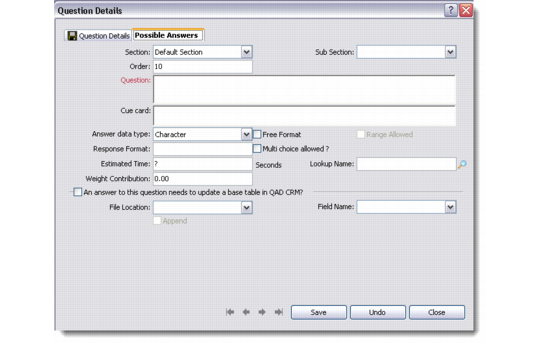
Use the Possible Answers tab to provide text and format for possible answers to questions. Each different answer data type—character, decimal, date, logical, and radio button—has different response types.
Note: After completing the fields on the Question Details tab, you must save your changes before clicking the Possible Answers tab.
Possible Answers Tab
For the selected answer type for your question, enter the following:
Answer Data Type Fields
Answer Data Type | Field | Description |
Character | Serial No. | Enter the order in which the script branches. |
| Weightage Contribution | Enter the weight this response contributes to the script as a whole. |
| Answer | Enter a possible customer response. |
Decimal | Serial No. | See above. |
| Weightage Contribution | See above. |
| Field Operator | Enter an operator; for example, equals, not equal to, and so on. |
Date | Serial No. | See above. |
| Weightage Contribution | See above. |
| Field Operator | Enter an operator; for example, today, yesterday, and so on. |
Logical | Enter Label | Enter a label for the logical response type; for example, Yes or No. |
| Branching or Weightage Information | Enter the question to branch to depending on the logical response. |
Radio buttons | Radio Button Labels | Enter a label. |
| Weightage | See above. |
| Next Question to Branch To | Enter the question to branch to depending on the radio button response. |