Analyzing Script Responses
Analyzing script responses lets you identify the target profiles and contacts that have responded favorably to your script by providing preferred responses to script questions.
For example, suppose a script has been used to elicit responses from 500 target profiles. Filtering through the response data manually would be time-consuming. However, you can use the logical operators in the Script Analysis box to step through the script questions to quickly reduce the number of records in the results in order to identify your best targets.
After identifying these target you can initiate the next stage of your marketing strategy; for example you might want to include these target profiles in a marketing campaign.
1 Select a script in the tree view. The target profiles/contacts for the script display.
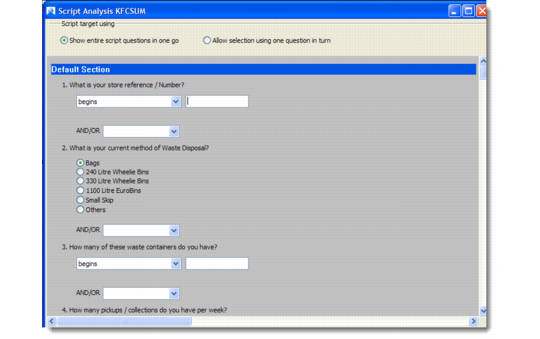
2 Right-click the target list and choose Script Analysis. (Alternatively, click Script Analysis in the toolbar.) The Script Analysis box displays.
Script Analysis
Note: You can either display all script questions at once or step through the questions one at a time. This procedure shows how to analyze a script using one question at a time.
3 If it is not selected already, select the Allow selection using one question in turn option. The question icon displays.
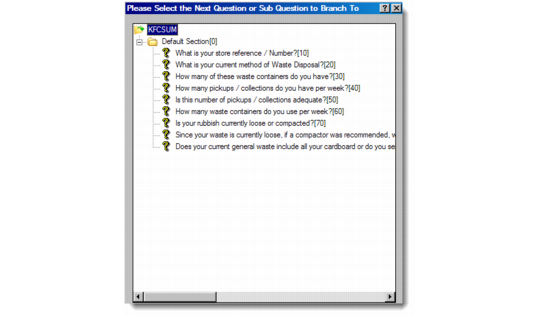
4 Click the question icon. The Next Question box displays.
Next Question
5 Select the question in the script you want to use and click OK.
For example, you might choose the first question in the script and work through the questions in sequence in order to gradually reduce the amount of response data. Alternatively, you can branch to any question you want at any time in the script analysis process depending on your analysis requirements.
6 The selected question displays in the Script Analysis box.
7 Select a response and provide a possible response value.
Note: The type of responses and acceptable response values depends upon the answer data type defined for that question. For details on answer data types, see
Possible Answers.
8 To use only one filter criterion, click OK. The Script Analysis browser displays, showing a list of targets that satisfy the script analysis criterion you entered.
9 To add more criteria, exit the browser, and then select a logical operator—that is, AND or OR—from the drop-down list box.
10 Click the question icon to select another script question, then click OK.
You can repeat this process as required with different combinations of scripts questions, using the browser to view the results until you have isolated your target profiles.
From the Script Analysis browser, you can attach a target to an existing campaign or export the list output to a third-party application—a spreadsheet, for example—by right-clicking a profile and choosing the Export command.