Planning Marketing Campaigns
The Campaigns sub-module lets you view and maintain all existing campaigns and campaign templates, and add new ones. Choose Main Menu|Marketing Management|Marketing Campaigns|Campaigns to open the Campaigns screen.
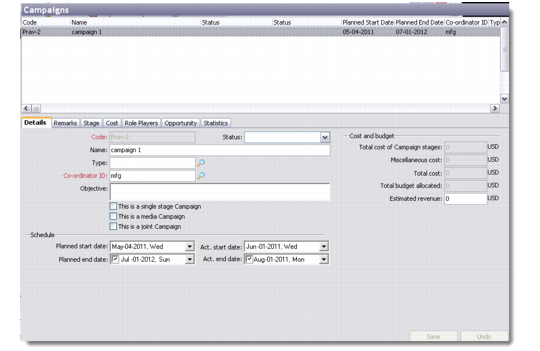
The Campaigns screen has two parts: The top half is a browser displaying the list of campaigns and campaign templates in the database; the bottom half opens the selected campaign in edit mode.
Campaigns
There are multiple ways to edit a campaign. Select the record and do one of the following:
• Click the Edit button on the toolbar.
• Right-click and choose Edit.
• Choose Edit from the File menu.
Note: Similar options are available for Add, Copy, and Delete.
Details
Use the Details tab to record basic information about a new campaign.
Code
The system assigns a unique code to identify each campaign record in the database. This is a mandatory field.
Name
Enter a name for the campaign.
Type
Select the campaign type from the look-up provided.
Co-ordinator ID
Select the coordinator who will be responsible for executing the campaign. This is a mandatory field.
Objective
Define the objective or purpose for planning a new campaign.
Single Stage, Media, Joint Campaign
Select the appropriate check boxes depending on the kind of campaign planned. If you select the media campaign option, a new tab called Media is added to the Campaigns screen.
Note: Single-stage campaigns are a one-step process; for example, sending an address change notification to a selected target audience. The Single Stage Campaign check box is unavailable when you create more than one stage for a campaign.
Status
Select the current status of the campaign from the drop-down list.
Schedule
Enter the planned start and end dates. These can be compared with the actual start and end dates after the campaign is over.
Cost and budget
Enter the campaign costs under different heads here, including total budget allocated, total campaign cost, and the revenue expected out of the entire campaign.
Remarks
Enter additional details like the list of places where the campaign will be held, when is a special event associated with the campaign expected to happen, who will be the attendees for the planned event, and so on.
Stage
The Stage tab lets you perform the same functions as the Campaign Processing sub-module. For more details, see
Processing Marketing Campaigns.
Cost
You can compute campaign costs, attach an invoice file, and perform a cost analysis for the entire campaign through the Cost Details screen. This tab also lets you choose whether you want to capture cost details for the whole campaign, or create a stage or task-based cost breakdown.
Role Players
You can use this tab to manage the three types of role players that can be associated with a campaign. The available role player types are User, Team, and External, referring to distributors or partners who are participating in the campaign.
The Role Players tab lets you decide the access rights to a campaign. If you want everyone to have access to the campaign details, select the Anyone radio button. However, if you want only the role players associated with the campaign to have access, then select the One of the Following Role Player button.
You can also define access for users and teams through the Allow Access check box in the Internal Role Players window.
Opportunity
Use the Opportunities tab to view and manage opportunities associated with the selected campaign. You can add, edit, copy, or delete opportunities from this tab directly.
Two views at the bottom right corner of this window let you add description and opportunity lines for the selected campaign record.
Statistics
This tab displays the breakdown of targets based on their current stage, showing the anticipated targets, the total targets, the variance, and so on.
Media
The Media tab displays only when the media campaign check box is selected from the Details tab. Use this tab to add campaign media sources for a selected campaign.