Adding Campaign Stages
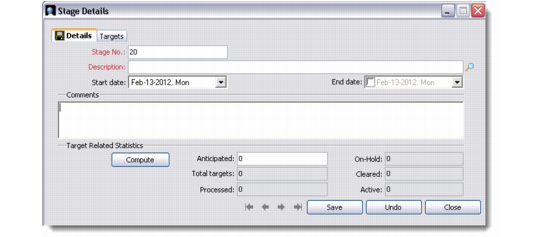
To add a stage, right-click the Stage folder and choose Add Stage. The Stage Details window displays.
Details
Use the Details tab to record basic information about a campaign stage.
Stage No.
The system assigns a number for the new stage automatically. However, you can change it as needed. This is a mandatory field.
Description
Enter a name or description for the new stage. This is a mandatory field.
Start Date, End Date
Enter the start and end dates of the campaign stage, if known.
Comments
Record any comments that you may have regarding the campaign stage.
Target Related Statistics
Enter target details here and click the Compute button to let the system calculate target related statistics.
Targets
The Targets tab displays the list of targets associated with the selected stage. You can select the view from the Target Type and Contact Methods drop-down lists.
Stage Details
When you save the information you entered in the Stage Details window, the new stage name displays in the bottom left of the Campaign Processing screen. You can now add activities to this stage.