Maintaining Service Contract Quotes
Use the Service Contract Quotes screen to maintain service contract quotes. You can define contract header and bill-to details, as well as information about contract lines, currency and pricing, and so on.
Note: If your QAD Customer Relationship Management (QAD CRM) system is integrated with a QAD ERP application, some service contract information that displays on the Further Details tab—price list and credit terms, for example—is shared with the Financials component and is updated automatically in QAD CRM.
1 Choose Customer Service|Service Contract Quotes. The Service Contract Quotes browser displays the quotes currently defined in the system.
2 Right-click the Service Contract Quotes browser and choose Add from the menu.
Note: This menu also contains options for deleting and editing existing service contract quotes.
Details
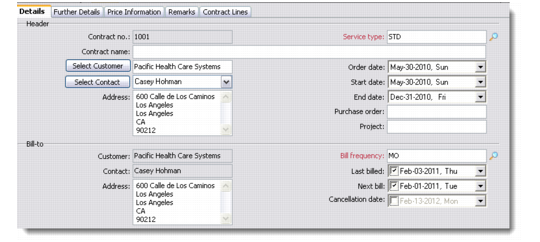
Use the Details tab to provide identifying information for a service contract quote.
Service Contract Quotes Details Tab
Contract Number
Enter a unique number to identify the service contract.
Contract Name
Enter a name to identify the service contract.
Select Customer
Enter the customer to whom this service contract applies.
Select Contact
Enter a contact associated with the customer.
Address
If required enter address information for the contact. Typically this field is populated automatically if the customer is already defined in the system.
Service Type
Enter a type of service for this contract. For example, your organization might offer different levels of service—Gold, Silver, or Bronze—representing different levels of support.
Order Date
Enter the date on which the order for this service contract was completed.
Start Date
Enter the date on which the service contract begins.
End Date
Enter the date on which the service contract ends. By default the end date is 12 months from the date on which the contract began.
Purchase Order
Enter the purchase order number of the service contract.
Project
Enter identifying information associated with the quote, as required.
Enter the required bill-to information for the service contract. Customer, Contact, and Address fields inherit the entries specified in the service contract header. Typically the customer and the bill-to information will be the same.
Bill Frequency
Enter a frequency for the customer to be billed.
Last Billed
Enter the date on which the customer was last billed.
Next Bill
Enter the date on which the next bill should be sent to the customer.
Note: If your system is integrated with a QAD ERP application, this information is derived from the QAD ERP application database.
Cancellation Date
If the contract has been cancelled, enter the cancellation date.
Further Details
Use the Further Details tab to enter additional information about the service contract such as price list, credit terms, language, and so on.
Further Details Tab
Price List
Enter the price list to use for this service contract.
Credit Terms
Enter the credit terms that apply to this contract.
Taxable
Select this option to indicate that any contract terms specified for this contract are taxable.
Site
Enter the name of the site responsible for this handling this contract.
Language
Enter the language used by the customer.
Channel
Enter the distribution channel through which this contract originated.
Fixed Rate
Select this option to indicate that the rate charged for the service contract is fixed.
Price Information
Use the Price Information tab to enter currency and price information for the service contract. You can also define information about discounts and specify trailer charges.
Price Information Tab
Currency
Enter a currency for this service contract. If the currency selected is a foreign (non-base) currency, the exchange rate displays in the Exchange Rate field.
Enter pricing information as required.
Line Total
Displays the total of all contract lines.
Additional Charges
Displays the additional charges on all contract lines.
Discount
Enter a discount as a percentage to be applied to the entire contract in addition to price list discounts and discounts for individual contract lines.
Discount Amount
Indicates the discount as a percentage that will be applied to the entire contract.
Trailer n.
For all appropriate trailers, enter a trailer amount for the contract.
Total
Displays the total for the service contract. This figure can be used as the service contract quote for a customer.
Notes
Use the Notes tab to enter additional free-format information as required. Use the Insert button to insert files, date and time, keywords, profiles, or contacts. After entering text, you can click the Spelling and Grammar button to perform a spellcheck of the text.
Contract Lines
Use the Contract Lines tab to enter information about contract lines for the contract. You can specify if a contract line is used by an end user.
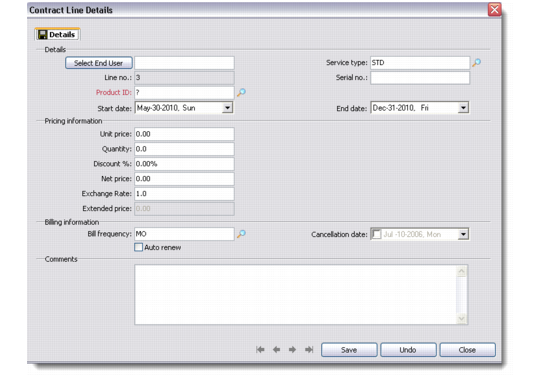
1 Choose Add Line from the right-click menu to display the Contract Lines Details dialog box. You can enter as many contract lines as required.
Service type, serial number, start date, and end date in the Details area originate from the contract header, but can be modified if required.
Contract Lines Tab
Select End User
Enter an end user associated with the product for the contract line, if required.
Product ID
Enter the ID of the product for this contract line to be covered by this contract, if required.
2 Enter pricing information for the contract line as required.
Unit Price
Enter the unit price.
Quantity
Enter the number of products included on this contract line.
Discount %
Enter any discount offered on service coverage for this product.
Net Price
Displays the unit price of one month’s coverage for this product or fixed additional charge. Net price is derived by subtracting the discount percentage entered from the unit price.
Exchange Rate
Enter the exchange rate.
Extended Price
Displays the extended price. This is calculated by multiplying the net price by the quantity and bill frequency.
3 Enter billing information as required for the contract line item.
Bill Frequency
Enter the billing frequency for this line item.
Auto renew
Select this option to have the billing renew automatically for the contract line.