Feature Details
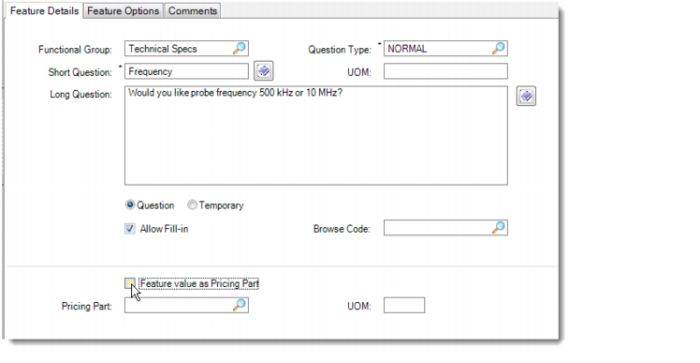
All the feature details inherit from the selected variable details. You can change this information for the feature.
Similar to Variable Details, Feature Details also supports multiple languages. You can specify short and long questions in any of the QAD supported languages. The short question can be up to 64 characters in length. You can also translate the question from one language to another. Click the String Translation button next to the question field, and enter the translation on the String Translation screen. If the translation is already set up in Variable Details|String Translation, you can see the translation here in Feature Details|String Translation and change the translation for the feature.
You can also use Feature Language Browse to display the feature questions that you have set up for each language.
Note: When you click Save in Feature Details|String Translation, the system:
• saves the updated record, and
• creates feature translation records for all the languages that have been set up for the variable but not the feature.
If you do not set up the translations in Feature Details, the questionnaire displays the translated records that you have set up in Variable Details. In other words, the system uses the following defaulting logic to display translated records for the questionnaire:
• If the translation is set up in Feature Details, the system takes the translation from there.
• If the translation is not set up in Feature Details but has been set up in Variable Details, the system takes the translation from there.
• Otherwise, the system has no translated records to display.
When the feature data type is text and you have selected Allow Fill-in, you can use Feature Based Pricing to calculate pricing for a feature rather than for a feature option.
Feature Value as Pricing Part
For feature based pricing, you can use either the Pricing Part field or the Feature Value as Pricing Part check box:
• To use the Pricing Part field, enter an existing item number from QAD EA.
• To use the Feature Value as Pricing Part check box, you select it and then the system dynamically uses the feature answer on the questionnaire as the pricing part.
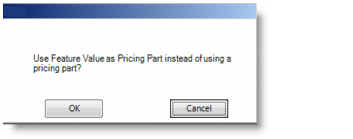
• When there is already a pricing part and you select the Feature Value as Pricing Part check box, the system prompts you to confirm your action.
Feature Value as Pricing Part or Existing Pricing Part
• Click OK to use the answer on the questionnaire as the pricing part.
• Click Cancel to use the Pricing Part field.