QAD Enterprise Asset Management 2016.1
>
User Guide
>
Projects
>
Projects
>
Project Activities – Capital Projects
Project Activities – Capital Projects
EAM allows you to perform the following activities for capital projects:
Creating New Equipment from a Project
With EAM, you can create an equipment record and attach it to a project. To add a piece of equipment to a project, open the project. Select the Equipment submenu, and click New. A blank equipment record opens. Enter the necessary information in the equipment record. See
Creating an Equipment Record.
Viewing the Equipment Associated with a Project
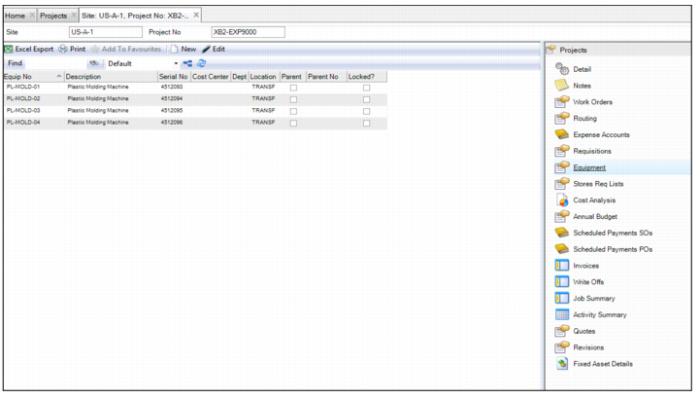
To view the equipment associated with a project, open the project record and select the Equipment submenu.
Project Submenu: Equipment
Fixed Asset Integration
The Fixed Asset integration with Project Accounting gives you the ability to:
• Create an asset from a job
• Include trailing charges
• Enter a fixed asset ID, service dates, asset class, and location
• Easily see the capitalized and uncapitalized amounts associated with a project or job
For projects that have jobs that represent the asset that is being created, you can create an asset and provide the capitalizing function from the job itself.
To ensure data integrity, specific data from the job is automatically populated when you choose this action such as fixed assets class and location codes. Because the cost of the asset is driven to the right job by controlling where the cost can be charged, it ensures that the full value of the asset is contained in that job. If any trailing charges occur after the initial capitalization, you can add cost to the existing fixed asset and send it to the Fixed Asset module.
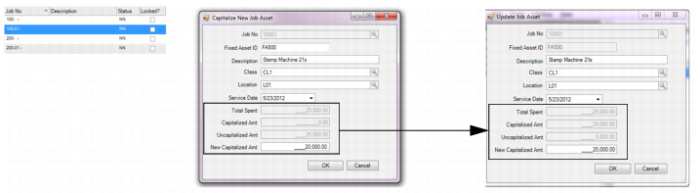
When you select Capitalize New Job Asset from the Job’s Action menu, the Fixed Asset ID, Description, Class, and Location fields automatically populate with the correct data. Class and location are data-driven from the QAD ERP Fixed Assets module and are used to determine how the asset is depreciated. You can then enter the service date and new capitalized amount.
EAM tracks the capitalized amount, which is the total spent against this job. EAM also tracks the uncapitalized amount, which is the amount that has currently been charged to the job but not yet capitalized.
Capitalize New Job Asset
Capitalize New Job Asset is an example where a user is ready to capitalize out $20,000 of the Total Spent value of $25,000. EAM automatically updates the Capitalized Amount of $20,000, leaving an Uncapitalized Amount balance of $5,000.
Note: Only one asset can be created from a single job. If a project produces multiple assets, then multiple jobs initiate them or tracking can be done at the overall project level. If tracking is done at the project level, jobs are not used and all costs are driven to the project only. Assets can be capitalized using the same action, but from the project level and not the job level.
Capitalizing a Fixed Asset from a Project
EAM allows you to create a fixed asset from a project. The cost captured in projects is used when capitalizing a new fixed asset from EAM to QAD ERP’s Fixed Assets module.
Follow these steps to capitalize a fixed asset from a project:
1 Open the Projects browse and highlight the project record.
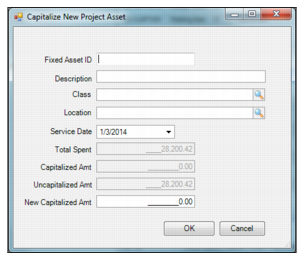
2 Select Capitalize New Asset from the Project Action menu. The Capitalize New Project Asset window opens.
Capitalize New Project Asset
3 Enter the asset information in the following fields.
Fixed Asset ID
Enter the fixed asset identifier of this asset.
Description
Enter the text description of this asset.
Class
Enter or select the asset class of this asset.
Location
Enter or select the location of this asset.
Service Date
Enter or select the date this asset is placed into service.
Total Spent
Displays the total spent on this project.
Capitalized Amount
Because this is a new asset, this field displays the zero capitalized amount.
Uncapitalized Amount
Defaults and displays the uncapitalized amount on this project, which is equal to the total spent for a new asset.
New Capitalized Amount
Enter the capitalized amount of this asset. This value cannot be greater than the uncapitalized amount of the project.
4 Once you have entered all the information, click OK. The fixed asset has been capitalized for this project.
Capitalizing Additional Costs to an Existing Asset
You can capitalize additional costs to an existing asset with EAM. Once a fixed asset is created and additional costs are incurred, the Modify Capital Asset action updates the capitalized amount in EAM Project|Job and sends it back to the asset in QAD’s Fixed Assets module.
Follow these steps to capitalize additional costs to an existing asset:
1 Open the Projects browse and highlight the project record.
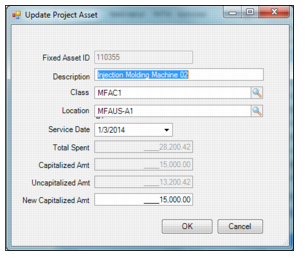
2 Select Modify Capital Asset from the Project Action menu. The Update Project Asset window opens.
Modify Capital Asset
3 Enter the information regarding the asset in the following fields:
Fixed Asset ID
The fixed asset identifier of this asset.
Description
Enter the text description of this asset.
Class
The asset class of this asset.
Location
The location of this asset.
Service Date
The date this asset was placed into service.
Total Spent
The total spent on this project.
Capitalized Amount
The capitalized amount on this project.
Uncapitalized Amount
The uncapitalized amount on this project, which is the total spent minus the capitalized amount.
New Capitalized Amount
Enter the capitalized amount of this asset. This value cannot be greater than the uncapitalized amount of the project.
4 Click OK. The fixed asset costs have been updated.
Viewing Capitalized Asset Data for a Project
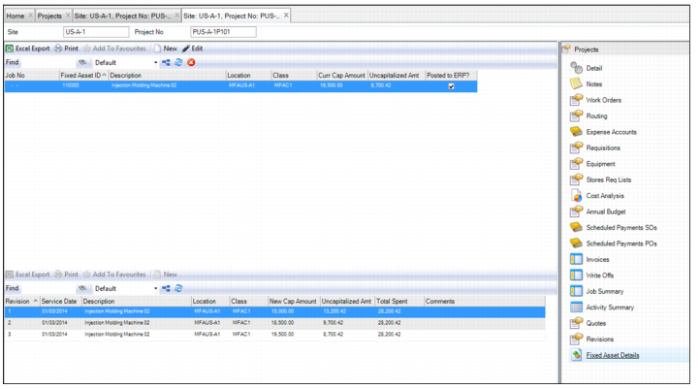
The Fixed Asset Details submenu, which is only available for capital projects, allows you to pre-enter fixed asset data to be capitalized or view current capitalized asset data and capitalization changes associated with this project.
To view the capitalized asset data for a project, open the project and select the Fixed Asset Detail submenu. The upper browse displays information about the fixed asset. The lower browse displays the revision history for the fixed asset.
Modify Capital Asset