Module Menu
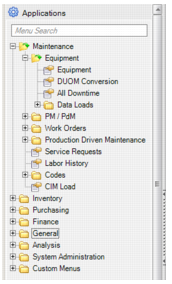
The module menu contains all available EAM modules to which you have access. Menu items can include:
• Maintenance
• Inventory
• Purchasing
• Finance
• General
• Analysis
• System Administration
• Custom Menus
Opening a Module
Use Menu Search to find a specific module within the menu. The system displays matching options as you type.
Double-click a vertical menu folder or click the plus sign to expand its display options. Double-click an option to open a browse or list.
EAM Module Menu
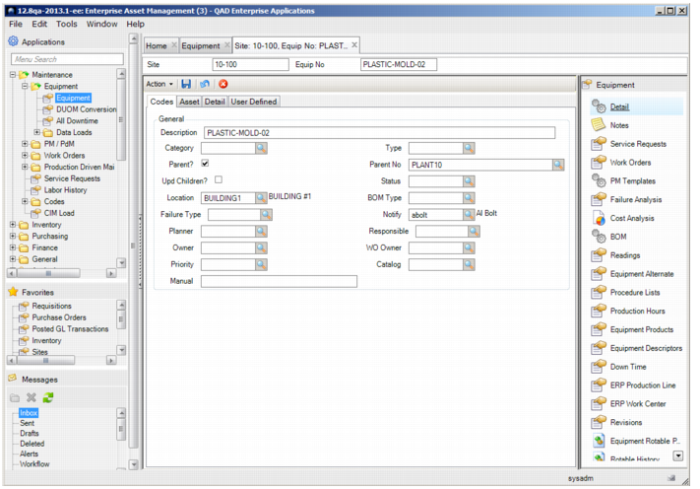
Double-click a record in a browse or click Edit to open tabs for an existing record. Click New to open tabs for a blank record.
EAM Submenu and Record Tabbed View
Favorites
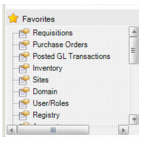
The Favorites pane is a custom menu you create using menu options or drag-and-drop techniques.
EAM Favorites
Adding Favorites
Add favorites in the following ways:
• Right-click a menu folder or menu item in the Applications pane and choose the Add to Favorites option.
• Select the menu folder or item you want and drag it from the Applications pane to the Favorites pane.
• Drag and drop URLs from Internet Explorer or Mozilla Firefox to the Favorites pane.
• Drag and drop an item or program (executable) from the file system (for example, from Windows Explorer) to the Favorites pane.
Note: For easy access to related user guides and documentation, you can add them to your Favorites pane. Download the files and then drag and drop them into Favorites.
EAM stores favorites on the server rather than on client computers. When you log on to the system from a different computer than your usual client computer, you still see your favorites. Additionally, having your favorites on the server protects them from any disk problems that might occur on your client computer.
Warning If several users share a user ID, favorites can become corrupted.
Organizing Favorites
Organize your favorites into folders and subfolders, rename menu items and folders, rearrange folders and items, and remove menu items you no longer want.
To organize menus into a hierarchy, right-click in the menu space and choose Create New Folder. You can then drag the folder to any position and drag menu items or other folders into it.
To rename or remove a menu item, right-click the item and choose the option you want. You can also display properties and enter design mode for enabled programs.
To change the icon of a menu item, right-click the item and choose Change Icon. Browse to a graphics file and select it.
To collapse the display of all open folders, right-click any item and choose Collapse Menus.
When you right-click a folder, you also can create a subfolder within the currently selected folder.
You can launch a group of menu items organized under a folder simultaneously. Right-click the folder and select Menu Collection. The folder icon changes to a collection icon. Click the icon to launch all the functions at the same time.