Browses
A browse lists the records that meet specified site criteria in the current module. EAM browses look and function like Excel spreadsheets. Column headers provide flexible, dynamic display options through ordering, hiding, showing, sorting, and grouping records. All users can view a browse. You can add a browse to your Favorites directory.
If your security settings permit reporting, you can export data to Excel.
Ordering Columns
Drag a column heading to move it to the right or left in the display. A black arrow indicates where the column will be inserted when you release the mouse button.
Hiding a Column
Use this option to remove individual columns from the display.
1 Right-click a column heading.
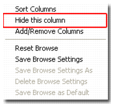
2 Scroll down to the Hide This Column option.
3 Release the mouse button. The column no longer displays in the browse. The data is still stored in the system.
Hiding a Column
Adding Columns
Use this option to add or remove columns.
1 Right-click a column heading.
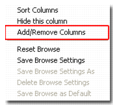
2 Scroll down to the Add/Remove Columns option.
Add/Remove Columns
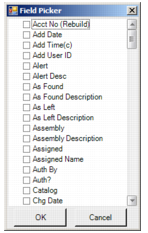
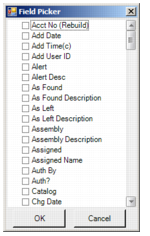
This option displays a list of all possible columns for the current record type.
Adding Columns
3 Select the check box to add a column to the display.
4 Click OK.
Removing Columns
Use this option when you want to remove multiple columns from the display.
1 Right-click a column heading.
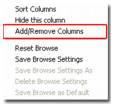
2 Scroll down to the Add/Remove Columns option.
Add/Remove Columns
This option displays a list of all possible columns for the current record type.
Removing Columns
3 Clear the check boxes of the columns you want to remove from the display.
4 Click OK.