Sorting Multiple Columns
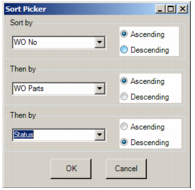
Specify up to three column headings to sort, each by ascending or descending order.
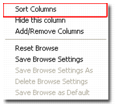
1 Right-click a column heading in the current browse.
2 Select the Sort Columns option.
Sort Columns
The Sort Picker lists all column headings in the current browse. The application sorts first on the top heading in the list. If there are multiple records with the same sort criteria—for example, Priority 1—you can further sort by Requestor, and then by Equipment Number. Click OK to sort the browse view.
Sorting Multiple Columns
Saving a Custom Browse
Save changes to a default browse for future use. A saved custom browse is associated with your user ID. Use the browse from any computer.
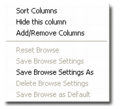
1 Right-click over the column heading.
2 Select the Save Browse Settings As option.
Save Browse As
3 Enter the name of your custom browse in the window.
4 Click OK.
From the right-click menu, delete the custom browse or set it as the default view.
Right-Clicking a Browse Record
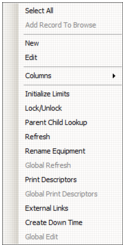
Right-click over a record to open the right-click menu. Right-click menu options differ between programs. Right-click menus contain administrative functions and the active Action menu.
Record Right-Click Menu