Record Filters
Use a filter to specify the information display on a specific browse. Each module has a number of fields that can establish the criteria for filtering a browse list.
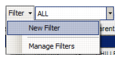
1 Click the arrow beside the Filter option on the toolbar to access the options. To build a new filter, select the New Filter option.
Filter Menu Options
2 Name the new filter.
3 Click OK.
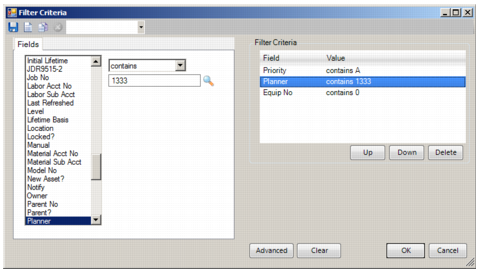
The Filter Criteria window opens.
Basic Record Filter Manager
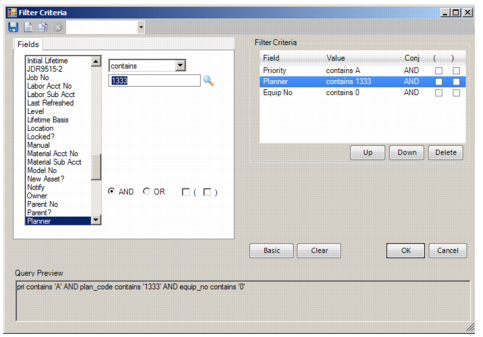
An advanced user can use the Advanced view. Click Advanced to open more query options in the fields list. Create more complex filters by grouping data with and/or statements and parenthetical statements.
Advanced Record Filter Manager
Entering Fields in the Filter Manager
The Fields list displays all possible fields in the database entry associated with the current module. Click a field to add it to the Filter Criteria list. Specify the value in the list; for example, to filter records by this month, enter:
this month
past 30 days
The system can process plain language commands such as past year (versus 365 days) or your name (as opposed to user ID). When adding multiple filter criteria, select AND to indicate that the filter records must meet all criteria. Select OR to indicate that the filter records can meet any one of the filter criteria.
Another filtering mechanism is parentheses. Enclose parts of the filter criteria in parentheses to indicate that this criterion is the first, and most important, filter criteria. The system follows mathematical progression when filtering records by filtering criteria in parentheses first, then AND, then OR from left to right.
Use the Up and Down buttons or drag and drop the filter entries to change the filter priority. Click Delete to remove the entry from the list. Fields removed from the filter criteria remain in the database.
For example, a planner filters by all equipment associated with a specific user ID, with a status of 1 or 2, and by cost center.
Printing
Print the records in the browse list. Use the Print button in the toolbar or the Print option in the File menu.