QAD Enterprise Asset Management 2017.1
>
User Guide
>
General Module
>
Codes
>
Descriptor Codes
Descriptor Codes
Use descriptor codes to further describe a piece of equipment or an inventory part. Descriptors are created dynamically by adding labels and field lengths.
Descriptor Type Codes
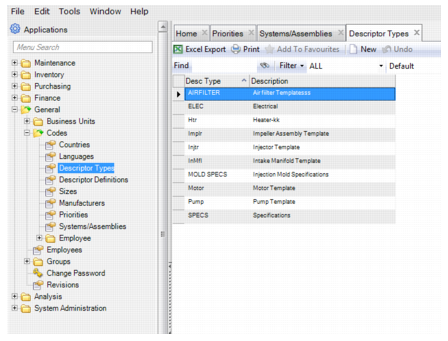
Descriptor type codes, which are common to both equipment and inventory, are used to group descriptor definitions.
To add a descriptor type code, open the Descriptor Type browse located in General|Codes and click New. In the Desc Type field, enter the descriptor type code. In the Description field, enter a short description. Press Enter to save.
Descriptor Type Codes
Descriptor Definition Codes
Descriptor definitions or templates are used to create standard technical documentation for equipment and inventory parts. The descriptor allows you to set up a standard template for certain technical information and then associate it with a number of pieces of equipment or inventory parts. A given piece of equipment or a part can have multiple descriptors associated with it. Once the descriptor is associated with a given inventory or equipment record, you can update the information on a given field in the template.
Creating a Descriptor Definition
Follow these steps to create a descriptor definition:
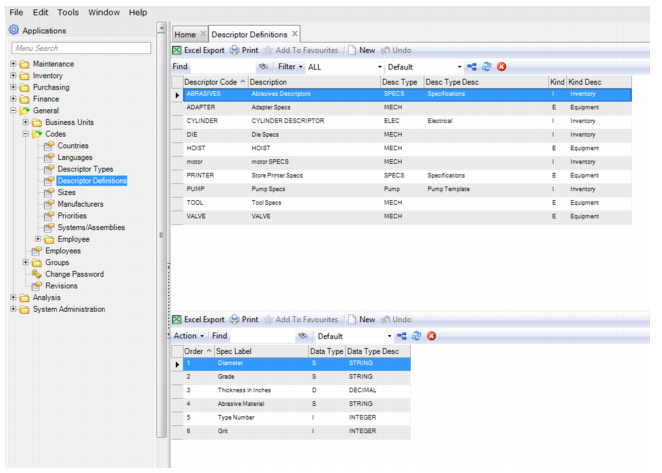
1 Open the Descriptor Definition browse located in General|Codes. In the upper browse click New.
2 Enter the information in the following fields:
• Descriptor Code. Enter the descriptor definition code.
• Description. Enter a brief description of the descriptor definition.
• Descriptor Type. Use the lookup to select the correct descriptor type.
• Descriptor Type Description. This field auto-fills based on the descriptor type you select.
• Kind. Enter (E) Equipment or (I) Inventory.
• Kind Description. This field auto fills based on the value of Kind.
3 Press Enter to save.
4 In the Specs browse, add labels to the descriptor definition by clicking New.
5 Enter the information in the following fields:
• Order. This number, which the system auto assigns, represents the sequential position in which the field displays.
• Spec Label. Enter the spec label. A descriptor has a user-defined number of labels. These labels are used to describe the categories for the information being tracked.
• Data Type. Select the data type:
• (S) String. Virtually any combination of letters, numbers, and dates.
• (I) Integer. A whole number written without a fractional or decimal component.
• (t) Date. A date in the format MM/DD/YYYY.
• (D) Decimal. A number with a decimal component. It can be a whole number with a decimal.
• Data Type Description. This field auto-fills based on the value of the Data Type field.
6 If necessary, you can rearrange the labels by selecting the Move Up or Move Down options in the Action menu.
Note: You can change the order of the spec labels when you are adding or updating a descriptor. When you attach it to a piece of equipment or inventory part, the order cannot be changed.
Descriptor Definition Codes
Editing a Descriptor Definition
Note: Changes made to a descriptor that is already being used on a part or piece of equipment can also affect the values in the fields of that descriptor:
To edit a descriptor definition, click in the Descriptor Code, Description, Descriptor Type, or the Kind fields and make the necessary changes. Press Enter to save.
To edit a spec label, click in the Spec Label or Data Type fields and make the necessary changes. Press Enter to save.
To rearrange the order or the spec labels, right-click on the label and select the Move Up or Move Down action.