Tools Actions
Relocate
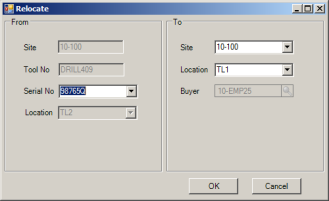
You can move a tool from one location to another within the same site or from one site to another using the Relocate action in the Tools Action menu. If the tool is not defined in the new site, then the tool is automatically created for the site. Tool relocation includes moving a tool between a shelf and your user-defined locations or to an Inspection location status.
Tools Action: Relocate
\
1 Highlight the tool you want to move.
2 Select Relocate from the Action menu. The Relocate pop-up appears.
3 In the From area, select a serial number for the tool.
4 In the To area, select a site and location, or select only a location if you are moving the tool within a site.
5 Click OK to save and relocate the tool. Tool History will display the From and To location movement for the tool serial number you relocated.
Issue to Work Order
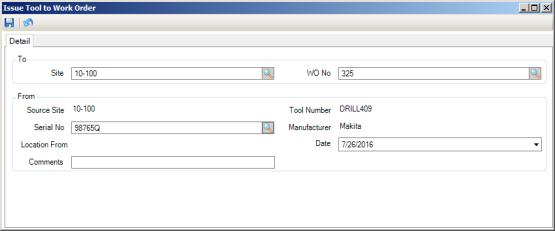
You can issue a tool to a WO directly from the Tools main browse.
Tools Action: Issue to Work Order
\
1 Highlight the tool you want to issue to a WO.
2 Enter or select from the lookups the site and associated WO number.
3 Select the serial number of the tool to issue. The manufacturer and Location From information default from the selected serial number.
Note: You cannot issue a serialized tool number that has a Location Status of Inspection or one that is entered on an open PM or CM WO.
4 Enter the date to issue the tool to the WO. Date defaults to today’s date.
5 Enter any comments, then click Save. Tool History will display the From and To location movement for the tool serial number that was issued.