QAD Enterprise Asset Management 2017.1
>
User Guide
>
Maintenance
>
Work Orders
>
Schedule Work Orders in MS Project
Schedule Work Orders in MS Project
You can schedule work orders using MS Project 2007. When selecting the Export action from the WO browse, you can specify a filtered set of work orders. The system creates a file for specific WO fields and their values from the set of work orders specified, which are used for scheduling in MS Project.
You are able to name and save the export file created for EAM work orders into MS Project. You can create and save multiple files for different groups of WOs; for example, by sites. When you open MS Project, you can select the file created and it loads, ready to schedule. You can then make changes to specific data for the EAM work order such as resources (assigned) and due dates. You can then import the WO back into EAM to reflect the changes made in MS Project.
Note: There is no real-time interface with EAM when using this functionality.
EAM and MS Project Setup
Export Employees from EAM to MS Project
Only employees who can be scheduled for work orders can be exported from EAM to MS Project. For an employee to be scheduled for a work order, the Assigned? check box must be selected in the General|Employees|Codes tab. See
Employee: Codes Tab.
System Admin Registry – Set the Default Directory for Exported Files
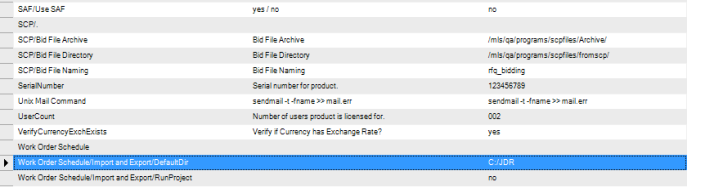
To set up the default directory to which the .xml files are exported, open the EAM system registry in System Administration|Registry. For the WorkOrder/Schedule/ImportandExport/DefaultDir line, enter the directory in the Data Value field.
Setting the Default Directory for Exported Files
Add EAM Template to MS Project Template Directory
The EAM installation CD contains an MS Project template that contains all of the defined fields being exported from EAM. Add the EAM-supplied template—called EAM Schedule.mpt—to the MS Project template directory.
Export Work Orders to MS Project
Follow these steps to export work orders to MS Project:
1 Open the Work Order browse.
2 Select Export Work Orders from the Work Order Action menu.
A Windows Explorer window opens.
3 Rename the file or accept the default file name. Select the directory where the work order .xml file is saved.
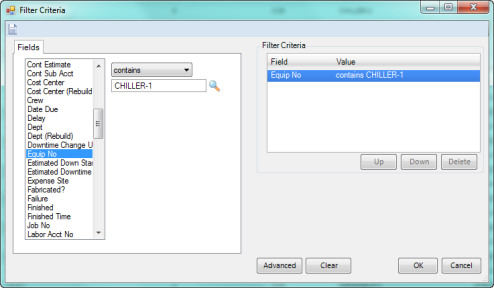
The Filter Criteria window opens. This window offers enhanced filter capabilities that allow you to select the fields that you want to use to filter the work orders.
4 Select fields to filter the work orders. When you are finished, click OK.
Note: EAM does not export any closed or canceled work orders.
Export Filter Criteria for Work Orders
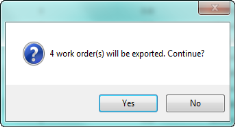
5 A window opens indicating how many work orders are scheduled to export. Click Yes to export the work orders as an .xml file.
Exporting Work Orders to MS Project
6 Open MS Project. Open the EAM Schedule.mpt template file.
EAM Schedule Template
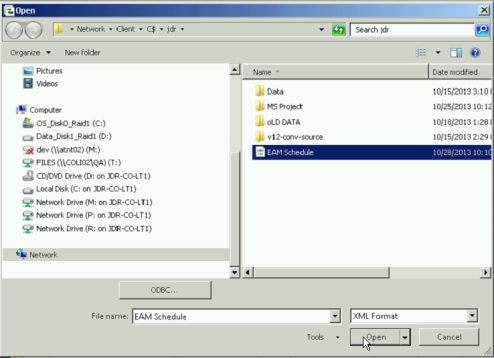
7 Open the EAM work order file as an .xml file.
Open the EAM Work Order File
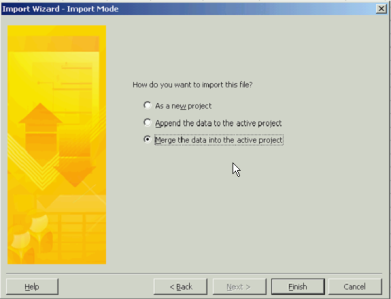
8 The Import Wizard window opens. Select one of the following options:
• As a new project
• Append the data to an active project
• Merge the data into the active project
Click Finish.
Merge Data Into Active Project
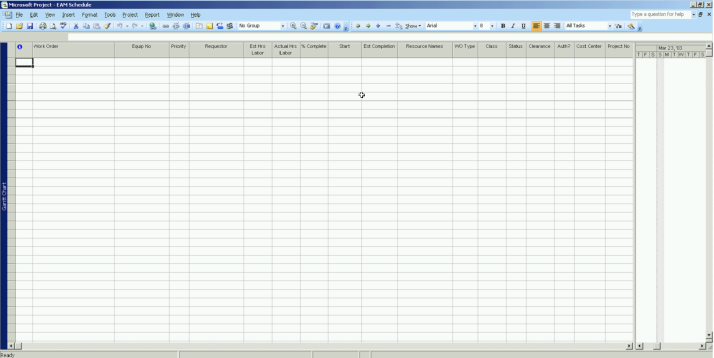
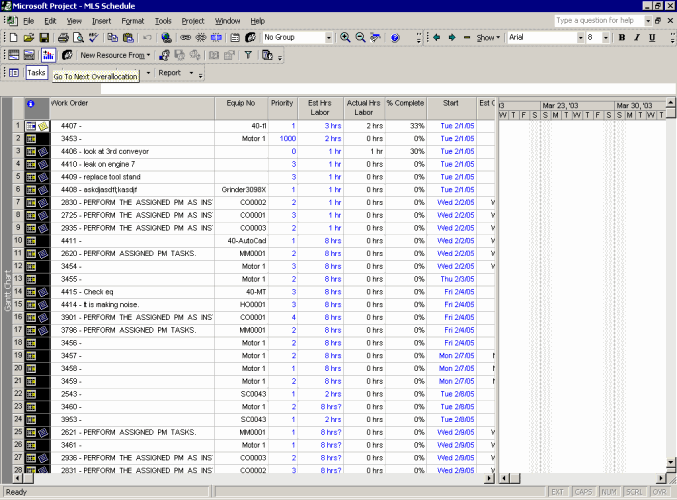
9 The work orders open in MS Project.
Review and Update Schedule of EAM Work Orders in MS Project
The following data, which is exported from EAM work order into MS Project, is displayed:
• Work Order
• Equip No
• Priority
• Requestor
• Est Hrs Labor
• Actual Hrs Labor
• % Complete
• Start
• Est Completion
• Resource Names
• WO Type
• Class
• Status
• Clearance
• Auth?
• Cost Center
• Project No
• Finished
• Closed
• Planner
• Crew
• Pri Craft
• Location
• Problem
Use MS Project to manage the schedule for the work orders in the project. You can modify and update the following enabled WO fields in MS Project. The changes you make can be imported back into EAM:
• Assigned
• Class
• Clearance
• Crew
• Estimated Hours Labor
• Planner
• Primary Craft
• Priority
• Start
EAM Work Order in MS Project
Import Work Orders to EAM from MS Project
Once the work orders have been updated in the project schedule, it can be saved as an .xml file. The import file can have the same name as the exported file or can be renamed when created and imported back into EAM.
Follow these steps to import work orders to EAM:
1 In MS Project, save the work orders as an .xml file.
2 In EAM, open the Work Order browse.
3 Select Import Work Orders from the Work Order Action menu. An Explorer window opens.
4 Locate the .xml file and click Open. When you open the .xml file, any data that was changed in MS Project is automatically imported into EAM. Note the following:
• Invalid data. If there is any invalid data, when you open the .xml file, message windows appear indicating the data that is invalid. Click OK to close these message windows and to continue the import process.
• Changes that are not applied. EAM applies changes unless one of the following situations occurs, in which case an e-mail is sent to the person entered as the Notify during the import routine.
Changes are not applied if the work order is closed, canceled, or restricted by the Owner field and the current user cannot modify it.
Specific changes are not applied to:
• Priority, Clearance, or Class if they are invalid.
• Planner, if it is an invalid Emp No or the employee’s Planner? setting is not selected.
• Assigned, if it is an invalid Emp No or the employee’s Assigned? setting is not selected.
• Est Hrs Labor, if the duration could not be read properly from the .xml file.
• Start, if the start date could not be read properly from the .xml file.
• Revision history. If revision control is turned on, any changes that are applied update the revision history in the Work Orders Revisions submenu.
• Updates to other modules. In addition to updating the work orders, EAM also performs the following updates to other modules:
• If the person in the Assigned field is changed, all open service requests that reference the work order are updated with the new Assigned person.
• If the Start Date is changed, the new Start Date is copied to the Required Date of all open stores requisition lists that reference the work order. Also, all open service requests that reference the work order are updated with the new Start Date.