Post Labor
Use the Post Labor action to charge the employees’ time against the work order.
If necessary, EAM gives you the ability to reverse the labor that is charged against a work order.
Posting Labor on a Work Order
Follow these steps to post labor on a work order:
1 In the Work Order browse, select the work order and then select Post Labor from the Action menu.
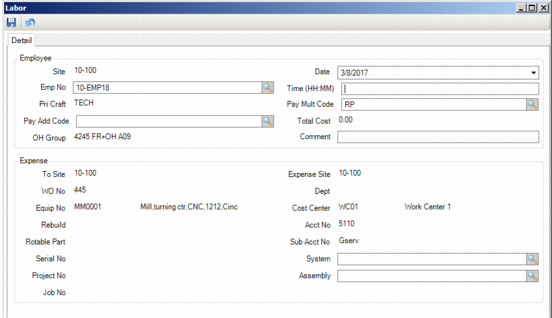
2 The Labor window opens. Fill in the necessary information in the Detail tab.
Post Labor
Employee
Site
The work order’s default site.
Date
The editable date of the labor transaction defaults to today’s date.
Employee No
The employee number of the employee who worked on the work order. You must identify an employee for a labor transaction. This employee number copies any corresponding information such as pay add rate, employee rate, primary craft, and overhead group.
Time
The amount of time (in hours and minutes, separated by a colon) the employee worked on the activity for which labor is being charged.
Pri Craft
The primary craft code, which defaults from the corresponding employee record.
Pay Multi Code
This code defaults in or you can use the lookup to select a code that adds a multiplier to the employee’s pay rate. Some examples are for regular time (1x the rate) or time and a half (1.5x the rate) for holidays or call-in pay.
Pay Add Code
Use the lookup to select a code that specifies an amount of money paid to an employee on an hourly basis, in addition to that employee’s regular hourly wage. This code can default from the Pay Add Code field in the General|Employees|Codes tab. See
Employee: Codes Tab.
Total Cost
EAM calculates the total cost of a particular labor transaction.
OH Group
The employee’s overhead group. Default information:
• If posting labor from the Employee module, this value defaults from the employee’s OH group.
• If it is blank or not posting from the Employee module, the field defaults to the setting in the OH Group field in the General|Business Unit|Sites|Misc tab.
Comment
Enter a text comment that is attached to the labor record and can display in the Labor History browse.
Expense
To Site
The work order’s source or default site.
Expense Site
Defaults to the current work order’s expense site.
Note: The data in the following fields must be added to the work order to appear on this screen.
WO Number
The work order number.
Dept
The department against which the cost on the labor record is charged.
Equip Number
The equipment number linked to the work order.
Cost Center
The cost center against which the cost on a labor record is charged.
Rebuild
If the work order was created to repair a rotable part, this field displays the rebuild location for the part.
Acct Number
The sub-account number associated with a particular labor transaction.
Rotable Part
If the work order was created to repair a rotable part, this field displays the rotable part number.
Sub Acct No
The sub-account number used with an account number to charge the costs on the labor record.
Serial No
If the work order was created to repair a rotable part, this field displays the serial number for the rotable part.
System
If the labor transaction is against a piece of equipment that has corresponding system codes, you can charge labor to the system, as well as to the piece of equipment. Enter the specific system to which the labor can be charged.
Project No
The project associated with the work order and labor transaction.
Assembly
If a system code was specified to identify a labor transaction associated with a piece of equipment after labor was distributed to the equipment, enter the system code.
Job No
This job number is identified in a labor transaction.
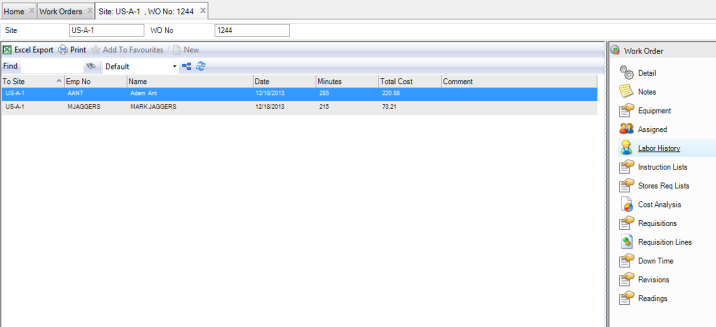
3 Once you have filled out the necessary information, click the disc icon to save. The labor charges post to the WO and the Labor window reopens with all values reset. You can review posted labor in the Labor History submenu.
Labor History for a Work Order
Reverse Labor on a Work Order
Follow these steps to reverse the labor that is charged to a work order:
1 Open the WO browse and highlight the WO. Select Reverse Labor from the WO Action menu.
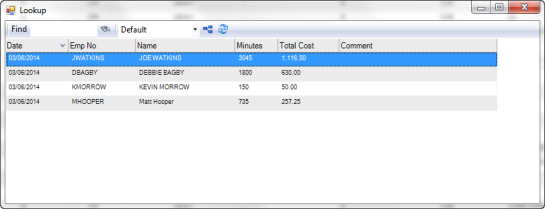
2 A lookup window opens listing the labor that has been posted to the WO. Double-click to select the labor charges to reverse.
Reversing Labor Charges on a Work Order
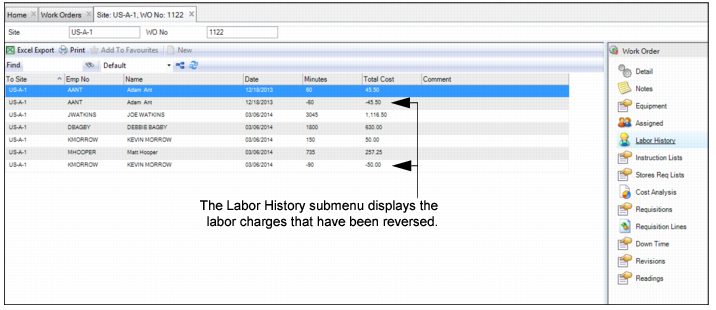
3 The labor charges reverse and the lookup window reopens, displaying the remaining labor that is posted to the WO. The Labor History submenu displays the labor charges that have been reversed.
Reversing Labor Charges on a Work Order