QAD Enterprise Asset Management 2017.1
>
User Guide
>
Maintenance
>
Work Orders
>
Viewing Work Order Information
Viewing Work Order Information
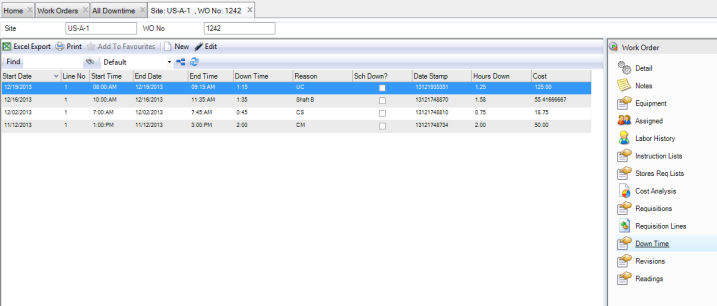
View the Downtime Records on a Work Order
To view the downtime records on a work order, open the work order and select the Down Time submenu.
Note: EAM also provides a browse that displays all the downtime for all equipment. See
All Downtime Browse.
Downtime Submenu
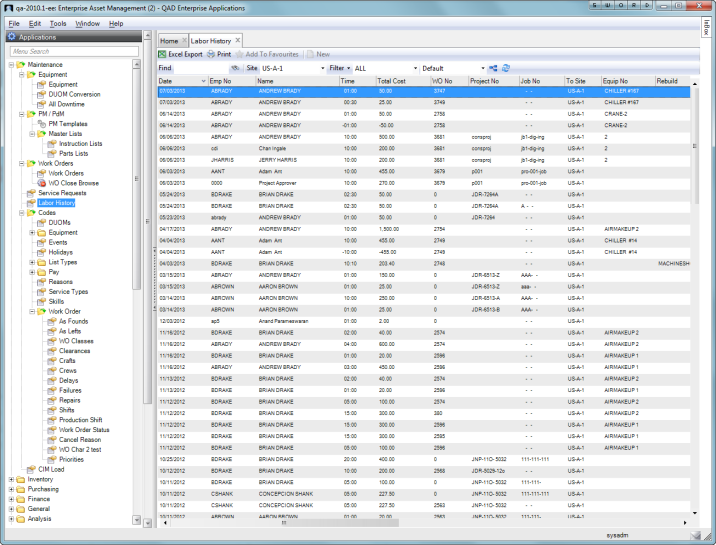
View Labor History for a Work Order
The Labor History browse displays the list of labor records for all work orders, including posted and reversed records. Reversals show a negative number of hours and negative cost; postings show positive hours and costs. The Labor History browse is located in Maintenance|Work Orders|Labor History.
Labor History Browse
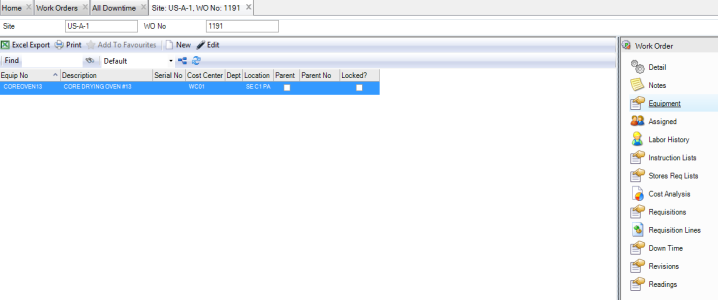
View the Equipment Associated with a Work Order
To view the equipment associated with a work order, open the work order and select the Equipment submenu. If necessary, you can double-click and drill into the equipment record.
WO Equipment Submenu
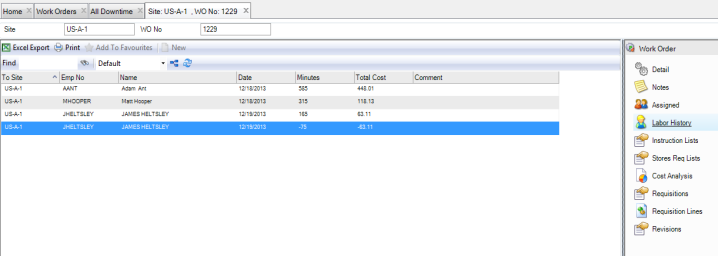
View the Labor Record History for a Work Order
To view the labor record history for a work order, open the work order and select the Labor History submenu. This submenu displays all posted and reversed labor records.
Labor History Submenu
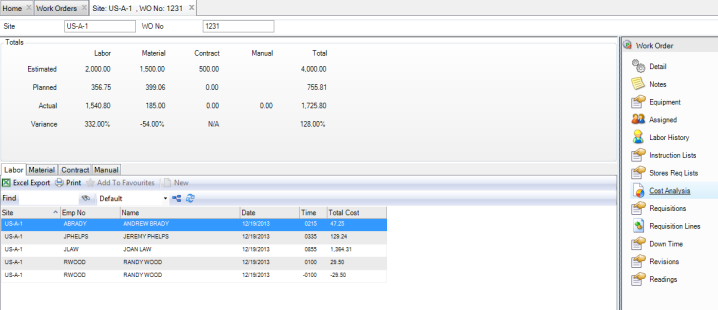
View the Cost Analysis for a Work Order
The work order Cost Analysis submenu allows you to view detailed cost analysis for an individual work order. At a glance, you can see the accumulated cost for the work order and any type of estimated, planned, and actual costs. You can review cost summaries and totals, and by using tabbed pages you can find the details of those costs, such as labor postings, part issues, outside contractor charges, and manual GL transaction expenses.
Note: The WO Cost Analysis Manual tab displays GL transactions that reference a WO number and were created by a manual EAM general ledger entry in Unposted GL Transactions. You must post these transactions to add them to the cost analysis.
WO Cost Analysis Submenu
View the Revision History for a Work Order
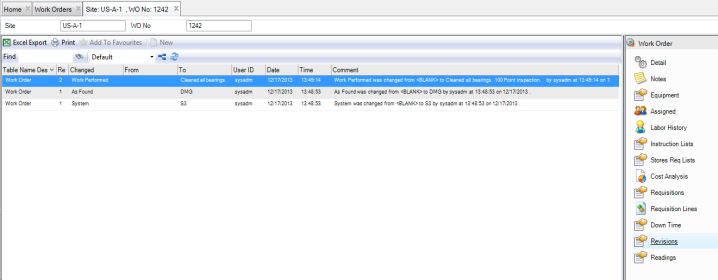
Because many quality systems call for strict record keeping about the revisions made to work orders, the Revisions submenu provides an audit trail of all modifications made to this record. The revision records, which are stored in the Revisions submenu and in the Revisions module at General|Revisions, are automatically created when a modification is made to the WO.
To view the revision history for an equipment record, open the WO and select the Revisions submenu.
Note: Activate revision control for work orders in the Revision Control submenu on the Site record. See
Enable Revision Control.
Work Order Revisions Submenu