Sites
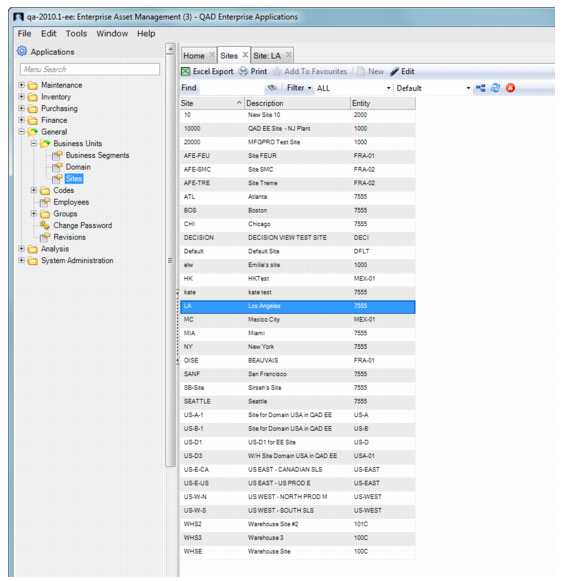
The Sites browse, which is in General|Business Units|Sites, is used to define and edit site control settings for EAM modules. If your user ID has access to multiple sites, you can change the active site to work with EAM modules.
Sites Browse
Creating a Site Record
Follow these steps to create a site record:
2 Open the Sites browse.
3 Find the site you created in the list. Double-click and open the site record.
4 Enter information in relevant fields on the Detail, Purchase Order, Inventory, More Inventory, Maintenance, Authorization Options, Misc, and MFG/PRO Options tabs. See
Filling Out the Site Record.
5 Click Save.
Filling Out the Site Record
The site record contains the controls for various functionality options for a site. Enter the information in the following tabs:
• General
• Purchase Order
• Inventory
• More Inventory
• Maintenance
• Authorization Options
• Misc
• MFG/PRO Options
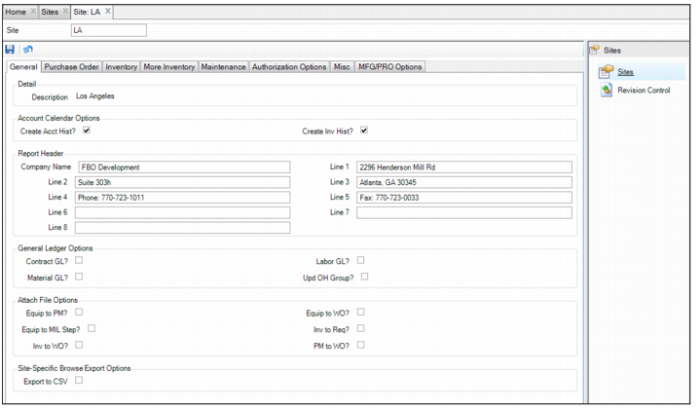
Sites: General Tab
Sites: General Tab
Detail
Description
This field displays the site description.
Account Calendar Options
Create Acct Hist
If this check box is selected, the system stores GL account activity history.
Create Inv Hist
If this check box is selected:
• The system stores a history of specific part numbers.
• Whenever an accounting period, which is set up in Acct Calendar Maintenance, is closed, the system automatically records an inventory activity history for that period. The inventory activity history is not stored on a period-by-period basis.
Report Header
Company Name
Enter the official company name. All the information in this section appears on the purchase order document.
Line 1, Line 2, Line 3, Line 4, Line 5, Line 6, Line 7, and Line 8
These fields display the lines of the company’s address. This information appears on the purchase order document.
General Ledger Options
Contract GL?
If selected, all requisitions that are flagged as contract create a general ledger transaction in EAM.
Material GL?
If selected, EAM creates a general ledger entry for all inventory transactions, such as physical inventories, issues, receipts, adjustments, and returns to stock, as well as PO receipts and returns to vendor.
Labor GL?
If selected, all labor postings create a general ledger transaction in EAM.
Upd OH Group?
If selected, users are allowed to modify the overhead code on transactions in EAM.
Attach File Options
Equip to PM?
If selected, files that are attached to an equipment record automatically copy to any PM record associated with that piece of equipment.
Equip to WO?
If selected, files that are attached to an equipment record automatically copy to any work order associated with that piece of equipment.
Equip to MIL Step?
If selected, files that are attached to an equipment record automatically copy to any master instruction list (MIL) step associated with that piece of equipment.
Inv to Req?
If selected, files that are attached to an inventory part record automatically copy to any requisition line record, including that part.
Inv to WO?
If selected, files that are attached to an inventory part record automatically copy to any “fabricated” work orders for that part.
PM to WO?
If selected, files that are attached to a PM template record automatically copy to any work order record created from that PM record.
Site-Specific Browse Export Options
Export to CSV?
Select this check box to export a site-specific browse to a.csv file.
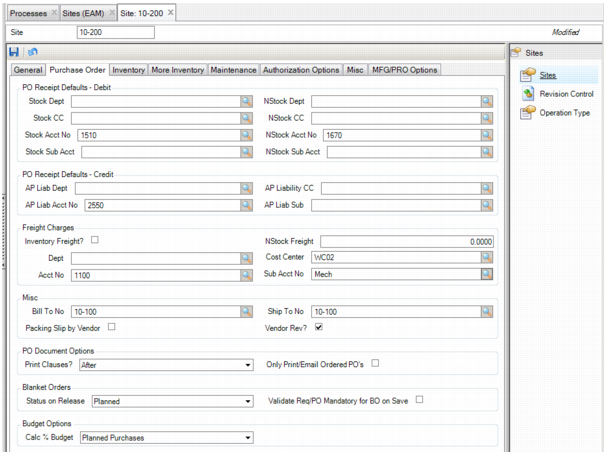
Sites: Purchase Order Tab
Enter site information on the Purchase Order tab.
Sites: Purchase Order Tab
PO Receipts Defaults – Debit
If no accounting structure is specified for the debit side of the Receipt transaction, EAM uses the accounts specified in the PO Receipts Defaults – Debit section. When items are issued out of inventory, then the same accounting structure is credited.
Stock Dept
At the time that a stock part is received, if that stock part does not have a stock department number, the system looks up the specific site and looks for a specified stock department for PO receipts.
Stock CC
At the time that a stock part is received, if that stock part does not have a stock cost center, the system looks up the specific site and looks for a stock cost center for PO receipts.
Stock Acct No
At the time that a stock part is received, if that stock part does not have a stock account number, the system looks up the specific site and looks for a stock account number for PO receipts.
Stock Sub Acct
At the time that a stock part is received, if that stock part does not have a stock sub-account number, the system looks up the specific site and looks for a stock sub-account number for PO receipts.
NStock Dept
Non-stock items on requisition lines are automatically set to auto-issue. You can specify a department number to expense or debit upon receipt of a non-stock item. If one is not specified, the system looks up the site’s non-stock PO receipt debit department number field.
NStock CC
Non-stock items on requisition lines are automatically set to auto-issue. You can specify a cost center to expense or debit upon receipt of a non-stock item. If one is not specified, the system looks up the site’s non-stock PO receipt debit cost center field.
NStock Acct No
Non-stock items on requisition lines are automatically set to auto-issue. You can specify an account number to expense or debit upon receipt of a non-stock item. If one is not specified, the system looks up the site’s non-stock PO receipt debit account number field.
NStock Sub Acct
Non-stock items on requisition lines are automatically set to auto-issue. You can specify a sub-account number to expense or debit upon receipt of a non-stock item. If one is not specified, the system looks up the site’s non-stock PO receipt debit sub-account number field.
PO Receipts Defaults – Credit
When a part is received into stores from a PO, the PO Receipt Debit accounting structure (Stock or Non Stock) is debited. An off-setting AP Liability accounting structure, also know as Expensed Items Receipt, is then credited for accounts payable. You can specify an AP Liability accounting structure in the PO Receipts Defaults – Credit section.
Note: If you connect EAM to QAD Purchasing, EAM copies the Expensed Items Receipt accounting structure from QAD to these fields, overriding what you have entered.
AP Liab Dept
At the time that a requisition line item is received from a PO, the stock or non-stock department is debited or increased, and an offsetting liability is credited for accounts payable. The system looks at the specific site’s AP Liability Department Number against which to credit all inventory receipts.
AP Liab Acct No
At the time that a requisition line item is received from a PO, the stock or non-stock account number is debited or increased, and an offsetting liability is credited for accounts payable. The system looks at the specific site’s AP Liability Acct No against which to credit all inventory receipts.
AP Liability CC
At the time that a requisition line item is received from a PO, the stock or non-stock cost center is debited or increased, and an offsetting liability is credited for accounts payable. The system looks at the specific site’s AP Liability CC against which to credit all inventory receipts.
AP Liab Sub
At the time that a requisition line item is received from a PO, the stock or non-stock sub-account number is debited or increased, and an offsetting liability is credited for accounts payable. The system looks at the specific site’s AP Liability Sub Acct No against which to credit all inventory receipts.
Freight Charges
Inventory Freight?
If selected, Freight is included in the part expense for stock or non-stock parts. Stock or non-stock parts include the estimated freight percentage on the requisition as part of their inventoried cost.
Dept
If freight is specified on a requisition line item, at the time of receipt, the cost of the freight is distributed to the freight department for the specific site.
Acct No
If freight is specified on a requisition line item, at the time of receipt, the cost of the freight is distributed to the freight account number for the specific site.
NStock Freight
Number identifying the additional percent added to a non-stock part’s cost to cover freight.
Cost Center
If freight is specified on a requisition line item, at the time of receipt, the cost of the freight is distributed to the freight cost center for the specific site.
Sub Acct No
If freight is specified on a requisition line item, at the time of receipt, the cost of the freight is distributed to the freight sub-account number for the specific site.
Misc
Bill To No
Select the default bill-to address that is used on all POs for the specific site.
Ship To No
Select the default ship-to address that is used on all POs for the specific site.
Packing Slip by Vendor
Default is cleared. If this check box is selected, the packing slip entered during receiving must be unique for a vendor.
Vendor Rev?
Select this option if you want a revision number incremented on reprinted PO indicating that changes have been made to the PO.
PO Document Options
Print Clauses?
This option controls whether standard clauses print before or after the line items on a purchase order document.
Only Print/Email Ordered POs
Default is cleared. If this check box is selected, you cannot print or e-mail a PO unless it has a status of Ordered.
Blanket Orders
Status on Release
Specify the status that is automatically assigned to a PO that is released from a blanket order for the site. The status options are Planned (P) or Ordered (O).
Validate Req/PO Mandatory for BO on Save
Select this check box to have EAM validate that all mandatory fields for POs and requisitions are populated before saving a new BO or its associated lines.
Budget Options
Calc% Budget
The default is Expensed. Select the value to use in calculating the percentage of a site’s budget already spent and, depending on the setting, committed for projects and for cost centers, accounts, and sub-accounts. This value is compared to the requisition budget amount selected.
• Expensed: PO receipts = (Expensed/Budget) * 100
• Committed: PO with a status of Ordered (O) = ([Expensed + Committed]/Budget) * 100
• Auth Purchases: Authorized Requisitions/POs = ([Expensed + Committed + Auth Purch]/Budget) * 100
• Planned Purchases: Requisitions/POs with a status of Planned (P) = ([Expensed + Committed + Auth Purch + Planned Purch]/Budget) * 100
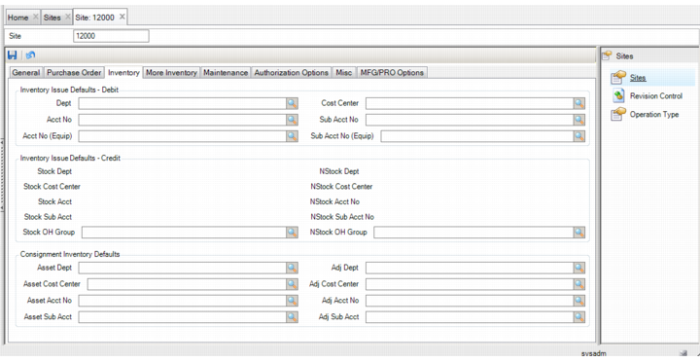
Sites: Inventory Tab
Sites: Inventory Tab
Inventory Issues Defaults – Debit
Dept.
Select the department against which the inventory expense is reported. Department is not part of the GL accounting structure.
Cost Center, Acct No, and Sub Acct No
If an expense account is not otherwise specified, the Cost Center, Acct No, and Sub Acct No fields serve as the default accounting structure that is debited during the inventory issue transaction.
Acct No (Equip) and Sub Acct No (Equip)
When a part is issued to a piece of equipment, the system automatically pulls in the equipment’s material account number. If one does not exist, then it looks for the site’s default account number. By specifying a site default, you ensure that there are no issues to a blank account number. This represents the debit side of a general ledger transaction. The inventory account receives the credit side of the transaction.
Acct No (Equip)
Displays the account number that is debited when a part is issued to an equipment ID that is missing a material account number.
Sub Acct No(Equip)
Can also be used if you want the site default to include a sub-account number.
Inventory Issues Defaults – Credit
Stock Dept, NStock Dept
Select the stock/non-stock department against which the inventory expense is reported. Stock/Non-Stock Department is not part of the GL accounting structure.
Stock Cost Center, Stock Acct No, Stock Sub Acct No, Stock OH Group, NStock Dept, NStock Cost Center, NStock Acct No, NStock Sub Acct No, NStock OH Group
Transactions for non-stock items can be separated from the routine stock transactions by specifying an accounting structure that is specifically for non-stock issues. If no accounting structure is specified for the credit side of the issue transaction, EAM uses the applicable (Stock or Non Stock) accounting structure specified in the following fields.
Both the Stock and Non-Stock related accounting structures are defaulted from the selections made on the Purchase Order tab. On the Purchase Order tab, these accounting structures serve as the site’s default PO Receipt Debit accounts. On the Inventory tab, they serve as the site’s default Inventory Issue Credit accounts. To add or modify these accounts, access the fields on the Purchase Order tab.
Consignment Inventory Defaults
Asset Dept
When consignment inventory is purchased, select the department against which the consignment inventory expense is reported. Asset Department is not part of the GL accounting structure.
Asset Cost Center, Asset Acct No, Asset Sub Acct No
When you purchase consignment inventory, select the accounting structure that is expensed.
Adj Dept
For adjustments in consignment inventory, select the department against which the consignment inventory expense is reported. Adjustment Department is not part of the GL accounting structure.
Adj Cost Center, Adj Acct No, Adj Sub Acct No
If a physical inventory or cycle count determines there are more parts in consignment inventory than the system records reflect, inventory personnel enter the new count to increase the quantity. To remedy the absence of an audit trail and account for the change in consignment inventory quantity, the Consignment Inventory accounting structure is debited and this Consignment Inventory Adjustment accounting structure is credited.
If a physical inventory or cycle count results in a downward adjustment, the Consignment Inventory accounting structure is credited and the Consignment Inventory Adjustment accounting structure is debited.
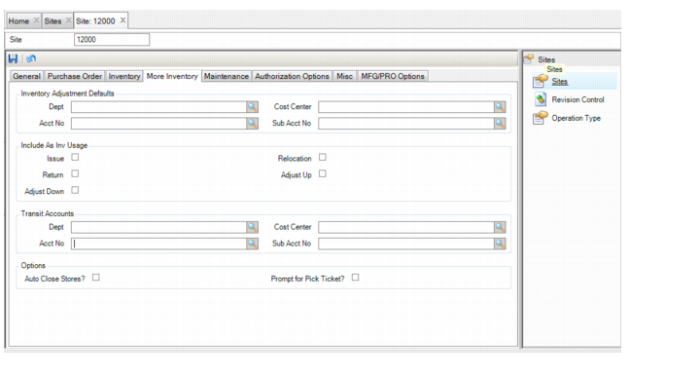
Sites: More Inventory Tab
Sites: More Inventory Tab
Inventory Adjustment Defaults
Dept.
For inventory adjustments, select the department against which the inventory adjustment expense is reported. Department is not part of the GL accounting structure.
Cost Center, Acct No, and Sub Acct No
If a physical inventory or cycle count determines there are more parts in inventory than the system records reflect, inventory personnel enter the new count to increase the quantity. To remedy the absence of an audit trail and account for the change in inventory quantity, the inventory accounting structure is debited and the Inventory Adjustment accounting structure is credited.
If a physical inventory or cycle count results in a downward adjustment, the inventory accounting structure is credited and the Inventory Adjustment accounting structure is debited.
Include as Inv Usage
EAM automatically maintains a monthly cumulative count of each inventory stock item’s usage. In other words, usage is the quantity of parts used for each month within a selected year. Select those transactions that you want to be included as usage. To view the usage history for a part, access Analysis|Inventory|Inventory Usage Analysis|Inventory Usage Analysis (EAM).
Issue
Select this check box to decrease the inventory on-hand quantity when a part is issued.
Relocation
Select this check box to include a warehouse transfer or a relocation of a part to a different site in the usage calculation.
Return
Select this check box to include the return of a part in the usage calculation.
Adjust Up
Select this check box to include an inventory adjustment to increase the on-hand quantity of a part in the usage calculation.
Adjust Down
Select this check box to include the inventory adjustment to decrease the on-hand quantity of a part in the usage calculation.
Transit Accounts
The Transit accounting structure is used if the Transit? check box is selected in the domain’s Inventory tab in General|Business Units|Domain. See
Domain: Inventory Tab.
Dept.
When Transit? is selected and parts are transfered, specify the department against which the expense is reported. Department is not part of the GL accounting structure.
Cost Center, Acct No, and Sub Acct No
If the domain’s Transit? check box is selected, EAM credits the inventory accounting structure and debits the Transit accounting structure when a part is issued from stores.
Likewise, when the part is received in the other site, an offsetting credit is issued against the Transit accounting structure. This Transit accounting structure can be viewed as an intercompany charge account and should always equal zero when all inventory transactions are completed.
Options
Auto Close Stores?
Select this check box to automatically close stores requisitions once they issue 100% of planned quantities. If you select this check box, stores requisitions automatically close when complete, which saves you time because you are not required to manually close the stores requisitions.
Prompt for Pick Ticket
Select this check box to use pick tickets at a particular site.
After the inventory issue transaction is complete in EAM, the printed pick ticket form is used for physically pulling parts from stores. Users with the appropriate authorization can perform a direct inventory issue transition and print the pick ticket for stores personnel. Afterward the stores employee uses the printed pick ticket as a reference to locate the part and to manually pull it from the shelf/bin. If a comment is entered during the issue transaction, the text appears in the Comment field on the pick ticket report.
If this check box is selected, you are prompted during an inventory issue with a dialog box where you can choose whether to print a pick ticket or not.
The pick ticket prompt is presented during the following material issue scenarios:
• Issue transaction using the issue transaction option through Inventory Maintenance
• Issue transaction invoked from Work Order Maintenance
• Issue transaction invoked from Stores Requisition Maintenance
Note: The pick ticket does not apply to a purchase order for a stock item that was created from a requisition or blanket order that had the Auto Issue? check box selected.
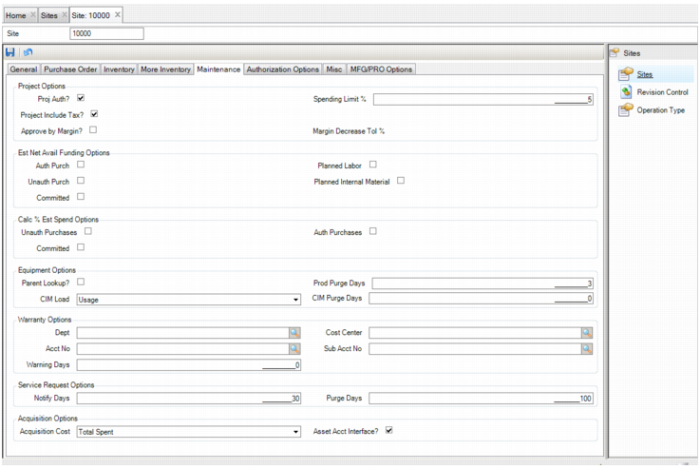
Sites: Maintenance Tab
Sites: Maintenance Tab
Project Options
Proj Auth?
If this check box is selected, projects must be authorized before any expenses are reported against them.
Spending Limit %
The percentage of the project’s spending limit that you can overspend. For example, if the spending limit for the project is $1,000 and the Spending Limit % is set to 10%, you are allowed to spend $1,100.
Project Include Tax?
Select this check box to include tax amounts in the cost amounts for the project.
Approve by Margin?
Select this check box to approve a customer-funded project based on Planned Margin% instead of the Project Requested Funding Amount. You can only select this option if the Proj Auth check box has been selected for the site. When Approve by Margin is selected, it is only used for projects with a Customer Funded funding type. A separate project margin approval group is used to routing for approval.
Margin Decrease Tolerance%
This option is enabled when Approve by Margin? is selected. The percentage that you enter in this field determines if a change to the Planned Margin% for a Project must be reauthorized:
• Outside of Tolerance%. If the percentage decrease in the Planned Margin% is outside this Tolerance%, then the project must be routed through a margin approval group for authorization.
• Within Tolerance%. If the percentage decrease is within this Tolerance%, then the Auth-Margin% is updated without additional authorization.
• Zero Value. If you do not specify a value, any change requires reauthorization as no Tolerance% value is defined.
Estimated Net Available Funding Options
Auth Purch, Planned Labor, Unauth Purch, Planned Internal Material, and Committed
Select one or more of these cost options to include in the Estimated Net Available Funding amount for a project. Each of these costs is visible on the Cost tab of the project.
This Net Available Funding amount is calculated as Funding Amount minus the total spent and any of the amounts selected here for a project. This gives a project manager an estimation of remaining net funding available by considering any or all of these costs, already in the pipeline for the project, in addition to Total Spent.
Calc % Est Spend Options
Unauth Purchases, Auth Purchases, and Committed
Select one or more of these options (Purchasing Costs on a Project), to include the cost in the calculation of the % Spending Estimate for the project.
Equipment Options
Parent Lookup?
Select this check box to use the graphical representation of the equipment lookup for this site. The graphical lookup provides much more information than the standard equipment lookup. At a glance, you see which pieces of equipment are parents and what pieces of equipment have been attached to them. Also, you can view whether a piece of equipment is locked. The graphical representation is available from any field that normally accesses the Equipment lookup.
Prod Purge Days
Enter the number of days before EAM purges the data in the Maintenance|Equipment|Data Loads|Production Hours browse.
CIM Load
When using the CIM functionality, you must write a routine that extracts information from ERP into a simple text file for EAM to read. The CIM Load setting controls whether EAM expects the simple text file to include the equipment usage (the accumulated usage for the time frame being reviewed) or the equipment reading (the current meter reading for the DUOM). There is a job called CIM Load that performs the CIM Load function. See
CIM Load.
CIM Purge Days
Currently not available.
Warranty Options
Dept., Cost Center, Acct No, Sub Acct No, Warning Days.
Currently not available.
Service Request Options
Notify Days
Enter the number of days before EAM sends an e-mail to the Notify user ID that is associated with the equipment referenced on a service request. If a service request has not been resolved after this number of days, the system sends an e-mail to the equipment’s Notify user ID. If Notify Days is set to zero, when you create a service request, an e-mail is sent to the Notify user ID upon saving.
Purge Days
Enter the number of days the system maintains the records of closed or canceled service requests under Service Request History. The system purges all records of closed or canceled service requests older than the number of days indicated here.
Acquisition Options
Acquisition Cost
Currently not available. Total Spent, Total Invoiced, Total Paid.
Asset Account Interface?
Currently not available. There is a Fixed Asset Integration for QAD EE in the Project module.
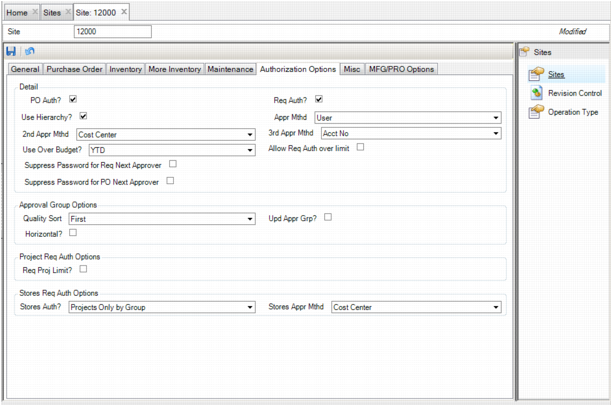
Sites: Authorization Options Tab
Sites: Authorization Options Tab
Detail
PO Auth?
If this check box is selected, purchase orders must be authorized. You must define an Approval Limit Currency in System Control to use PO authorizations. See
System Control: Detail Tab.
Req Auth?
If this check box is selected, requisitions must be authorized. You must define an Approval Limit Currency in System Control to use requisition authorizations. See
System Control: Detail Tab.
Note: If you select Req Auth? you must select an approval method in the Appr Method field. If Req Auth? and Use Hierarchy? are selected, select all three approval methods.
You can specify a particular requisition approval group for the following:
• Project/Job
• Account Number
• Cost Center
• User
If Req Auth? is selected, EAM first checks if there is a Project/Job on the requisition header for which a req approval group has been specified. If yes, EAM uses this group for approval routing.
If not found, then EAM checks the site control setting Use Hierarchy? flag.
If Use Hierarchy? is not selected, then EAM simply checks the record specified as the basis for routing (Cost Center, Account, or User) to determine which req approval group to use for routing. If none is found, EAM displays an error message stating that there is no approval group.
If Use Hierarchy? is selected, EAM follows the logic of checking in order the records specified as first, second, and third approval options to locate the correct approval group. If none is found, EAM displays an error message stating that there is no approval group.
Use Hierarchy?
Select this check box to use all or any of the three methods for routing approval:
• Account based. Account-based routing requires that you assign a specific requisition group to a specific account number. EAM routes a requisition based on its account information to the group associated with the account number on the requisition. This information is in Finance|Accounting|Accounts.
• Cost center based. Cost center-based routing requires that you assign a specific requisition group to a specific cost center number. EAM routes cost center information to the group associated with the cost center number on the requisition. This information is in Finance|Accounting|Cost Centers.
• User-based. User-based routing depends on the user who initiates the routing. The user group is assigned to the User Profile.
In all three options, EAM requisition initiators must have a cost center or account group in their profiles. In this way, you can control who can purchase against cost center and account numbers.
Appr Method, 2ndAppr Method, and 3rdAppr Method
When you select Use Hierarchy?, EAM considers all methods in a user-defined sequence. The first method is cost center, the second is account, and the third is user. EAM uses the cost center approval group first.
If no cost center is listed or no requisition approval group is linked to the cost center, it uses the account approval group.
If no requisition approval group is linked to the account, EAM uses the user-based method for routing.
If the user who initiates the routing does not have a requisition approval group assigned to the User Profile, the routing is aborted.
Use Over Budget
If Req Auth? is selected, this drop-down menu is active. Select a budget period of either YTD or Current Period. This amount is used to compare with Calc% Budget amounts. See
Budget Options.
Allow Req Auth Over Limit
Select this check box to allow requisition authorizations over the project spending limit.
Suppress Password for Req Next Approver
When a requisition routing is in process, this option suppresses the prompt for password for requisition next approver. If this check box is selected, you are logged in to requisitions, where you are the next approver. You are not presented with a password prompt when you select Authorize or Global Authorize. The option is validated for the requisition site, but not the user site.
Note: When you perform the Global Authorize action and initiate routing, you are always prompted for a password, regardless of the new setting. If you select the Global Authorize action for a mix of requisitions that are already in routing and others set to have routing initiated, you are prompted for a password if you are not the next approver, regardless of the setting.
Note: If you authorize a group of requisitions using the Global Authorize action, but you are not the Next Approver and do not have the required spend limit for some of the requisitions, the requisitions are not approved or disapproved and are not updated with any comments. If this situation occurs, the details are displayed in the Global Validation Message Log.
Note: If you initiate a routing and are not a Next Approver or on the routing list, you are prompted to enter your password and continue with all other existing authorize prompts.
Suppress Password for PO Next Approver
When a PO routing is in process, this option suppresses the prompt for password for the PO next approver. If this check box is selected, and you are logged in to the PO as the next approver, you are not presented with a password prompt when you select Authorize or Global Authorize. The option is validated for the PO site, but not for the user site.
Note: When you perform the Global Authorize action and initiate routing, you are always prompted for a password, regardless of the new setting. If you select the Global Authorize action for a mix of POs that are already in routing and others set to have routing initiated, you are prompted for a password if you are not the next approver, regardless of the setting.
Note: If you authorize a group of POs using the Global Authorize action but you are not the Next Approver and do not have the required spend limit for some of the POs, the POs are not approved or disapproved and they are not updated with any comments. If this situation occurs, the details are displayed in the Global Validation Message Log.
Note: If you initiate the routing and are not a Next Approver or on the routing list, you are prompted to enter a password and continue with all other existing authorize prompts.
Approval Group Options
Quality Sort
Select First or Last to have the quality approver listed as the first or last approver in the approval group.
Upd Appr Grp?
Select this check box to override the requisition’s approval routing.
Horizontal?
Select this check box to allow horizontal approvers to be added to requisition approval groups. Horizontal approvers align with requisition approvers by having the same approval limit. As the requisition approver approves, the horizontal approver is routed to next for approval. When this option is selected, the final approver is a horizontal approver with the required spending amount.
Proj Req Auth Options
Req Proj Limit?
For requisitions that are tied to projects, select this check box to have the requisition approved based on the user’s setting for Requisition Project Limit rather than the Requisition Limit or Requisition Cap Limits.
Stores Req Auth Options
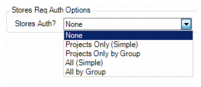
Stores Auth?
The default setting is None. If authorization is required, select from one of the following options to enable authorization by a stores requisition approval group or by a single user.
Stores Req Auth Options
• None EAM does not require any authorization for a stores requisition. You can issue the stores requisition directly from the Action menu of the lower browse of Inventory|Stores Requisition Lists.
• Project Only (Simple) When parts are issued to a project, EAM requires approval from a single user with security to authorize a stores requisition.
• Projects Only by Group When parts are issued to a project, EAM routes project stores requisitions through the assigned stores requisition approval group, as defined in the projects stores req approval group.
• All (Simple) EAM requires approval from a single user with security to authorize a stores requisition.
• All by Group EAM routes all stores requisitions through the assigned stores requisition approval group, as defined in the Stores Appr Mthd field.
Stores Appr Mthd
The Stores Appr Mthd drop-down menu is active when either Projects Only by Group or All by Group is selected from the Stores Auth? drop-down menu. Select Acct No, Cost Center, or User. In all three instances, EAM stores requisition initiators must have a cost center or account group in their profiles. In this way, you can control who can purchase against cost center and account numbers.
Stores Approval Method
• Acct No Account-based routing requires that you assign a specific stores requisition approval group to a specific account number. EAM routes a stores requisition based on its account information to the group associated with the account number on the stores requisition. This information is in Finance|Accounting|Accounts.
• Cost Center Cost center-based routing requires that you assign a specific stores requisition group to a specific cost center number. EAM routes cost center information to the group associated with the cost center number on the stores requisition. This information is in Finance|Accounting|Cost Centers.
• User-based User-based routing depends on the user who initiates the routing. The user group is assigned to the user profile. When the Stores Auth? option is set to All by Group, the user is included to authorize using the Stores Requisition Approval Group specified.
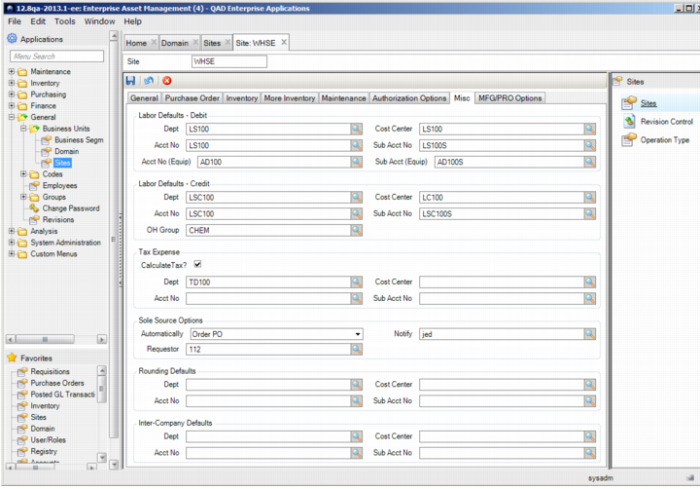
Sites: Miscellaneous Tab
Sites: Misc Tab
Labor Defaults – Debit
Dept
Select the department against which the labor expense is reported for the debit side of the transaction. Department is not part of the GL account structure.
Cost Center, Acct No, Sub Acct No, Acct No (Equip), and Sub Acct No (Equip)
When labor is posted to a work order, these fields serve as the default accounting structure for the debit side of the labor transaction used.
Labor Defaults – Credit
Dept
Select to which department labor expense is credited. Department is not part of the GL account structure.
Cost Center, Acct No, Sub Acct No, and OH Group
If there is no default accounting structure defined for an employee, the default accounting structure defined in these fields is used in labor posting transactions.
Tax Expense
Calculate Tax?
Select this check box to have sales tax costs accompany items into inventory. By selecting this option, stock parts include sales tax as part of their inventoried cost.
Note: Inventory tax for stock items can only be selected if Accrue Tax? is selected. The Accrue Tax? check box is on the tax rate record in Finance|Tax|Tax Rates. If the Inventory Tax? check box is not selected on the tax rate record, sales tax is excluded from the inventoried cost of stock parts. Instead, sales tax for stock parts is expensed to the site’s Tax Expense account.
Dept
Select the department against which tax expenses are reported. Department is not part of the GL account structure.
Cost Center, Acct No, and Sub Acct No
Select the accounting structure that is used when reporting tax expenses.
Sole Source Options
Automatically
In Inventory Maintenance, you can flag a part as sole source, indicating that this part bypasses the normal purchasing approval process for replenishment. Since these parts are typically pre-approved under contract prices and at certain stocking levels, sole source parts can go straight from a requisition to an authorized and ordered purchase order. However, you can control exactly how far EAM automates the purchasing process for sole source parts by selecting from the following options:
• Create Req. If this option is selected, EAM automatically creates a requisition for any sole source part upon reaching its reorder point or safety stock levels.
• Auth Req. If this option is selected, EAM automatically creates a requisition that is authorized (if required) for any sole source part upon reaching its reorder point or safety stock levels.
• Create PO. If this option is selected, EAM automatically creates a requisition, authorizes the requisition (if required), and creates a purchase order for any sole source part upon reaching its reorder point or safety stock levels.
• Auth PO. If this option is selected, EAM automatically creates a requisition, authorizes the requisition (if required), creates a purchase order, and authorizes the purchase order for any sole source part upon reaching its reorder point or safety stock levels.
• Order PO. If this option is selected, EAM automatically creates a requisition, authorizes the requisition (if required), creates a purchase order, authorizes the purchase order (if required), and places the purchase order on order for any sole source part upon reaching its reorder point or safety stock levels.
Notify
The notify group or employee ID entered here is notified through e-mail when a sole source part could not be ordered through the stock replenishment routine due to an expired price schedule or incorrect data.
Requestor
The employee ID entered here is associated with all requisitions for sole source parts created through the stock replenishment routine.
Rounding Defaults
Dept
Select the department against which the rounding is reported. Department is not part of the GL account structure.
Cost Center, Acct No, and Sub Acct No
Select the accounting structure that is used when rounding differences occur for a GL transaction.
Intercompany Defaults
Dept
Select the department against which the intercompany transaction is reported. Department is not part of the GL account structure.
Cost Center, Acct No, and Sub Acct No
When parts are transferred between sites in different entities, select the default accounting structure that is used for the intercompany transaction. This default is used if there are no From and To Site Intercompany Accounting defined. See
Intercompany Accounts.
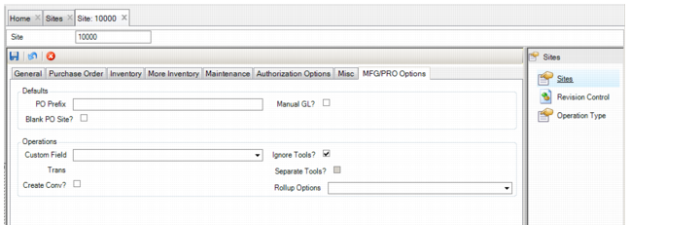
Sites: MFG/PRO Options Tab
Sites: MFG/PRO Options Tab
Defaults
These options are for integration with QAD Purchasing and GL.
PO Prefix,
Specify a prefix that is appended to the EAM PO number when it is sent to QAD ERP purchasing. This prefix allows you to easily identify EAM POs in ERP.
Manual GL?
When this check box is selected, manual GL transactions that are created in EAM’s Unposted GL Transactions are posted and sent to QAD GL when a user selects “Send ERP?=Yes.” Once the manual journal entry is created, select Post from the Action menu on the Unposted GL Transaction browse and the manual GL posts to the ERP.
Note: Users can override this default setting and transmit unposted GL transactions to ERP. Ensure that only qualified users have access to this functionality.
Blank PO Site
This field is obsolete and not used.
Operations
These settings are used with Production driven maintenance in the Maintenance module.
Custom Field
Select a Custom Field using the drop-down menu. This is the ERP field that is marked as having been Read during the DUOM Load process. The fields offered on the drop-down menu are not used by standard ERP functionality. They have been provided for customized purposes. Be sure to select a field that is not being used for any other purpose in the ERP.
Ignore Tools?
The Ignore Tools? check box controls if tools are included in the DUOM load job program. If this check box is selected, the tool code is ignored when EAM reads the ERP’s shop floor operation history table (op_hist). Depending on how tool codes are used in the ERP, the tool code may not easily provide data useful in the DUOM update process. Since there are circumstances under which you do not want to include tools in the DUOM load job program, the Ignore Tools? option can be enabled. In cases where tool codes do accurately correspond to an EAM equipment record, as in the case of a die that is attached to a piece of machinery, you can update the DUOMs for two pieces of equipment, machine and tool, rather than just one or the other. To handle this, leave this setting unchecked and use the Separate Tools setting.
Trans
When EAM reads the shop floor operation history table (op_hist) in the ERP for the DUOM load job program, this Trans number automatically updates to reflect the most recently Read record. Then, when the process runs again, it only reads those records that have been added since the last run.
Note: The number displayed in the Trans field is automatically updated as of the last run of the DUOM Load Job Program. If a particular record could not be read, the number in this field indicates the number of that record. When the process runs again, it starts again with that record and proceeds from there. If the problem with the record is not resolved, the number remains the same and the process continues to start over with that transaction number.
Separate Tools?
If the Separate Tools? check box is selected, two pieces of equipment have their DUOM records updated by the reading of a single shop floor operation history table (op_hist) record from the ERP.
Example: If the ERP shop floor operation history table (op_hist) record contains a machine and a tool, each can be mapped to different EAM equipment numbers. When the machine and tool both appear on a history record, the process checks for a conversion for each and updates both DUOMs if a conversion has been set up at Maintenance|Production Driven Maintenance|Equipment Mapping to ERP.
Note: If the Tool is mapped to a piece of equipment that is set up as a child in EAM, do not define the DUOM conversion table for the tool. If the DUOM conversion is also set up, then the Child Tool DUOM would be updated twice.
Create Conv?
The Create Conv? setting controls one of the three ways that new records can be added to the Equip DUOM/ERP Item Conversion browse. If this check box is selected, EAM automatically adds a new conversion record in the Equip DUOM/ERP Item Conversion browse each time a new DUOM is added to a piece of equipment in the Readings submenu.
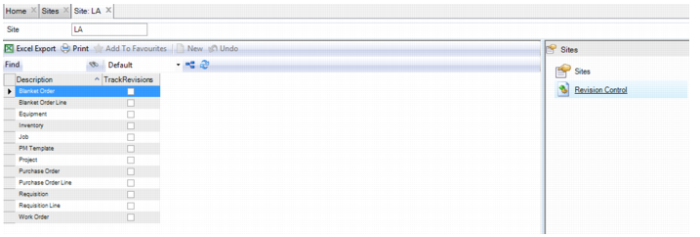
Enable Revision Control
In the Revision Control submenu, you can specify that revisions are automatically created when modifications are made to any or all of the menu items listed. To turn on revision control, open the Revision Control submenu and then select the Track Revisions check box for the corresponding menu.
The revision details for changes are visible in each of the following menu items when track revisions is selected:
• Blanket Order
• Blanket Order Line
• Equipment
• Inventory
• Job
• PM Template
• Project
• Purchase Order
• Purchase Order Line
• Requisition
• Requisition Line
• Work Order
Revision Control Options
Operation Type – Production Driven Maintenance Setup
The operation types defined here for the site are used with Production Driven Maintenance in the Maintenance module.
Enter valid operation transaction types from ERP that would represent machine, work center, or tool production rate. For a list of valid ERP operation transaction types, see the Generating Reports section in the Shop Floor Control chapter of the QAD Manufacturing User Guide.
These operation transaction types are read from the shop floor operation history table (op_hist) in ERP for use in the DUOM Load Job Program. Only records for those transaction types entered for the site are used for updating meter readings in EAM.
Site: Operation Type Submenu