QAD Enterprise Asset Management 2017.1
>
User Guide
>
Inventory
>
Inventory
>
Edit Inventory Parts
Edit Inventory Parts
Modify Part Cost
The Modify Cost action allows you to change the cost of a part. When this action is performed, general ledger entries are generated based on the changes.
Note: Use this option only with approval from your Finance department.
Follow these steps to modify the cost of an inventory part:
1 Open the Inventory browse and highlight the part record.
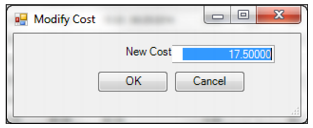
2 Select Modify Cost from the Inventory Action menu. The Modify Cost window opens. Enter the new cost.
Modify Cost
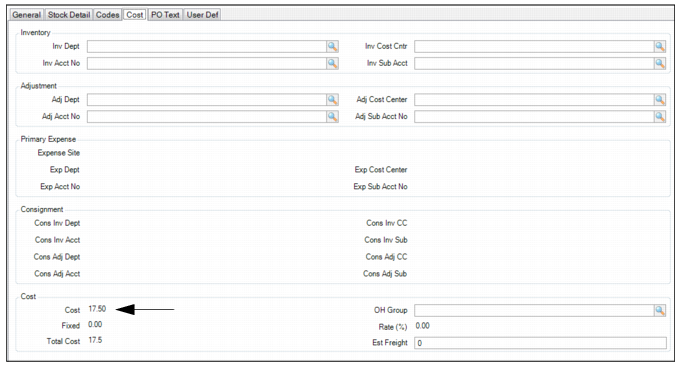
3 Click OK to accept the new cost. The new cost is displayed in the Cost field on the part record’s Cost tab.
Modify Cost
Adjust On-Hand Quantity of an MRO Part
Follow these steps to adjust the on-hand quantity for a part:
1 Open the Inventory browse and highlight the part record.
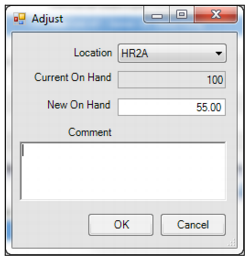
2 Select Adjust from the Inventory Action menu. The Adjust window opens. Enter the required information in the following fields:
Location
Use the drop-down list to select the part location.
Current On Hand
Displays the current on-hand quantity for this part.
New On Hand
Enter the new on-hand quantity in this field.
Comment
Enter any comments in this field.
Adjust On-Hand Quantity
3 Click OK.
Edit Multiple Part Records – Global Edit
Follow these steps to edit multiple records at the same time:
1 Open the Inventory browse and highlight the part records.
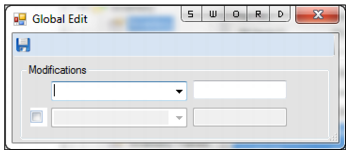
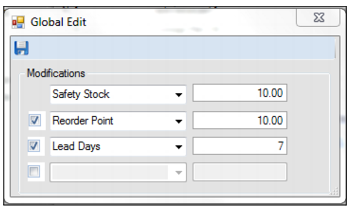
2 Select Global Edit from the Inventory Action menu. The Global Edit window opens.
Global Edit
3 Use the drop-down list to select a field to edit. Then enter the new value in the field to the right. The following fields can be edited using the Global Edit action:
• ABC Code | • Description | • Order Unit | • Status |
• Add to BOM? | • Est Freight | • Physical Due | • Stock Out? |
• Auto Issue? | • Lead Days | • Planner | • Sub Catalog |
• Buyer | • Mgt Max Qty | • Prod Line | • Tax Class |
• Catalog | • Min Order Qty | • Reorder Point | • Tax Code |
• Class | • MSDS No | • safety Stock | • Tax Usage |
• Commodity | • Notify | • Size | • Taxable? |
• Critical? | • OH Group | • Sole Source? | • Type |
4 To edit another field, select the check box on the next line. The next fields are activated, allowing you to select another field from the drop-down list.
Global Edit
5 Click the Save icon to accept the changes.
View the Revision History for a Part Record
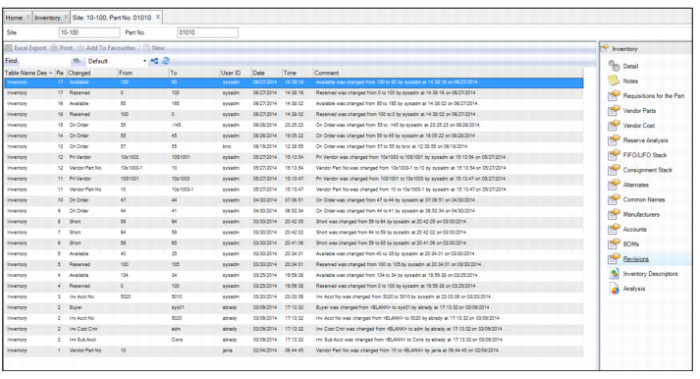
Because many quality systems call for strict record-keeping about the revisions made to part records, the Revisions submenu provides an audit trail of all modifications that are made to this record. The revision records, which are stored in the Revisions submenu and in the Revisions module at General|Revisions, are automatically created when a modification is made to the part record.
To view the revision history for a part record, open the part record and select the Revisions submenu.
Inventory: Revisions Submenu