QAD Enterprise Asset Management 2017.1
>
User Guide
>
Inventory
>
Request Stock Replenishment
Request Stock Replenishment
Overview
Use Stock Replenishment to identify parts whose quantities are below the reorder point or safety stock level. Create requisitions or work orders to replenish depleted inventory.
• Create a stock replenishment header or stock run in the top frame.
• Globally add parts or attach individual parts to a stock run.
• Print the list of items that are below the reorder point or safety stock level for review in the bottom frame.
The stock run number is copied to the requisition or work order, noting its origin.
Business Use Cases
Sole Source
Parts marked as sole source can be expedited through the purchasing process using the settings in the Misc tab on the Site record. The Sole Source Option fields set the status of the replenishment request for processing. See
Sites: Miscellaneous Tab.
Blanket Order Releases
If a blanket order is active for the part, a PO is released when a request is created in Stock Replenishment.
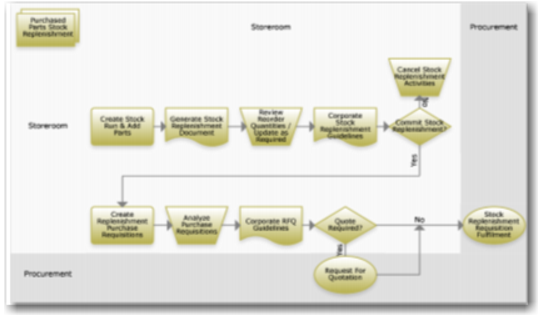
Replenishing Purchased Stock Process Flow
Verify that corporate guidelines authorize a replenishment requisition.
Purchased Stock Replenishment Process Flow
1 Create a stock run and add parts.
2 Generate a stock replenishment document.
3 Review and update reorder quantities, following corporate stock replenishment guidelines.
4 If you commit to the stock replenishment, create purchase requisitions.
5 Analyze purchase requisitions against corporate guidelines.
6 If there is a request for quotation required, obtain it.
7 Fulfill the stock replenishment requisition.
Stock Replenishment Browse
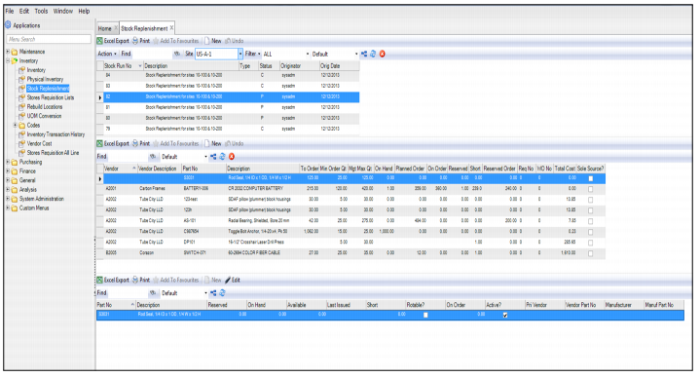
The Stock Replenishment browse, located in Inventory|Stock Replenishment, consists of an upper, middle, and lower browse.
Stock Replenishment Browse
The upper browse displays the stock replenishment headers. Highlight a stock replenishment header to view the parts, displayed in the middle browse, that have been added to it.
The middle browse, which displays a list of the parts that have been added to the stock replenishment run, contains the following fields:
Vendor
Displays the vendor number.
Vendor Description
Displays a short description of the vendor.
Part No
Refers to the inventory part number.
Note: Stock replenishment does not include inactive parts. Inactive parts do not display in the parts lookup in the bottom frame.
Description
Displays the description from the master parts record.
To Order
The system calculates this field based on the management maximum quantity, minus on-hand, minus planned and ordered requisitions. You can update this field manually.
Example: The reorder point is 10, the management maximum is 20, and the current on-hand is 10. The system determines that it takes 10 parts to get the on-hand back up to the management maximum.
If there are five parts on order, the system adds that value to the on-hand quantity, 10 + 5, which is 15 on-hand. Order five more parts to get the management maximum of 20.
Mgt Max Qty
Management Maximum Quantity. The maximum quantity of a particular part that should be held in inventory.
On-Hand
This field displays the current on-hand quantity of a specific part in the inventory bin locations.
Planned Order
The system displays the planned order quantity for this part. It represents all requisitions with a status of P (planned).
On-Order
The system adds and displays the total quantity of a part from all purchase orders with that item listed. It represents all purchase orders with a status of O (ordered).
Reserved
The system displays the current reserved quantity for the specific part.
Note: The system can add the quantity short, the considered reserved, and the reserved orders into the replenishment calculation. These options are user-set for all sites within a domain.
Example: If the on-hand quantity is 10 with a management maximum of 20, the system recommends that you order 10. If five parts are already on-order, the system recommends that you order five parts. Of those five parts on-order, if two parts are reserved for a specific work order, then the system recommends that you order seven parts.
Short
This system-calculated field is the total quantity reserved in all open stores requisitions beyond the current on-hand quantity availability.
For example, the reorder point is 10 and the management maximum is 20. If no parts are on-hand, the system recommends that you order 20 parts. If the short quantity is two parts, then the system recommends that you order 22 parts.
Reserved Order
Current requisitions and reserved orders comprise this calculated field.
Source
This field specifies the part replenishment source. There are two settings: vendor or internal.
A vendor source generates a requisition to buy the part. Internal source creates a work order to make the quantity of parts required.
Pri Vendor
EAM displays the primary vendor from the part master record.
Requisition No
The requisition header number displays in this field. After you create a request, the system adds requisitions for vendor-sourced parts. Create Requests adds one requisition for each vendor listed on that stock run, and groups all vendor parts as lines on that requisition.
Line No
The requisition line number displays in this field.
WO No
The work order number assigned to this part displays in this field. After you use the Create Requests action, EAM adds work orders for each internally sourced part.
The lower browse displays order information about each part highlighted on the middle browse.