Creating a Physical Inventory Record
Creating a Physical Inventory Header
Follow these steps to create a physical inventory header:
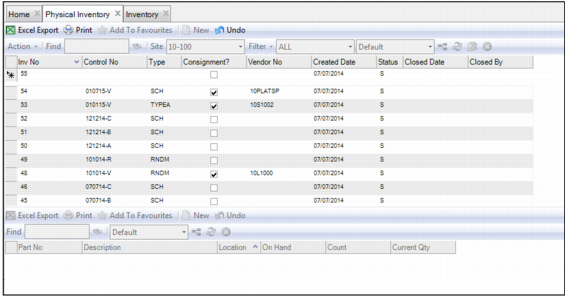
1 Open the Physical Inventory browse. Click New in the upper browse.
2 A blank physical inventory record is created. The system automatically generates a record number.
3 Enter the relevant information in the following fields:
Control No
Enter a control number in this field.
Type
Select the physical inventory record type using the lookup.
Consignment?
Select this check box if consignment parts will be added to the physical inventory record
Vendor No
if this physical inventory record is used for consignment parts, use the lookup and select the vendor who owns the parts. You cannot select a vendor in this field if the Consignment? check box is not selected.
Created Date
When the physical inventory record is created, the system automatically enters today’s date in this field.
Status
When the physical inventory record is created, the system sets the status to S (Scheduled).
Closed Date
When a physical inventory record is closed, the system enters the day’s date in this field.
Closed By
When a user closes a physical inventory record, the system enters the user ID in this field.
Creating a Physical Inventory Header
4 Once the information has been entered, press Enter to save.
Adding Parts to the Physical Inventory Record–Manually
Follow these steps to manually add parts to a physical inventory record:
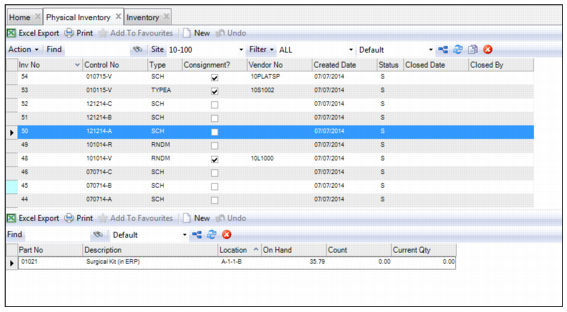
1 To add a part to a physical inventory record, highlight the record and click New in the lower browse.
2 Select the inventory part using the lookup in the Part No field.
Note: You cannot add an inventory part if it is added to another physical inventory record that is currently open.
3 Press Tab or click in the Location field. Select the inventory part location using the lookup.
4 Press Enter to save.
5 Repeat these steps to add additional parts.
Adding a Part to a Physical Inventory Record
Adding Multiple Parts to a Physical Inventory Record–Global Add
Follow these steps to add multiple parts to a physical inventory record:
1 To add multiple parts to a physical inventory record, highlight the record and select Global Add from the Action menu.
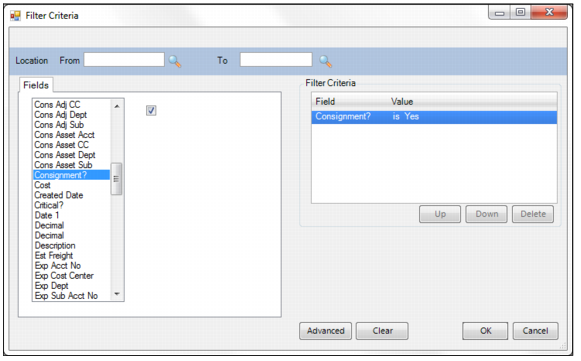
2 A Filter Criteria window allows you to filter for groups of parts. For example, you can filter for consignment parts, for parts in the same location, or for parts that are associated with the same planner, buyer, or vendor. Once you have configured the filter, click OK.
Adding Multiple Parts to a Physical Inventory Record
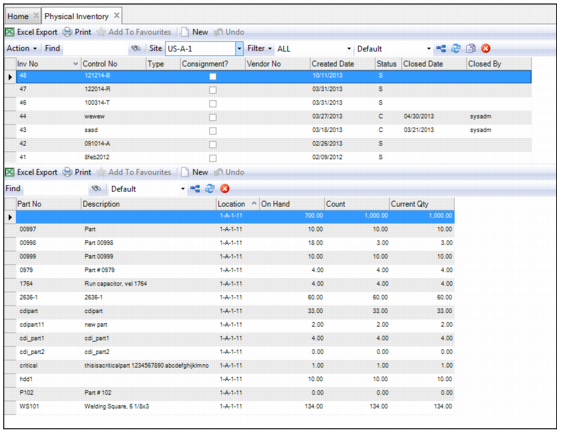
3 The parts that meet the filter criteria are added to the physical inventory record.
Adding Parts to a Physical Inventory Record
Printing a Physical Inventory Record
The Print Document action allows you to print a count sheet for the physical inventory record. To print a physical inventory record, highlight the record and select Print Document from the Action menu.