QAD Enterprise Asset Management 2017.1
>
User Guide
>
Purchasing
>
Purchase Orders
Purchase Orders
Overview
Use a purchase order to formalize a purchase transaction with a supplier.
Purchase Order Process Flows
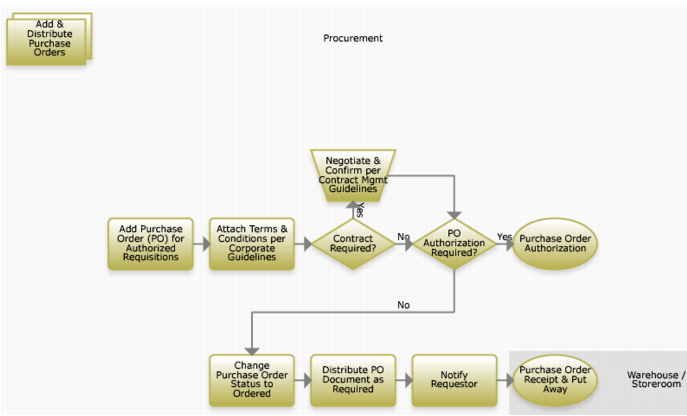
Adding and Distributing Purchase Orders
Creating a Purchase Order Process Flow
1 Add a purchase order for authorized requisitions.
2 Attach terms and conditions per corporate guidelines.
3 Negotiate required contracts.
4 Authorize the PO.
5 Change the PO status to Ordered.
6 Distribute the PO document as required.
7 Notify the requestor.
8 Receive the PO and put away items.
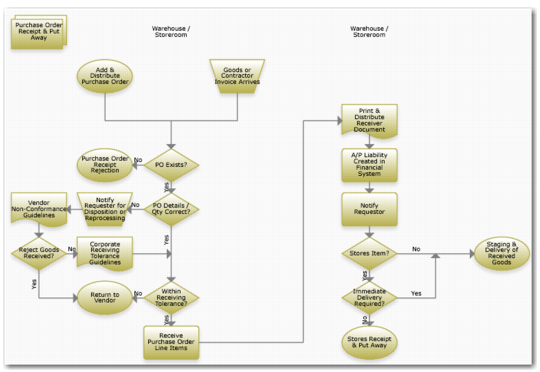
Receiving Purchase Orders
PO Receipt and Put Away Process Flow
1 When you add and distribute a purchase order, or a goods or contractor invoice arrives, verify that a PO exists. If there is no PO, reject the receipt.
2 Verify that the quantity and details are correct.
a If the quantity and details are incorrect, notify the requestor for disposition or reprocessing.
b Review your vendor non-conformance guidelines.
• If you can receive the goods, review corporate receiving tolerance guidelines.
• If you cannot receive the goods, return them to the vendor.
3 Return any goods that do not meet corporate receiving tolerance guidelines to the vendor.
4 Receive PO line items for any goods that meet the conditions in steps
1 and
2. When you add and distribute a purchase order, or a goods or contractor invoice arrives, verify that the quantity and details are correct.
5 Print and distribute the receiver document.
6 EAM creates Accounts Payable liability in the Financial system.
7 Notify the requestor that the items have arrived.
8 Receive and put away the stores items.
9 Stage and deliver received goods.