Place a PO on Order
To place a PO on order, select PO Order from the Purchase Order Action menu. When you place a PO on order, the status for the items on the PO change to O (Ordered). Items on a PO cannot be received unless the PO status is O (Ordered).
Note: If authorization is required for a PO and/or requisitions, the PO cannot be ordered until the authorization is complete. If this condition has not been met, an error message is displayed.
Place Multiple POs on Order
To place multiple POs on order, highlight the POs and then select Global PO Order from the Purchase Order Action menu. The Global PO Order option is only active if multiple POs are selected. Items on a PO cannot be received unless the status is Ordered (O).
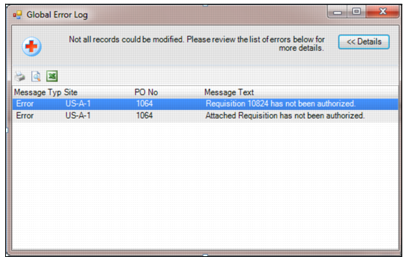
Note: If authorization is required for a PO and/or requisitions, you cannot order the PO until the authorization is complete. A Global Error Log is displayed stating that not all POs could be placed on order. The reason for the error is listed in the Message Text field. You can print this log or export it to Excel.
Global Error Log
Place Added or Modified PO Lines on Order
Note: The Order Added or Modified Lines action is used when you add lines to a PO that already has parts on order. Any lines that are added must be authorized. When the new lines have been authorized, you can select this action to order the parts.
To place added or modified PO lines on order, select the PO. Select Order Added or Modified Lines from the Purchase Order Action menu. The Order Added or Modified Lines option is only available for POs with an Ordered (O) status. When the changes are reauthorized, this action gives you control over sending the new changes to an existing ordered PO in ERP.