Receiving Purchase Orders
Follow these steps to receive a purchase order:
1 Open the Purchase Order browse and select the purchase order.
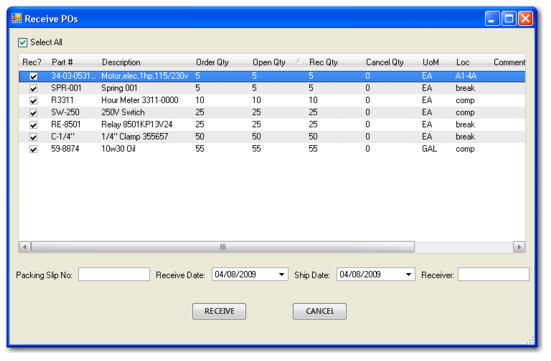
2 Select Receive from the Purchase Order Action menu. The Receive POs window appears.
Receive POs Form
3 If you are receiving all items, select the Select All check box. If only a few lines are being received, select the Rec? check box for those line items.
4 Enter the receive quantity for each line in the Rec Qty field.
5 Enter the packing slip number.
6 Verify the ship and receive dates.
7 If necessary, enter the receiver number in the Receiver field. If you do not enter a receiver number, EAM generates the number for you.
8 Click Receive.
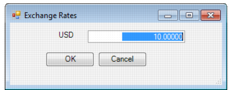
9 The Exchange Rate pop-up window appears if the Update Receipt/Return Ex Rates check box is selected on the Domain|PO/Reqs tab, and if the vendor currency is different than the buyer currency.
Exchange Rates Pop-up Window
Update the exchange rate if needed. Then click OK.
Note: If the Update Receipt/Return Ex Rates check box is clear, you do not see the Exchange Rates option and EAM receives the PO using the currency exchange rate defined in Purchasing|Exchange Rates.
View Purchase Order Receipts
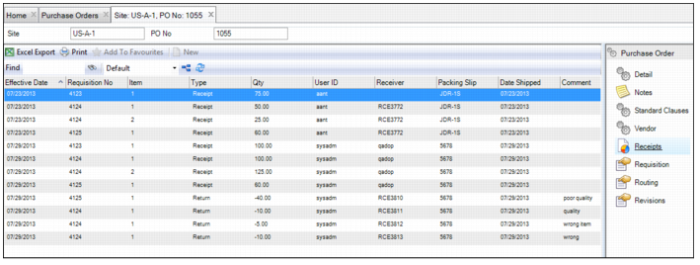
The Receipts submenu shows detailed information for each receipt and return associated with the PO. To view the receipts associated with a purchase order, open the PO and select the Receipts submenu.
Purchase Order Receipts Submenu