QAD Enterprise Asset Management 2017.1
>
User Guide
>
Projects
>
Jobs
>
Filling Out the Job Record
Filling Out the Job Record
Enter the job details in the Detail, Cost, and User Defined tabs.
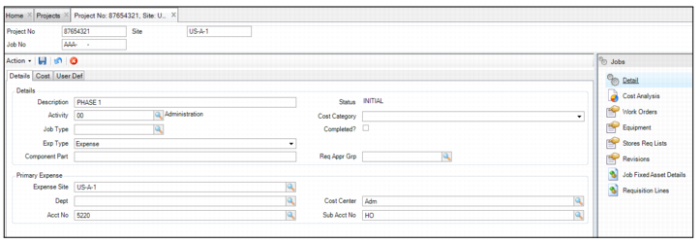
Job: Details Tab
In the Details tab, enter job details and expense accounting information for the job.
Job: Details Tab
Job Header
Job No
Enter the job number.
Details
Description
Enter a description of the job, to clarify project phases.
Status
The current user-defined project status of the job. If the job status is closed or canceled, you cannot expense anything against the job.
Activity
Select the activity code for this job. Activity codes are set up to make it easier for the creator of jobs. Since an expense accounting structure can be linked to a pre-established activity code, you do not need to be familiar with accounting information. You simply select the activity and the system pulls in the appropriate expense accounting structure. See Finance|Codes|Activities for Setup definition.
Cost Category
Select the cost category from the drop-down: All, Material, Labor, or Contract.
Job Type
Use the lookup to select the job type to classify the job. Set up these user-defined job codes in Finance|Codes|Job|Job type.
Completed?
Select this check box when the project is complete.
Exp Type
Use the drop-down list and indicate if this is an expense or a capital job.
Component Part
Enter the component part, which is the part number that the tool is building. It is a manually entered field.
Req Appr Group
Enter the requisition approval group at a job level. EAM overrides the requisition approval group for the project and uses the one entered at the job level.
Primary Expense
Expense Site
The site with the costing structure that is charged to expense against this job. Use the expense site for this job’s project.
Dept
Enter the department associated with the job.
Cost Center
Enter the default job cost center. The default cost center copies to various transactions, such as purchasing requisitions, labor postings, and parts issued for this job.
Acct No
Enter the expense account for this job. Specifying this account number assigns it all charges for this job. If this field is blank, expenses use project accounts.
Sub Acct No
The sub-account to expense for this job. By selecting a sub-account for this project, you restrict expenses to the job to use only this sub-account.
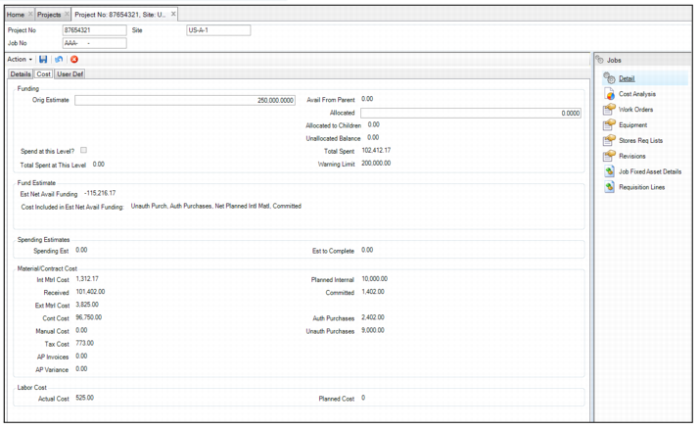
Job: Cost Tab
In the Cost tab, enter job funding information and funding estimates. This tab also displays the costs incurred for the job.
Job: Cost Tab
Funding
Orig Estimate
Enter an original estimate of the total job cost.
Available from Parent
Amount available to this job from a parent job.
Allocated
Enter amount allocated to this job. Allocated amount cannot exceed the Available from Parent amount.
Allocated to Children
The system calculates the amount allocated to child jobs of this job. This amount is not more than this job’s Allocated amount.
Total Spent
Total spent to date on this job including rolled-up costs from children.
Unallocated Balance
Amount available to the job that is not yet allocated. This amount is equal to Allocated – (Allocated to Children + Total spent at this Level).
Spend at this Level?
Select to allow spending at this job level when Use Allocations is selected for the project. This option provides you with tighter control over which job can be charged against. There may be a parent job, but only a specific lower-level job or child can have cost charged.
Total Spent at this Level
The total for parts issued, services, and labor transactions associated with this job. This amount does not include rolled-up costs from children.
Warning Limit
An amount the project manager sets as a budgetary warning point. The system issues an e-mail warning to the user or group from the project’s General tab to notify when expenses reach this amount.
Funding Estimate
Estimated Net Available Funding displays an estimated amount of remaining funding after considering a broader range of expected expenditures in addition to actual costs already incurred.
This amount could include the following:
• Committed. Ordered purchase orders that represent committed expenditures to suppliers.
• Authorized Purchases. Purchase orders that are authorized but not yet placed on order.
• Unauthorized Purchases. Purchase orders that are planned but not yet authorized.
• Planned Internal. Material from stores lists that has not yet been issued or expensed to the project.
• Planned Labor. Estimated labor expense on WO.
The cost categories are selected in General|BusinessUnits|Site|Maintenance tab for Estimated Net Available Funding Options. The categories can include any or all of the following: Auth Purch, Unauth Purch, Committed, Planned Labor, and Planned Internal Material.
Estimated Net Available Funding
The net amount of funding available for the job calculated by subtracting the costs indicated in the Costs Included in Estimated Net Available Funding field and Total Spent from the Auth Funding amount.
Costs Included in Estimated Net Available Funding
The cost categories used to calculate Estimated Net Available Funding.
Spending Estimates
Spend Est
Enter the estimated amount to spend on the job.
Est to Complete
A system-calculated value of spending estimate minus total spent. It is updated when the spending estimate changes or when you refresh the project.
Note: The system recalculates the value of this field when the following job functions or actions occur:
• Changing the spending estimate of a job
• Canceling a job
• Deleting a job
• Reopening a job
If revision control is active, recalculating field values also creates revisions.
Materials/Contract Costs
Planned Purchase
The total cost of all planned, unauthorized purchase requisitions for the job.
Authorized Purchase
The total cost of all planned, authorized requisitions that reference the job.
Committed
The total value of ordered purchase orders minus any receipts against the purchase order for the job.
Received
The system-calculated total sum of all received purchases associated with the job.
Internal Material Cost
The sum of all direct issues from inventory (not through a requisition) for the job.
External Material Cost
The job parts total, minus tax, for auto-issue receipt transactions only.
Contractor Cost
The job’s outside contractor services total, minus tax. This value represents receipt transactions for all auto-issue requisitions marked as Contractor.
Tax Cost
Tax associated with any costs from external material and contractor services.
Manual Cost
The sum of all manual GL transactions for the job.
Planned Internal
The total planned cost of material issues from inventory.
AP Invoices
The supplier invoices total for the project’s POs.
AP Variance
The difference between supplier invoice cost and PO cost.
Labor Cost
Actual Cost
The labor transactions total charged to the job.
Planned Cost
The planned labor for work orders for the job.
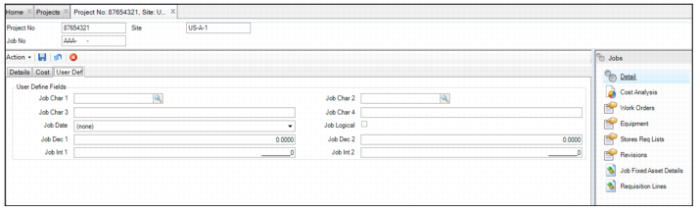
Job: User-Defined Tab
In the User-Defined tab, enter data into user-defined fields.
Job: User-Defined Fields Tab
Job Char 1 - Job Char 2
User-defined character fields, validated against tables that you add.
Job Char 3- Job Char 4
Free-form user-defined character fields, not validated against tables.
Job Date
Enter a date type field here.
Job Logical
User-defined check box.
Job Dec 1 - Job Dec 2
User-defined decimal fields for requisition lines.
Job Int 1 - Job Int 2
User-defined integer fields for requisition lines.