Editing a User Record
1 Double-click a record from the browse or click Edit to open the user record detail.
2 Verify the user number.
3 Enter or update information in the relevant fields on the tabs.
4 Click Save.
User Tabs
User contains two tabs: Detail and Mail Opts. The user ID displays over all associated tabs.
User Tab: Detail
Use this tab to enter detail data about the user plus purchasing and project spending limits.
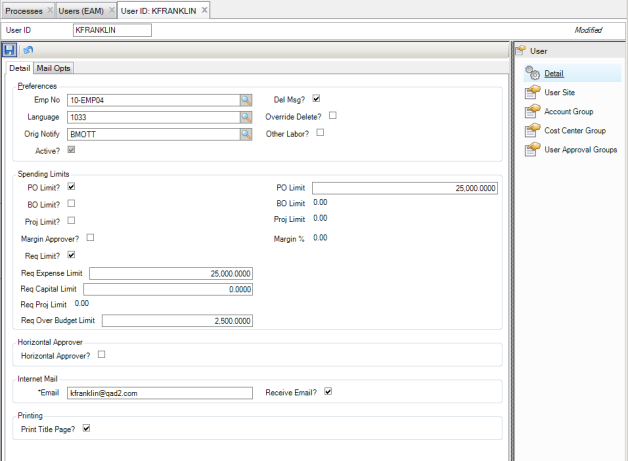
Users Detail Tab
User ID
The system administrator assigns the user number in the User module. The user ID is an alphanumeric code.
Note: In many cases, the user ID is a number. This number is displayed on many screens and reports throughout the system. If the users are not familiar with these numbers, it can make some of the reports more difficult to understand. It may make more sense to use a more recognizable identifier such as the first letter of the user’s first name, followed by last name. Example: Joe Smith – jsmith.
Emp No
The system administrator links a previously established employee number in this user’s record. The employee number is an alphanumeric code. The employee number entered is validated against the Employee table. You can use the lookup button to select an existing employee number.
Language
The default language code for the selected user. The language chosen here is the language in which this user views/uses EAM. The Language field allows individual users to access EAM in their own language. The Lookup displays only the languages in which EAM is available.
Orig Notify
This field is used to specify a user who should receive an automated e-mail notification when this user creates a service request. Click into the Orig Notify field to access the User Lookup with browses of users and mail groups.
The associated user receives an automated e-mail indicating that this user created a service request.
Del Msg?
User preference to display or suppress warning message before deleting records. Select if the field should cause a warning message to display before a record is deleted. This warning message allows the user to cancel the deletion. Regardless of this setting, the system has built-in parameters that prohibit the deletion of some records.
Note: In order to prevent a record from being deleted in error, it is suggested that you select this field for most users. Records cannot be restored once deleted.
Override Del?
Select this field to allow the user to override the system controls that prohibit the deletion of certain record types, depending upon their status and attributes.
Note: It is suggested that this field is not selected for most users. With it selected, the user can override the system controls that prohibit the deletion of certain records.
Other Labor?
This check box determines whether the user can post labor for all other users or only for himself/herself.
Note: If the profile for the current user has this check box selected, EAM allows the user to post or reverse labor for any employee, if the user has security for the option. If not selected, EAM only allows users to post and reverse labor for themselves.
PO Limit?
Select if the user has been assigned a spending limit for approval of purchase orders. If selected, the amount in the next field represents the user’s Purchase Order Limit—the amount for which a user can approve a purchase order.
Note: When the user approves a purchase order, the user’s spending limit is checked. If the spending limit is equal to or greater than the purchase order, the purchase order is approved and authorized. If the purchase order is greater than the user’s spending limits, then the purchase order is approved, but not authorized.
PO Limit
If the PO Limit? option is selected, assign a spending limit for approval of purchase orders.
BO Limit
If the BO Limit? option is selected, assign a spending limit for approval of blanket orders.
Note: When the user approves a blanket order, the user’s BO spending limit is checked. If the user’s BO spending limit is equal to or greater than the BO’s expiration amount, the blanket order is authorized. If the BO’s expiration amount is greater than the user’s BO spending limits, then a routing for authorization is started. The user’s action is shown as Approve in the BO’s Routing lower screen. However, the blanket order is not authorized until a user with a higher spending limit and any quantity person approve it.
Proj Limit?
Select if the user has been assigned a spending limit for the initial approval of projects. If selected, the user has been assigned a spending limit for approval of projects.
Proj Limit
If Proj Limit? is selected, the amount in this field represents the user’s Project Limit, which is the amount for which a user can approve a given project.
Note: When the user approves a project, the user’s spending limit is checked. If the user’s spending limit is equal to or greater than the project, the project is approved and authorized. If the project is greater than the user’s spending limits, then the user’s action is considered to be approved. However, the project is not authorized until someone with high enough spending limits authorizes it and any quantity persons authorize it.
Margin Approver?
Select this check box so that the user can be added to Margin Approval Groups.
Margin%
Specify the Margin Limit % by entering the lowest percentage of margin for which this user can approve a customer-funded project.
Req Limit?
Select if the user has been assigned a spending limit for one or more of the following fields for approval of requisitions. When you select this box and save the tab, the available fields become active.
Req Expense Limit
If Req Limit? is selected, the amount in this field represents the user’s Requisition Expense Limit, which is the amount for which a user can approve a given requisition that is not flagged as a capital expense.
Req Capital Limit
If Req Limit? is selected, the amount in this field represents the user’s Requisition Capital Limit, the amount for which a user can approve a requisition that is flagged as a capital expense.
Req Proj Limit
If Req Limit? is selected, the amount in this field represents the user’s Requisition Project Limit, which is the amount for which a user can approve a requisition that is linked and expensed to a project.
Req Over Budget Limit
If Req Limit? is selected, the spending limit to use when a cost center, account, or sub-account has reached its budget limit.
Horizontal Approver?
If the Horizontal Approver? option is enabled on the General|Business Units|Sites|Authorization Options tab, then a user can be designated as a Horizontal Approver here. Then, add one or more Horizontal Approvers to a requisition approval group at Purchasing|Approval Group|Requisition Approval Group.
Email
Enter an Internet e-mail address for each user in your system. The address must be unique to the user and cannot be duplicated within the EAM system.
Receive Email?
Select if this user should receive automated Internet e-mail.
Prt Title Page?
Select if the user should have the title page containing the report criteria printed whenever this user generates reports.
Note: If selected, the title page prints. If cleared, the title page does not print.
User Tab: Mail Opts
Use this tab to select events that trigger e-mail to this user.
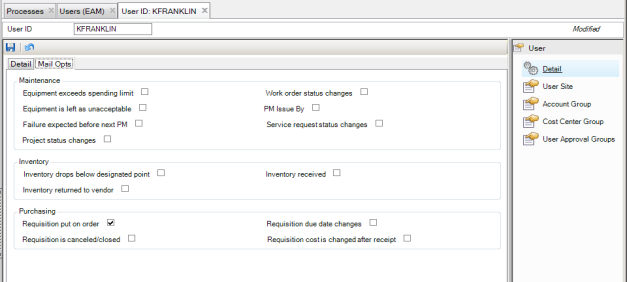
Users Mail Opts Tab
Maintenance
Equipment exceeds spending limit
User preference to receive mail when a piece of equipment exceeds its annual, lifetime, or work order spending limit.
Note: If selected, the user designated in the Notify field of the equipment record receives mail when the piece of equipment exceeds a spending limit.
Work order status changes
User preference to receive mail when a work order’s status changes.
Note: Each work order status can be set to send mail when a work order status is changed. If selected, the user designated in the work order record receives mail when the work order status is changed to a status designated to generate mail.
Equipment is left as unacceptable
User preference to receive mail when a piece of equipment is left in an unacceptable state following a work order.
Note: Each work order has an As Left code. These codes can be set to send mail if a piece of equipment is left in the condition that the code describes. If selected, the user designated in the Notify field of the equipment record receives mail when the piece of equipment is left in a condition designated to generate mail.
PM Issue By
User preference to receive mail when a PM comes due.
Note: If selected, the user designated in the PM record receives mail when the PM comes due by reaching a certain date or driving unit of measure. If it is not, no mail of this type is sent to this user.
Failure expected before next PM
User preference to receive mail when a calculated next failure date precedes the next PM Issue By date.
Note: When a work order is closed, the next failure date for the piece of equipment is calculated. If selected, the user designated in the Notify field of the PM record receives mail when the next failure date calculated precedes the next preventing PM Issue By date.
Service request status changes
A user preference to receive mail when a service request changes status, if the user is the Notify person or part of the mail group on the service request.
Project status changes
Each project status can be set to send mail when a project status is changed. If selected and the user is designated as the Notify person in the project record, the user receives mail when the project status is changed to a status designated to generate mail.
Inventory
Inventory drops below designated point
User preference to receive mail when inventory drops below the designated point of safety stock or reorder point.
Note: Each piece of inventory can be designated to send mail when inventory drops below either safety stock or reorder point. If this field is selected, the user designated in the Notify field of the inventory record receives mail when stock levels drop below this point.
Inventory received
When selected, the user, if Requestor or Notify, receives e-mail when inventory is received from a requisition.
Inventory returned to vendor
When selected, the user, if Requestor or Notify, receives e-mail when parts are returned to the vendor.
Purchasing
Requisition put on order
When selected, the user, if Requestor or Notify, receives e-mail when the requisition is put on order.
Requisition due date changes
When selected, the user, if Requestor or Notify, receives e‑mail when the requisition due date changes.
Requisition is canceled/closed
When selected, the user, if Requestor or Notify, receives e-mail when the requisition status is changed to either Canceled or Closed.
Requisition cost is changed after receipt
When selected, the user, if Requestor or Notify, receives e-mail when the requisition status is changed after receipt.
User Subdetail
The number of subdetail options varies from module to module. All have an option labeled Detail, which remains visible and returns you to the previously viewed tab page in the highlighted record if one of the other subdetails is selected. Normal security applies, meaning that a user can be given full, partial, or no access to each subdetail option. If no access is given, the subdetail is not visible.
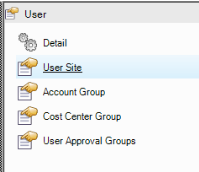
Users Subdetail
Detail
This option opens the tabbed view.
User Site
Use this option to display a user in a single- or multiple-site configuration. Click New to access a standard Site Maintenance lookup table. Select the appropriate site code. While each user must be assigned at least one valid site in order to access EAM, a user can have access to multiple sites. Designate one of the sites as Primary, which is the site into which the user is logged by default.
The lower browse displays the roles associated with the user highlighted in the upper browse.
Account Group
Account group (Finance|Groups|Account Group) is used to associate a set of accounts with a user ID. When the user clicks Authorize action on the requisition header, EAM checks if the user has either an account group or a cost center group that contains the appropriate account number or cost center to authorize the selected requisition. If an account in the user’s account group matches the account on the selected requisition and the user has a large enough spending limit, the user can authorize the requisition without going through routing.
Cost Center Group
Cost center group (Finance|Groups|Cost Center Group) is used to associate a set of cost centers with a user ID. When the user clicks the Authorize action on the requisition header, EAM checks if the user has either an account group or a cost center group that contains the appropriate account number or cost center to authorize the selected requisition. If a cost center in the user’s cost center group matches the cost center on the selected requisition and the user has a large enough spending limit, the user can authorize the requisition without going through routing.
User Approval Groups
Requisition approval groups (Purchasing|Approval Group|Requisition Approval Group) and stores requisition approval groups (Inventory|Stores Requisition Approval Groups) are used to associate a set of requisition approvers to a user ID. When the selected user initiates routing requests, the approval group identifies who receives those requests to authorize requisitions. Associate approval groups here only if your organization has selected User Based Routing for approval of requisitions. The routing method used for requisition approval is determined by the Req Auth? check box in General|Business Units|Site Authorization tab. If User Based Routing is enabled, the system routes all approval requests for requisitions according to the user who clicked the Approve action.