Users
Note: EAM users are created and deleted from within QAD Enterprise Application Enterprise Edition (EE). The EE user information is loaded into EAM using the Refresh Users job program, described on
here. You can edit user information within EAM, but changes made in EAM that are not also made in EE are overridden the next time the Refresh Users job program runs. For more information on creating users in EE, see
QAD Security and Controls User Guide.
The User module is where EAM-specific user details and preferences are maintained. The user record can be linked to the user’s corresponding employee ID, which populates certain information from the employee record into the user record. This link reduces unnecessary duplication of information. Linking the user record to the employee record is sometimes required when a user is creating transactions in EAM such as creating work orders, distributing labor, or creating stores requisitions. EAM can automatically populate employee information required for the transaction based on the user’s ID.
Before users are allowed access to EAM, they must be linked to at least one site and at least one role in the site.
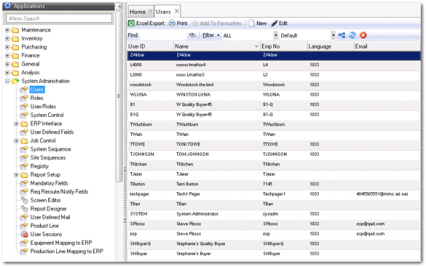
Users Browse
Access this browse from System Administration. Use it to organize and display records, or export data to Excel.
Users Browse
User Action Menu
The Action menu contains the following functions.
Unlock User
Use Unlock User to unlock an ID that was locked when a user tried to log in with the incorrect password four times.
Global Edit
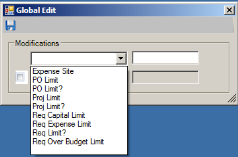
Use Global Edit to make the same change to all selected user files. The edit options are related to finances, as shown in
Users: Global Edit.
Users: Global Edit
The Global Edit options are either free-form currency fields or check boxes to select or clear. Enter the appropriate dollar amount in the following fields to give all selected users the same spending limit:
• Expense Site
• PO Limit
• Proj Limit
• Req Capital Limit
• Req Expense Limit
• Req Over Budget Limit
Check or clear the box in the following fields to change this setting for all selected users:
• PO Limit?
• Proj Limit?
• Req Limit?
Purge Mail
Use Purge Mail to delete EAM system e-mail messages for this user. Enter the number of days you want the system to keep e-mail messages. Any messages older than that time frame are deleted. For example, if you enter 30, all e-mails 31 days and older are deleted. The default value is 14 days. EAM displays a message that indicates how many e-mails the action deleted.
Change Active Status
Use Change Active Status to make an active user inactive or to make an inactive user active. You cannot deactivate SysAdm or SYSTEM user IDs. An inactive user cannot log in to EAM and sees the message, “User XXXXX is inactive. Please contact your system administrator,” where “XXXXX” is the inactive user ID.