System Control Right-Click Menu
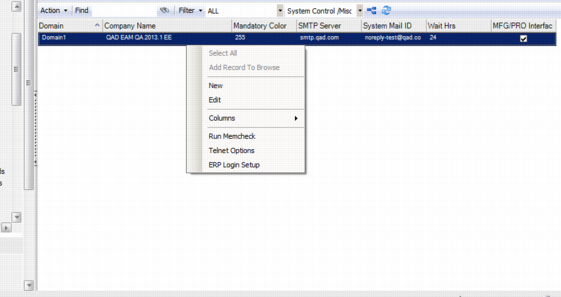
The right-click menu contains administrative functions and options from the Action menu.
System Control Right-Click Menu
Edit
Opens the System Control screens to edit the selected record.
Columns
A list of columns available to the browse displays here. Select a column header to display it. Clear the column header to hide it.
Run Memcheck
Reserved for QAD support.
Telnet Options
Used to maintain the system information needed to support the Progress Editor. These options control everything from which server is accessed to what ID and password are used to log in. In addition, the options control what keyboard strokes are automated so that EAM can automatically open the character-based Progress Editor from the server’s command line.
Telnet Options
Field Name | Setting |
Host Name | DNS name or IP address of the EAM DB server. |
Login ID | Login ID used to log in to the EAM DB server (for example, mfg). |
Host OS | Select UNIX. (Windows is not currently supported) |
Password | Password used to log in to the DB server. The password is encrypted before it is stored in the database. |
Port No | DB server’s SSH port (usually 22). |
Domain | Reserved for future use. |
Script Timeout | Reserved for future use; leave this at 240. |
Idle Timeout | Reserved for future use; leave this at 240. |
Script 1 Pattern | The pattern EAM is looking for before it runs Script 1 Value. Usually, this is the OS’s command line prompt. Example: $ |
Script 1 Value | The command line value to enter once EAM sees the DB server write Script 1 Pattern. This should be used to run mpro and pass it the .pf file used by the EAM appserver. Note: Place a period followed by a space (. ) at the beginning of this line so that the Progress Editor window will close after the Progress session ends. Without this, users will be left at the server’s command prompt… Example: . mpro -pf /qadapps/eam/pf/eamtest.pf |
Script 2 Pattern | (Optional) This is the next pattern for which EAM is looking. EAM runs Script Value 2 when it sees this string. This can be used to skip through Progress messages related to codepage, if they occur. Example: Press space bar to continue. |
Script 2 Value | The keyboard strokes/text that EAM automatically writes to the Telnet session when Script 2 Pattern is detected. An example would be a space (“ ” without the double quotes). |
Script 3 Pattern | (Optional) If more keyboard automation is required, EAM looks for this pattern. |
Script 3 Value | (Optional) If more keyboard automation is required, EAM automatically enters these keystrokes when Script 3 Pattern is detected. |
Script 4 Pattern | (Optional) If more keyboard automation is required, EAM looks for this pattern. |
Script 4 Value | (Optional) If more keyboard automation is required, EAM automatically enters these keystrokes when Script 4 Pattern is detected. |
Min Connections | Reserved for future use. |
Max Connections | Reserved for future use. |
During implementation, the system administrator should use a terminal program (PuTTY or similar) to log in to the DB server using a login ID and password to see what the prompt is and to better understand what Script Value 1 should be and, if necessary, what Script 2 Pattern and Script 2 Value should be.
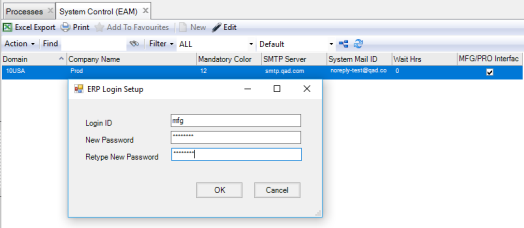
ERP Login Setup
During implementation, the system administrator uses ERP Login Setup to enable the integration between EAM and the ERP. An ID and password for the ERP must be entered in this window for EAM to successfully communicate with the ERP’s Finance module.
Note: The ID should be a common ERP system account such as “mfg.”
ERP Login Setup
System Control Record Detail
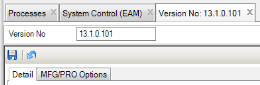
The tabs contain information about the System Control record. The assigned version number displays over the associated tabs.
Note: EAM is installed with the System Control record already created and defaults to the current version number.
System Control Record Detail
Editing the System Control Record
1 Double-click the System Control record from the browse or click Edit to open the System Control record detail.
2 Verify the version number.
3 Enter information in the relevant fields on the tabs.
4 Click Save.
System Control Tabs
Use these tabs to set general data, to indicate mail options, to set revision control, and to establish password and general ledger options. In addition, you can indicate purchase receiving options, and set tax options.
System Control: Detail Tab
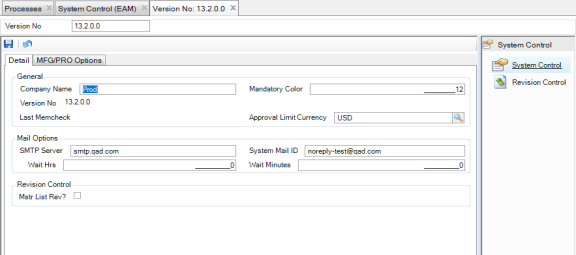
Use this tab to set general data, to indicate mail options, and to set revision control.
System Control: Detail Tab
Company Name
The name appearing on the bottom of the EAM main menu panel helps you to differentiate between live and test databases.
Mandatory Color
Not in use.
Version No
EAM is installed with the System Control record already created. It defaults to the current version number.
Last Memcheck
Reserved for QAD support.
Approval Limit Currency
Select the currency from the lookup that will be used system wide for the approval limit values. You must define a currency if you are using Approval Groups for authorization. Approval limits for POs, requisitions, blanket orders, and projects are converted into the domain’s base currency if the base currency is different than this setting.
SMTP Server
The SMTP server name or corresponding IP address. To send Internet mail, EAM routes e-mail to the entered server or address.
System Mail ID
Enter the ID to appear in the From box on EAM system-generated e-mail sent through the Internet.
Wait Hrs
The number of hours a request for approval of a requisition, purchase order, blanket order, or project waits in an individual’s mailbox before automatically moving on to the next user in the authorization queue.
Wait Minutes
The number of minutes a request for the approval of a requisition, purchase order, blanket order, or project waits in an individual’s mailbox.
Mstr List Rev?
Specify whether the system should automatically create revisions for master lists. Select if revision records should be created every time any of the master lists in EAM are modified. This includes master instructions lists and master parts lists.
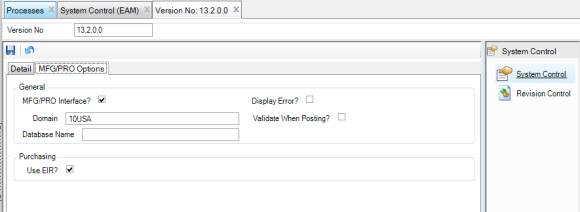
System Control: MFG/PRO Options Tab
Use this tab to set general data, to indicate purchasing options, and to set tax options.
MFG/PRO Interface?
Select to enable the interface to QAD ERP. Receiver and GL transactions are generated in both EAM and QAD ERP. If the check box is clear, GL transactions are still generated but Receiver transactions are not.
Note: You must complete the ERP Login Setup with a valid login ID and password. See
ERP Login Setup.
Display Error?
If there is some type of error when a general ledger transaction is created in QAD ERP, select to enable the system to display an error message and a description of the specific error encountered.
Domain
The domain to use when filling out domain fields in QAD ERP. It should match the domain that EAM interfaces with from QAD ERP’s Domain Maintenance option (menu 36.1.1.1).
When reading data from QAD ERP, EAM only looks at records that match the entered domain. When writing data to the QAD ERP, EAM fills out the Domain field with the entered domain. Fill out this field to interface properly.
Validate When Posting?
When a general ledger is created in QAD ERP, validate when posting causes EAM to run the QAD ERP validation routine to verify that the cost center, account, and sub-account combinations are valid within the QAD ERP validation tables.
Database Name
Database name to use when filling out QAD ERP purchasing fields related to QAD ERP’s multiple database configurations. This name must match the database name on QAD ERP’s Database Connection Maintenance screen (menu 36.6.1).
Use EIR?
Select to enable QAD ERP’s Expense Items Receipts accounting structure to overwrite EAM’s AP (credit) accounting structure (at General|Business Units|Site|Purchase Order tab) for receipt credits.