Maintaining Sequences on a Pre-Shipper/Shipper
Use Pre-Shipper/Shipper Workbench (7.9.2) to view and add or delete sequences from a pre-shipper/shipper.
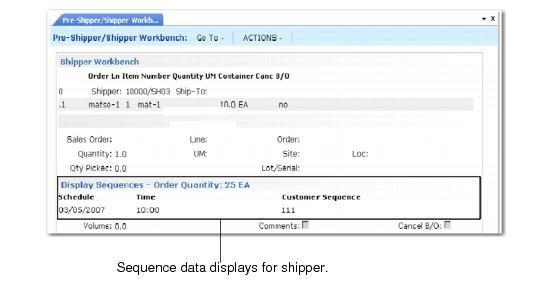
The Display Sequences frame shows all the sequences on the pre-shipper/shipper; see
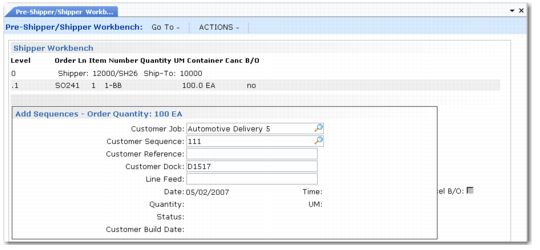
Display Sequences Frame. This frame displays only if the pre-shipper/shipper contains sequences. If it does not, but the scheduled order does contain sequences, the Add Sequences frame displays; see
Add Sequences Frame.
Display Sequences Frame
To remove any of these sequences from the pre-shipper/shipper, scroll to the sequence to delete and press Delete. Once you confirm the delete, the system removes the sequence from the list and updates the sequence record, setting it as an open requirement.
Note: Use the up/down arrows to scroll the sequence list.
Add Sequences Frame
When you initially add a shipper line to a pre-shipper/shipper using this program, the system always displays the Add Sequences frame. This frame is used to add sequences to the pre-shipper/shipper. In the Add Sequences frame, press Add to add additional sequences to the pre-shipper/shipper. The Add Sequences frame appears. Use the Customer Job, Sequence, Reference, Dock, and Line Feed fields to indicate the sequence that should be added to the pre-shipper/shipper.
Only sequences from the active schedule release that are not marked as deleted, picked, or cross-referenced can be added to the pre-shipper/shipper. When you add a new sequence to the pre-shipper/shipper, that sequence is marked as having been picked.
With Pre-Shipper/Shipper Workbench, you can optionally print the completed pre-shipper/shipper. A range of sequence numbers associated with the pre-shipper/shipper prints on the document as indicated in Print Sequence Range on Shipper in the customer control record for the ship-to, or Sequence Schedule Control. After the pre-shipper/shipper is printed, a sequence packing list is also printed automatically on a separate page.
You can also use Pre-Shipper/Shipper Print (7.9.4) to print the pre‑shipper/shipper. It also prints a separate packing list and can include the associated range of sequence numbers. When you print the pre‑shipper, you can optionally convert it to a shipper by setting Assign Shipper Numbers to Yes. Any sequences on the shipper are updated with the shipper number. This program processes the printing of the pre‑shipper/shipper in the same way as Pre-Shipper/Shipper Workbench.
Use Undo Shipper Number Assignment (7.9.20) to reverse shipper number assignments for unconfirmed shippers. This restores the original pre-shipper number and changes the document type from shipper back to pre-shipper. It also updates the pre-shipper/shipper number on sequences associated with the shipper.