Setting Up a Trade Sales Order
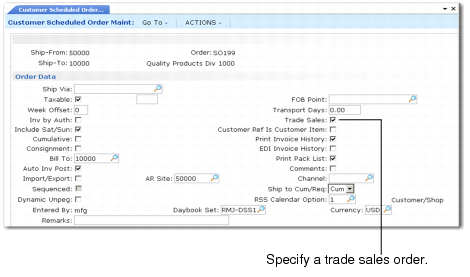
Use Customer Scheduled Order Maintenance (7.3.13) to create a trade sales customer scheduled order. The Trade Sales field in Customer Scheduled Order Maintenance identifies a trade sales contract and initiates trade sales processing.
When you identify an order as a trade sales order, the system:
• Prohibits updating the Trade Sales field once line items exist
• Manages all of the items on the order as supplied from trade sales suppliers
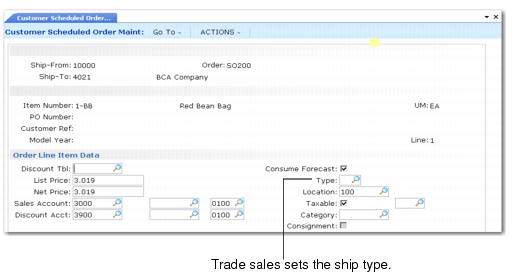
• Sets Type to blank on the trade sales order
• Automatically creates the supplier scheduled orders for each supplier of the items on the trade sales order
• Displays an additional Trade Sales PO Data frame at the line item level.
Once you set an order as a trade sales order, the system prevents you from:
• Modifying the system-created supplier scheduled order that is linked to the trade sales order
• Allocating percentages for a supplier scheduled order that is linked to a trade sales order in Scheduled Order MRP % Maint (5.5.1.17)
Because you cannot assign percentages to trade sales schedule orders, the system does not create schedules for trade sales supplier scheduled orders and planned order demand is not satisfied through Schedule Update from MRP (5.5.3.1).
To create a trade sales order:
1 In the header Ship-To field, enter the customer.
2 In the header Ship-from field, enter the site responsible for managing the trade sales process for the items listed on the order.
Note: If you are running system software in a multi-database mode, trade sales orders, schedules, receipts, and shipments must reside in the same database; therefore, the ship-from site on a trade sales order cannot be a remote site.
The Trade Sales field cannot be updated if you have existing line items that have schedules for them or receipts against them, or the order is in a remote database.
Note: Sequenced schedules are not supported when using a trade sales arrangement; therefore, if the Trade Sales field is Yes, the Sequenced field cannot be updated and vice versa.
4 Choose one of the following:
a If line items exist, confirm the automatic creation of supplier scheduled orders when the system prompts you.
b If this is a new order, enter line items. The system creates the supplier scheduled orders for the line items after you enter the line.
Customer Scheduled Order Maintenance (7.3.13), Order Data Frame
Trade Sales
This field enables or disables trade sales functionality.
No (the default): This is a standard scheduled order.
Yes: The system:
• Automatically creates a supplier scheduled order—a type of purchase order—for each supplier of the line items
• Displays an additional Trade Sales PO Data frame at the line item level
• Prohibits you from setting the Sequenced field
If line items already exist on the order, the system prompts you to confirm that you want trade sales purchase orders created for them. Once you confirm, the system creates the trade sales supplier scheduled orders for the suppliers associated with the items in Item Master Maintenance. If a valid supplier is not associated with the item on the order, an error displays and you cannot continue. If any existing lines have existing schedules or if you received items for a line, an error displays and you cannot continue.
If line items do not exist, the system creates a new supplier scheduled order line as you enter new line items.
If the trade sales order has more than one item supplied by the same supplier, the system creates one supplier scheduled order with multiple lines for the items; however, if the trade sales order has multiple order lines with the same item number and the same supplier, the system creates multiple supplier scheduled orders for one supplier.
Customer Scheduled Order Maintenance (7.3.13), Order Line Item Data Frame
Type
The system automatically sets the Type to blank when you set Trade Sales to Yes in the Order Line Data frame. You cannot modify Type once you set the order as a trade sales order. When the order is not a trade sales order, you can modify the ship type up to the time that you ship or invoice a quantity. See User Guide: QAD Sales for information on shipment types.
When Trade Sales is set to Yes in the header, the Trade Sales PO Data frame displays at the line item level. This frame is display only.
Supplier
This field displays the trade sales supplier ID for the item.
PO Number
This field displays the supplier scheduled order number that the system created for the trade sales line item.
Note: Use Scheduled Order Inquiry (5.5.1.14) or Purchase Orders by Order Report (5.9.1) to view details of a supplier scheduled order. If you attempt to access trade scheduled orders in either Supplier Scheduled Order Maintenance (5.5.1.13) or Purchase Order Maintenance (5.7), the system displays an error message.
PO Line
This field displays the supplier scheduled order line number for the item.
Modifying the Trade Sales Order
If you modify any of the following fields in the trade sales order, the system automatically updates them on the supplier scheduled order it created:
• Fab Auth Days
• Raw Auth Days
• Cum Start
• Max Order Qty
• Location
• Comments
Consigned Supplier Scheduled Orders
If you use Supplier Consignment Inventory, you can set a trade sales order as a consigned order; however, the setting of the Consignment fields on the trade sales supplier scheduled order are not related to the Consignment setting of the trade sales order. The system sets the Consignment field for the trade sales order based on defaults.
Supplier scheduled orders have a Consign field at both the header and line levels. The header field defaults first from the Consignment Orders field in Supplier/Item Controls Maint (5.18.1) for a specific supplier. If no setting exists for a specific supplier, it defaults from Consignment Orders in Supplier Consignment Control (5.18.24).
The supplier scheduled order line-level Consignment field defaults:
• First from the Consignment Orders field in Supplier/Item Controls Maint (5.18.1) for that line’s supplier-item combination
• If no default is defined in Supplier/Item Controls Maint, from the header Consignment field
When Consignment is set to Yes, the system bases the consignment related field, Maximum Aging Days, on the consignment control record it uses.