Report Master Maintenance
The Financial Report Writer produces reports that have variable layouts. The report hierarchy is defined when you create a report tree. The report columns are defined in Report Column Group Maintenance and these two elements can be combined in the report master record. The report master also controls a number of general report layout options.
Creating a report master record is also the last step in the setup before you can actually run a report. You can create as many report master records as you need different report layouts. The report tree and the column group components of the report master are linked to a report chart. As a result, the report master is linked to the same report chart as the report tree and column group that are part of the report master.
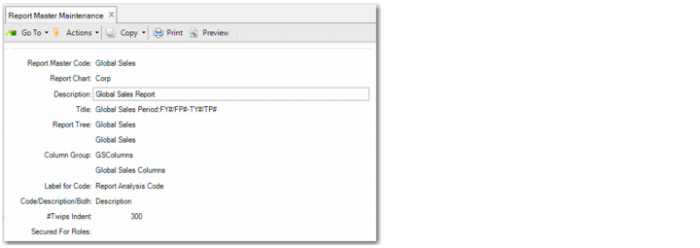
When you start Report Master Maintenance from the menu, the following screen opens:
Report Master Code
Enter a report master code that uniquely identifies the report master record in the system.
Description
Enter a description of the report master. This description is displayed in lookup browses.
Report Chart
If you are creating a new report master record, you must enter a report chart code. This code must relate to an existing report chart. All subsequent elements of the report master must be linked to the same report chart. The elements are report tree, column group, and controlling report analysis code.
Title
Enter the title to print at the beginning of report. You can enter plain text and you can also use the special variables as part of the text. These special variables are replaced on the report with the report year and period details you specify when you run the report. The special variables are:
• FY#: From Year.
• FP#: From Period.
• TY#: To Year.
• TP#: To Period.
• FQ#: From Quarter.
• TQ#: To Quarter. Periods are mapped to quarters using a fixed logic. Periods 1 to 3 map to Q1, periods 4 to 6 map to Q2, periods 7 to 9 map to Q3, and periods 10 to 12 map to Q4.
Report Tree
Enter a report tree code. This is the top-level report analysis code for the report tree, also referred to as the root node. This must be an existing report tree linked to the report chart as specified in the report master. The report tree specified here determines the printed report hierarchy structure, including all detail layout options that you can set using Financial Report Tree Import from a CSV file.
Description
This field displays the description of the report tree. It is read only.
Column Group
Enter a column group code. This must be an existing column group, linked to the report chart specified in the report master. The column group specified here determines the column layout of the report. See
Report Column Group Maintenance.
Description
This field displays the description of the column group. It is read-only.
Label For Code/Desc
Specify the label you want to print as the column header label above the report tree hierarchy. This is on the left part of the layout.
Code/Description/Both
Specify whether to print the code, the description, or both for the report tree hierarchy.
• Code: Only the report analysis code as used in the tree.
• Description: Only the description of the report analysis code as used in the tree.
• Both: The code and the description of the report analysis code as used in the tree.
#Twips Indent
The report tree hierarchy on the report prints child nodes, indented relative to their parent. Use this field to specify the size of the indent in twips. Three hundred twips are approximately 0.7 cm.
Secured for Roles
You can secure reports so only certain users can run them. In general, when the Secured For Roles field is blank, you can only run a report if you have access to all the entities involved in the report, including permission to use the menu Financial Report Run in each entity.
Optionally, you can specify a role that a user must have in each of the involved entities. When you specify more than one role here, a user needs to have only one of the roles in each involved entity.
If a user does not have the required permissions for some of the entities involved in the report but wants to run the report for the entities where the user has permissions, it is possible to create an additional filter analysis code. This code filters out the forbidden entities and uses this analysis code is as a Filter Analysis Code in the Financial Report Run selection screen. The user can then run the report for the allowed entities only.