Key Concepts
Scheduled Cumulative Orders
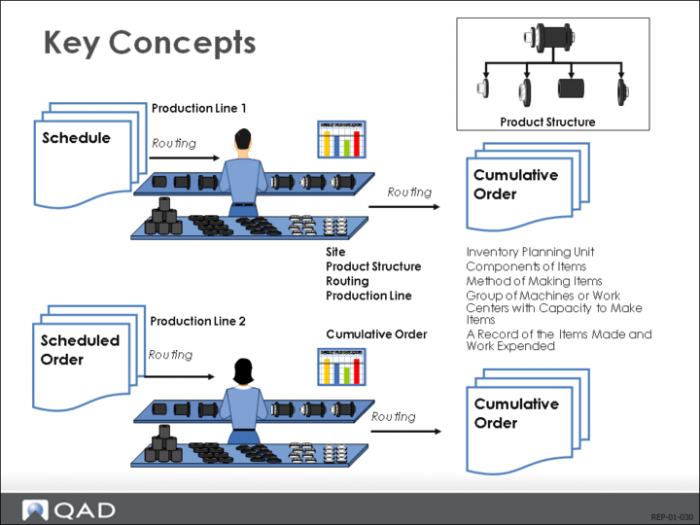
You use two basic management functions in a repetitive environment: to set a schedule and to record what happens. In QAD terms, both the schedule and the record are orders. The schedule is a scheduled order, the record is a cumulative order. Internally, the scheduled order is a special type of work order, and the cumulative order is a type of tally sheet. It shows the results of the production and labor reporting.
Site
A schedule order creates a requirement to make a certain item at a certain place, with certain materials, using a certain method. The place is a site. In QAD Enterprise Applications, a site is more a planning term than a actual geographic term.
Organization of Orders / Schedules
QAD Enterprise Applications organizes orders by site, item, product structure, and routing. It organizes schedules by site, item, product line, product structure, routing, and day.
Product Structures / Routings
An item has components. The list of components is the item’s product structure or formula. each item can have more than one product structure. However, each order for an item with a different product structure is treated as a different order.
Routings are the methods for making an item. The same logic is true for routings. You cannot combine items with different routings on one order.
Production Lines
Production lines identify a series of work centers and machines, normally dedicated to the manufacturing of a specific number of products or families. Each production line has a certain capacity it is expected to produce. Multiple production lines can have the same routing, but each line can have a different capacity. Scheduled orders and cumulative orders for one production line are treated as different from orders for another line, even if the routings and structures are identical.
Repetitive Schedule and Explosion
Schedule Defined
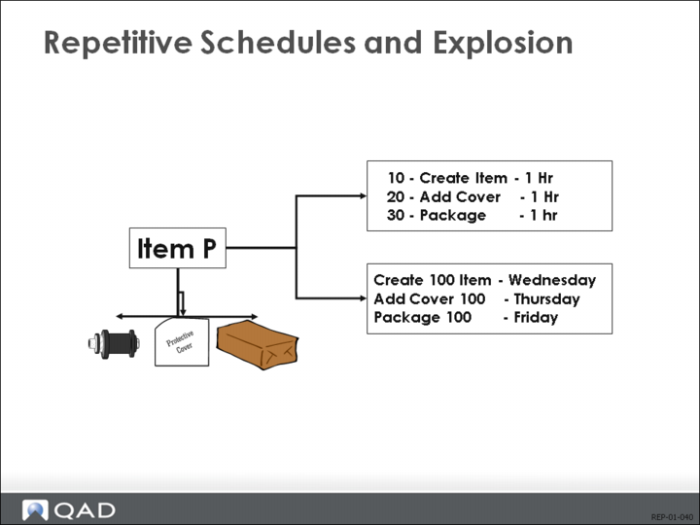
Of the four basic parts of the repetitive module, the first and simplest is the repetitive schedule. The schedule contains a date, an amount, a product structure or formula, and a routing. It is always a daily schedule. It is not further subdivided by shift. The schedule can be created manually (by a master scheduler) or brought in from the line sequencing module. Entering a repetitive schedule for an item, product structure, and routing establishes supply.
Example Explained
In the example shown above, a schedule for 100 devices to be completed on Friday comes in through Schedule Maintenance (18.22.2.1). The product structure and routing default from the item planning data for that item and site. According to this product structure, the device has three components, and each component is added in a step.
Component Requirements Established after Schedule Explosion
After you enter the schedule, the system regards it as supply. The component requirements are established only after you run MRP or the repetitive schedule explosion. In the example, the explosion schedules the material and the work centers for each operation. Since each operation takes one day, the requirements for Friday translate into requirements at operation 10 on Wednesday and operation 20 on Thursday (assuming overlap is zero in the routing).
Operation Schedule Report
The full schedule for each operation, including the quantity completed and the quantity open appear in the Operation Schedule Report (18.22.2.5).
Picklist Replenishment
Two Types of Movement to Floor
In most repetitive operations, you manage issues of material solely by backflushing. But in many operations, you must find some method to manage the movement of inventory to the point where it will be used.
Calculate Requirements: Repetitive Picklist Calculation (18.22.3.1)
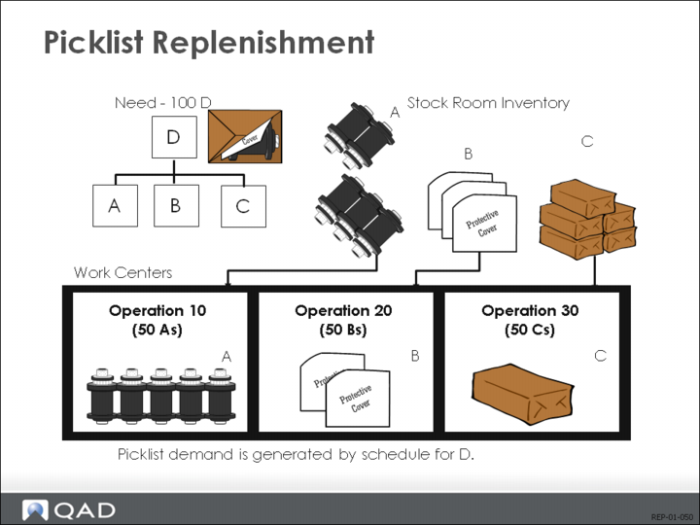
The repetitive picklist enables you to manage the movement of inventory from the stock room to the staging area. It treats each work center as a special inventory location and calculates the demand for replenishment.
In the example above, work centers 10, 20, and 30 have 50 items, A, B, and C, respectively. If you enter a schedule for 100 of item D, and each item D requires one item A, one item B, one item C, 50 more of each item will be required at the work centers. You run a repetitive picklist calculation using Repetitive Picklist Calculation (18.22.3.1).
Repetitive Picklist Print (18.22.3.4) Picks, Repetitive Picklist Transfer (18.22.3.6) Moves
You can print picklists and record when inventory movement takes place. Since inventory is not issued to WIP at the work center, the movement is a location transfer. Repetitive Picklist Print (18.22.3.5) picks the inventory and prints a picklist. The picking logic used is specified in the Inventory Control (3.24). Repetitive Picklist Transfer (18.22.3.6) registers the physical transfer of components to the floor.
Line Sequencing
Schedule Simulations
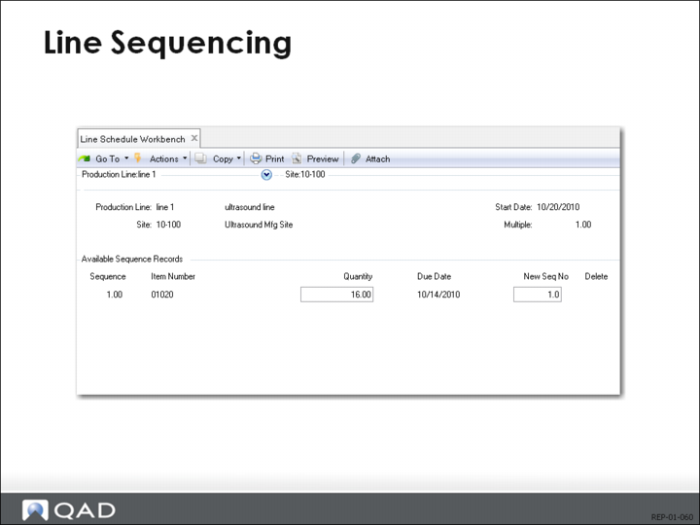
Using the line sequencing workbench you can use planned orders from MRP to create simulated schedules. When you find a satisfactory schedule, you can move it into the repetitive schedule, where it behaves like a manually entered repetitive schedule.
Creating Line Schedule in Line Schedule Workbench (18.22.1.10)
The work of setting up and examining a simulated schedule is done in Line Schedule Workbench (18.22.1.10). You can either enter your simulated schedule manually or import planned orders from MRP.
Recalculation
After you enter the schedule, you direct the system to recalculate the schedule based on the production line’s capacity for each day. If MRP schedules 500 for a week, and the line can actually produce 380 for that week, the remaining 120 are postponed until the following week. After recalculation, you can modify the schedule further, but the system always recalculates your modifications afterwards.
Rep. Sched. Update (18.22.1.18) Copies Schedules Into Repetitive Schedule
All schedules prepared in the line schedule workbench are simulations. They have no effect on supply or demand until you copy them into the repetitive schedule using Repetitive Schedule Update (18.22.1.18).
Repetitive Schedule Update replaces the existing repetitive schedule with the simulated schedule. You can delete the original simulated schedule or save it for future use. Run MRP to synchronize planned orders with the modified repetitive schedule.
Repetitive Reporting
Report Time, Quality, 3 Quantity Queues: Input, Output, and Reject
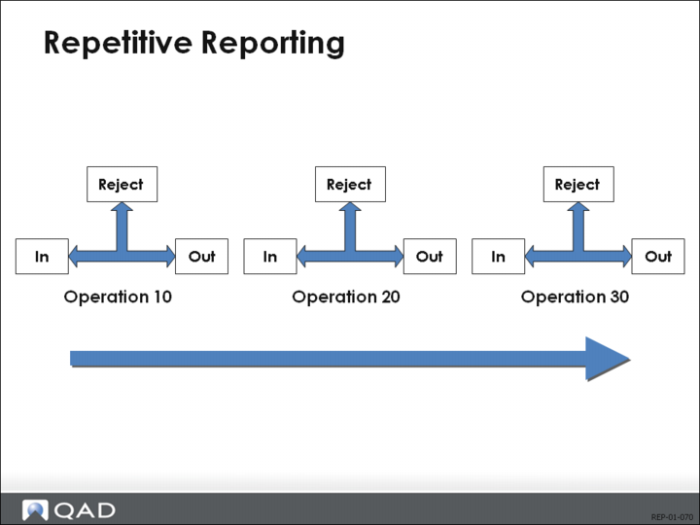
Activity reporting covers each employee for a specific site, item number, production line, routing, and bill of material (BOM). Routing operations have three quantity queues: input, output, and reject. The input queue holds quantities from the previous operation. The output queue holds quantities from the current operation that have not been moved to the next operation. The reject queue holds quantities rejected by the current or a subsequent operation.
Backflush Transaction (18.22.13)
Move Transaction (18.22.19) Receives Completed Items
The only transaction that automatically backflushes component inventory is the Backflush Transaction (18.22.13). This transaction also backflushes labor and burden if the operation’s routing record has the field Auto Labor Report set to Yes (set in Routing Maintenance [14.13.1]). The Backflush Transaction and the Move Transaction (18.22.19) also receive completed items to inventory, if the transaction is made from the last operation. Rejects and scrap can be entered using the Backflush Transaction.
Scrap Transaction (18.22.18)
Scrap Transaction (18.22.18) enables you to scrap from all three queues. Scrap from the input queue is reported at the previous operation’s output queue. Scrap from the output queue should be limited to processed units that remain in the operation’s output queue. However, scrap from output and reject queues is not limited to units remaining in that queue, and the value goes negative if over-scrapped.
Reject Transaction (18.22.16)
Reject Transaction (18.22.16) enables you to reject either from the output or input queue of the current operation. From the output queue, you reject previously processed units that have not been moved to the next operation’s input queue. When you reject from the input queue, you are moving units back to a prior operation, and recording the reject there.
Rework Transaction (18.22.17)
Rework Transaction (18.22.17) moves reworked units from an operation’s reject queue to the output queue of the operation where the unit was rejected, or to the input queue of the operation that follows the To operation. If the rework transaction is from the last operation, it is automatically moved to the last operation’s output queue.
Cumulative Orders
Cumulative Orders
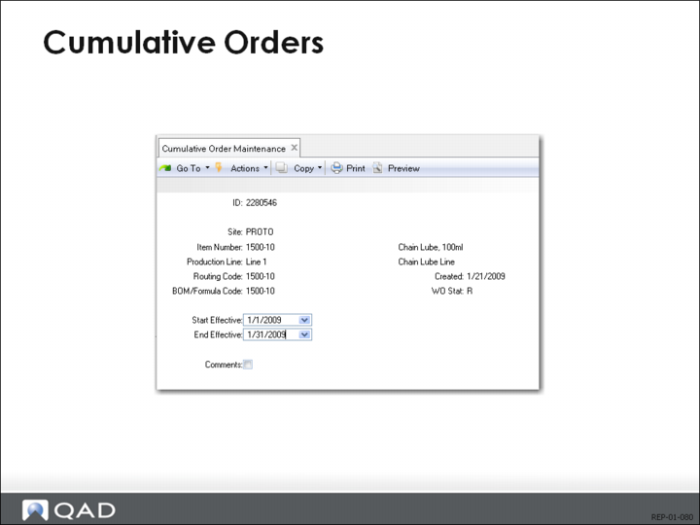
A cumulative order accumulates costs and quantities for tracking work-in-process (WIP) for repetitive production. A cumulative order is created for a profile that defines the site, item number, production line, routing code, BOM/formula code for the order, and start and end effective dates.
Create Using Rep Transactions (18.22.13-21) or Cum Ord Create (18.22.11)
You can create cumulative orders using the repetitive transactions (18.22.13-21) or Cumulative Order Create (18.22.11). When you create a cumulative order, a cost rollup establishes the cumulative order cost. Cumulative orders have an assigned ID number, but no order number.
Cumulative Orders and Variances
During transaction processing, rate variances are taken and general ledger (GL) entries created. Usage/method variances are accumulated and taken when one of the following is run:
Post Acc Usage Variances (18.22.9)
Post Accumulated Usage Variances (18.22.9). This creates GL entries for usage and method variances accumulated since the previous Post Accumulated Usage Variances report. The report gives you the option to update or not update.
Cum Ord Close (18.22.10)
Cumulative Order Close (18.22.10). This closes the cumulative order, and creates GL entries for usage and method variances accumulated since the previous Post Accumulated Usage Variances report. The report has update and no update options. You can transfer WIP balances to another cumulative order or write off balances to method variance.
All rate and usage variances are measured against the cumulative order cost. GL scrap entries are not created until you run either Post Accumulative Usage Variances or Cumulative Order Close.
Repetitive Setup
\
Implementation Order
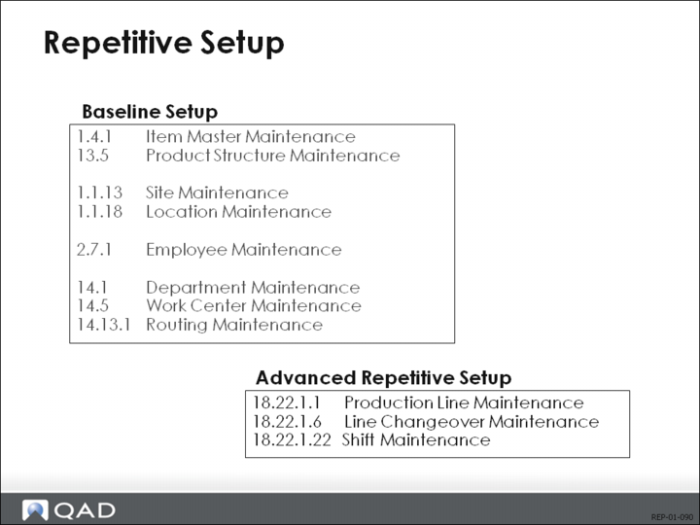
The repetitive module uses data already defined. Both the maintenance functions and the relative order within areas are shown. For example, you need to set up departments before you set up work centers.
Production Lines
The production line setup requires that you define shifts (if you use them), production line capacities, and changeovers before using production lines.
Schedules
The repetitive schedule itself assumes that you have defined sites and production lines beforehand (only if required). The schedule requires a product structure and routing that is valid for the item you are scheduling.
Explosion
The repetitive schedule explosion (which uses the same algorithm as MRP) assumes that you have items, product structures, and routings set up. Each component in the product structure should be associated with a routing operation. Also, locations should be set up for each work center, using the same ID as the work center.
Picklist
The picklist uses the data from the explosion, and the available quantities at the locations in the repetitive area, to determine what requirements exist at the location.
Reporting
Repetitive labor reporting is done by employee, so employees must be set up. Where detailed labor reporting by employee is not standard procedure, the reporting is often done by the line supervisors employee code or a statical employee code set up by the production line or work center just for reporting purposes.
Repetitive Control
Enabling Advanced Repetitive Module
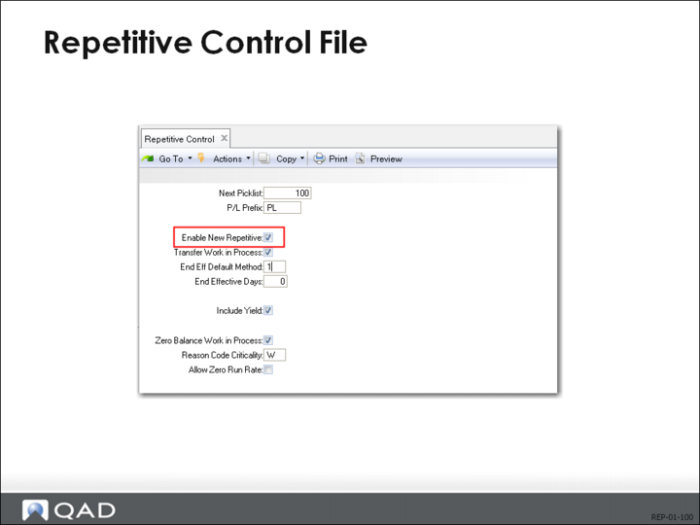
To activate the Advanced Repetitive module, you must run Cumulative Ord Accounting Close (18.12) to close out any open cumulative orders in standard repetitive. Then, you set the Enable New Repetitive field in Repetitive Control (18.22.24) to Yes.
The following is an explanation of some of the fields found in the control program.
Transfer WIP
Values are Yes and No. This becomes the default for the field of the same name in Cumulative Order Close (18.22.10).
WIP Transfer Account
The GL account debited or credited when closing a cumulative order, and transferring WIP to a new cumulative order.
End Eff Default Method.
Set to the method you normally use to end effectivity dates on cumulative orders. You have four options:
blank | Start and end effective dates are not set. |
1 | Start and end effective dates match the dates of the GL period in effect during the transaction. |
2 | Start and end effective dates match the calendar start and end effective dates of the month of the transaction. |
3 | Start and end effective dates cover a number of days, so the transaction effective date falls in that interval. |
Use only if End Eff Def Method = 3
End Eff Days
Value is 0 (zero) or greater. Use if the End Eff Default Method is set to 3. Shows the number of days that the start and end effective dates cover.
Includes yield% set up in Routing Maintenance (14.13.1)
Include Yield
You set this to Yes to have the system include the yield percent established in Routing Maintenance (14.13.1) in the cumulative order cost. It should match the setting for Include Yield% normally used to compute GL costs.