Cumulative Order Create
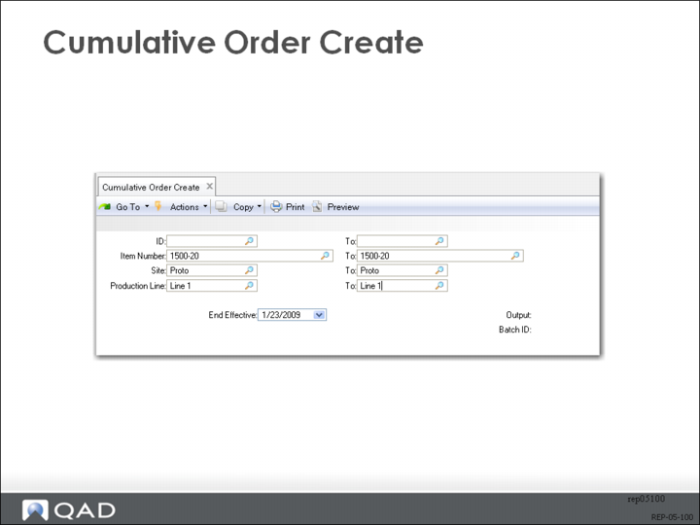
Use Cumulative Order Create (18.22.11) to create new cumulative orders in advance while current cumulative orders are still in effect. You can do this in the middle of the month for work orders whose end effective date is the end of the month. This prevents the repetitive transactions from having to create new cumulative orders all at once, with resulting response time degradation, which can be noticeable for items using large numbers of components.
In addition to the usual selection criteria, the End Effective field is used for selection purposes. Cumulative orders whose end date matches the End Effective date are selected.
For each cumulative order selected, the system checks to see if a cumulative order exists with an effective date range including the day after the entered Effective Date. A new cumulative order is created if none exists. The Start and End Effective dates of the new cumulative order are set according to Repetitive Control (18.22.24) fields.
To use this function, orders must already exist in the system.
You cannot use this program to create a cumulative order where none exists. Use Cumulative Order Maintenance (18.22.6) or Backflush Transaction (18.22.13) to create cumulative orders.
Cumulative Order Maintenance
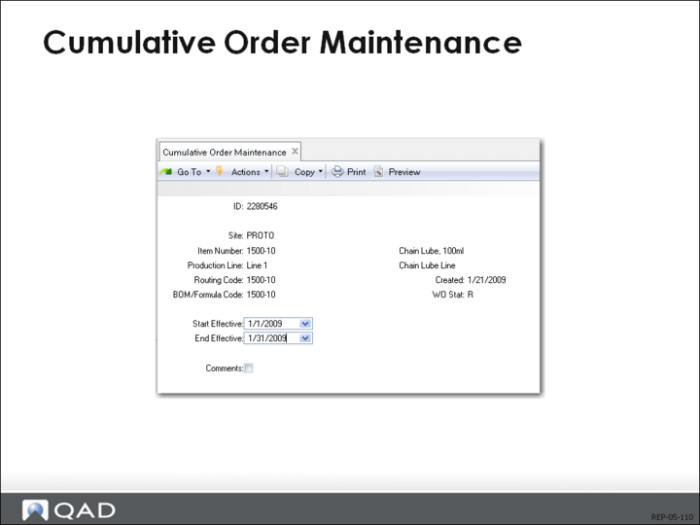
Cumulative Order Maintenance (18.22.6) provides for maintenance of the start effective and end effective dates, and allows you to delete closed cumulative orders.
A cumulative order is created for a profile that defines the site, item number, production line, and start and end effective dates. No two orders having the same profile can have overlapping effective dates. When a cumulative order is entered, the work order ID is automatically assigned, the work order number is blank, the work order type is C (Cumulative), and the work order status is R (Released).
Cumulative Order Browse/Inquiry and Report
Cumulative Order Browse/Inquiry (18.22.7)
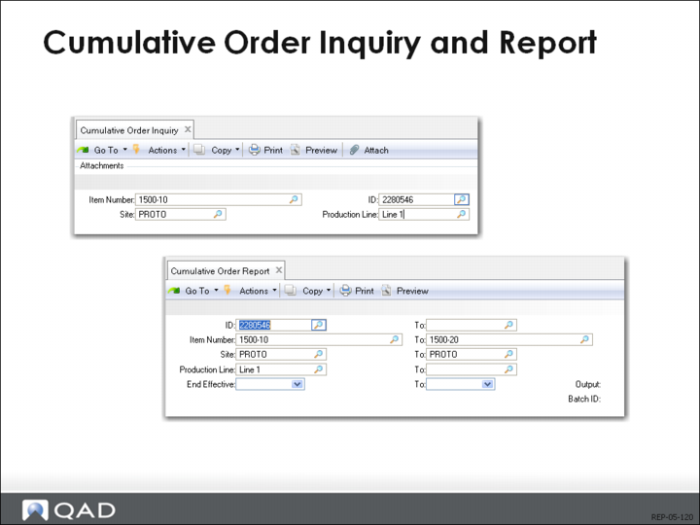
You can use Cumulative Order Browse/Inquiry (18.22.7) or Cumulative Order Report (18.22.8) to see the cumulative order, start and end effective dates, and status.
Cumulative Order Close
Criteria for Closing Cum Orders
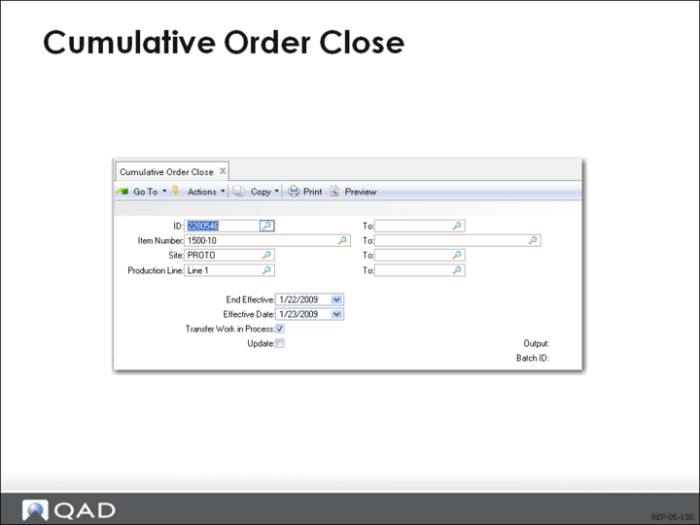
Cumulative Order Close (18.22.10) selects unclosed cumulative orders using criteria you specify. Cumulative orders must have an end effective date on or before the end effective date you enter. Cumulative orders with a blank end effective date will not be selected. If an order has a blank end effective date, you need to enter an end effective date using Cumulative Order Maintenance (18.22.6). Then, you close the order.
How to Close before End Effective Date
To close a cumulative order before its end effective date, use Cumulative Order Maintenance (18.22.6) to set the end effective date to yesterday’s date. The system creates a new cumulative order for the balance of the period if the End Eff Default Method is set to 1 or 2 in Repetitive Control (18.22.24).
Once the Order is Selected
When a cumulative order is selected, the system first calls the subprogram used by Post Accumulated Usage Variances (18.22.9) to calculate, post and report usage variance. It transfers WIP queue if the Transfer WIP field is set to Yes in Repetitive Control.
Engineering Change Phase-In
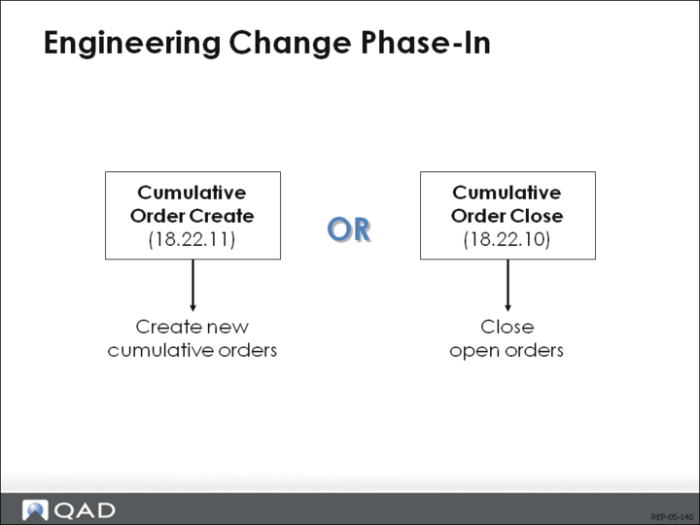
You can phase in engineering (bill and routing) changes by creating new cumulative orders in Cumulative Order Create (18.22.11), or by closing open orders in Cumulative Order Close (18.22.10). This removes the need to run WIP Material Cost Revaluation (16.22). WIP Material Cost Revaluation does not impact new repetitive cumulative orders.
QAD Enterprise Applications uses the latest BOM and routing to determine the cumulative order cost. Whenever a new cumulative order is created, you want to close the existing cumulative order and open a new one if there is an engineering change affecting a bill or routing. By running Cumulative Order Close and transferring WIP, there is no need to run WIP Material Cost Revaluation. Also, you should delete any repetitive schedule and re-enter them so they are exploded using the latest BOM and routing.
It is optional whether you re-roll up the standard cost. If the GL cost is not recalculated, the system will generate a method variance with each new receipt.
Mistakes in Reporting (Repetitive Transaction History)
Reversing Transactions
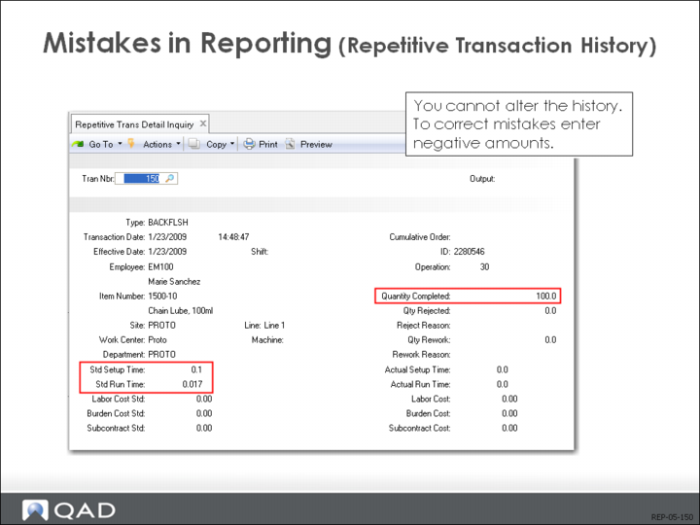
When data entry errors occur, they need to be corrected by reversing the original transaction. You do this by entering the same information, for the same operation, with negative quantities and/or hours. You then re-enter the transaction with the correct data. Reversing the transaction and re-entering it leaves a better audit trail than entering a net correction. By re-entering, you can also correct data in addition to quantity and hours.
Transaction History
You can view the results of repetitive transactions using the following.
• To determine the effect of a transaction on an operation’s input, output or reject queue, run WIP Status Browse/Inquiry (18.22.12) or WIP Status Report (18.22.4.11).
• To verify the data of specific transactions, run Operation Transaction Browse/Inquiry (18.22.4.1) or Operation Transaction Detail Browse/Inquiry (18.22.4.2).
• To verify material backflushing and receipt to stock, run Transactions Detail Browse/Inquiry (3.21.1), Transactions by Item Browse/Inquiry (3.21.2), or Inventory Detail by Item Browse/Inquiry (3.2).
Repetitive Downtime and Non-Productive Labor
Down Time Transaction (18.22.20) and Non-Productive Labor Feedback (18.22.22)
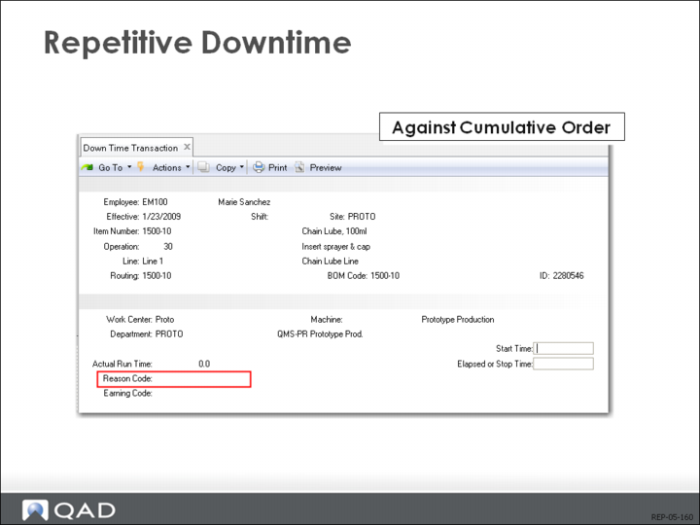
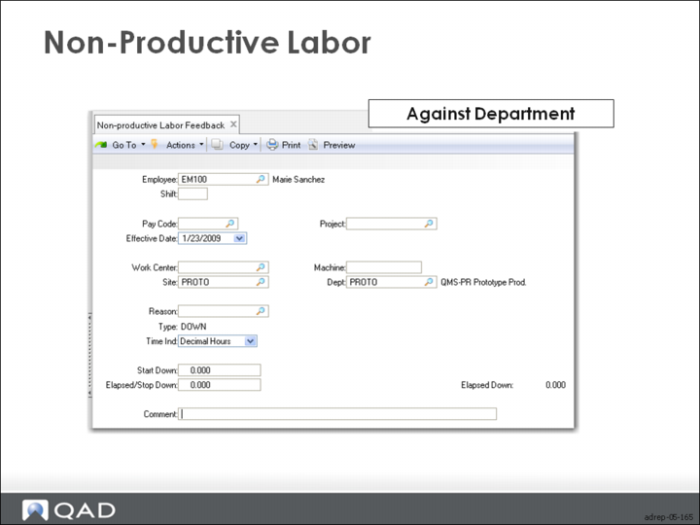
Down Time Transaction (18.22.20) and Non-productive Labor Feedback (18.22.22) do not charge costs against WIP. Both debit cost of production and credit labor.
Down Time Transaction references the cumulative order, operation, item, production line and site. Non-productive Labor Feedback allows you to enter a project ID and record comments.
Reason Codes
Reason codes can be entered for both transactions, with type Downtime for the Down Time Transaction and type Down for the Non-productive Labor Feedback.