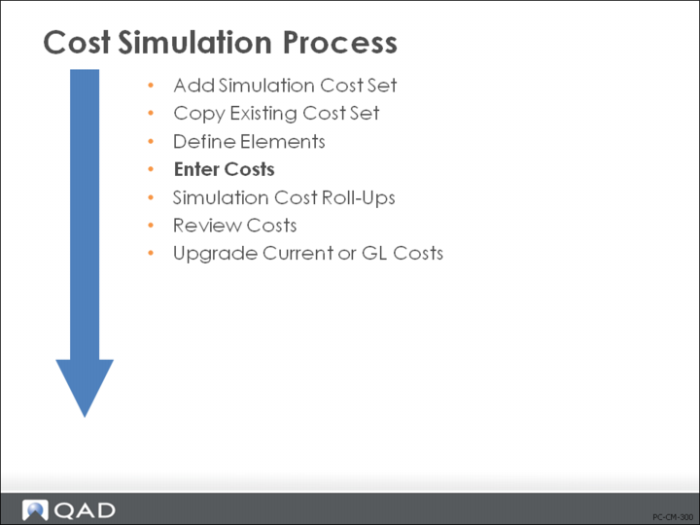
Enter Costs
• To enter costs manually, use Simul Item-Element Cost Maintenance (30.13.5), Simul Subcontract Cost Maintenance (30.13.10), Simul Work Center Rate Maintenance (30.13.13)
• To let the system calculate costs, use Simul Item-Element Cost Update (30.13.8), Simul Work Center Rate Update (30.13.16)
• To copy costs from another source, use Simul Item-Element Cost Copy (30.13.9), Cost Set Copy to Cost Set (30.3), Item/Routing to Simul Copy (30.13.23)
Enter Costs Manually
Once a simulation cost set has been initialized, usually you want to make changes. The cost of a certain commodity can have changed (for example, gold prices might have gone up 25%), a new union contract might have increased labor rates, or you might be planning a change in overhead rates. The whole idea of cost simulation is to give you a vehicle so that you can test the effects of such changes without affecting your current or GL costs.
With QAD Enterprise Applications’s simulation functions, you can do the following.
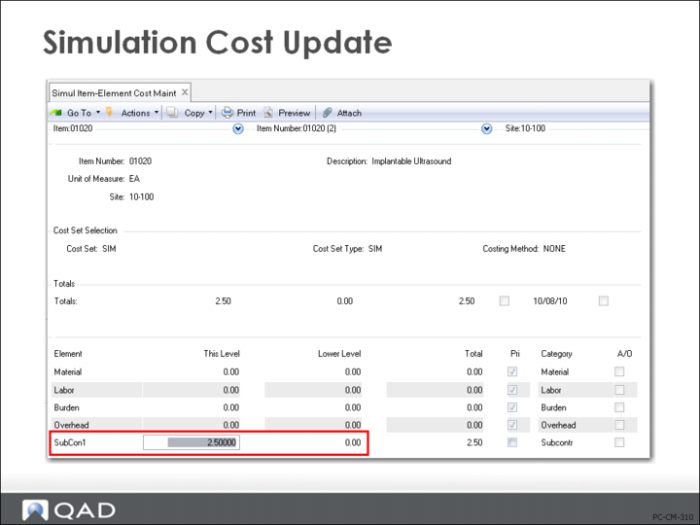
• Enter the direct item costs in Simulation Item-Element Cost Maintenance (30.13.5). This looks the same as Item-Site Cost Maintenance (1.4.18), but it only lets you enter costs for SIM-type cost sets.
• Enter work center rates in Simulation Work Center Rate Maintenance (30.13.13)
• Enter subcontract costs in Simulation Subcontract Cost Maintenance (30.13.10)
Modify Work Center Rates
Because labor or burden often make up a significant portion of total cost, it can be useful to simulate changes in these costs.
Use Item/Routing to Simulation Copy (30.13.23) to copy work center rates for labor, burden, and subcontract cost from user-specified routings into the simulation cost set.
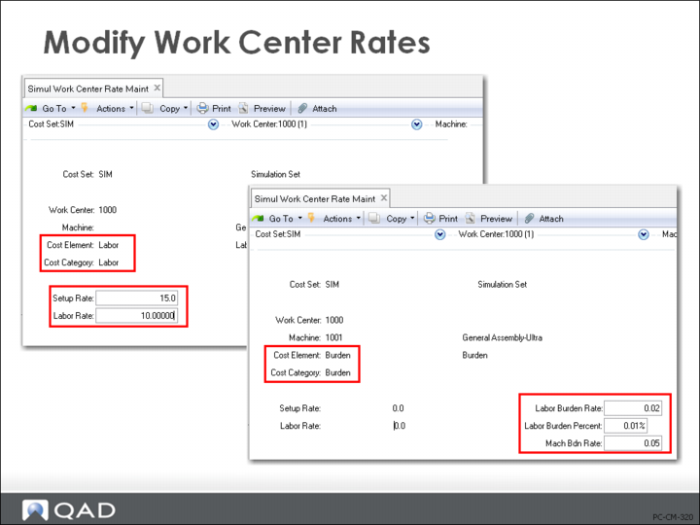
Next, use Simulation Work Center Rate Maintenance (30.13.13) to change labor, labor burden, or machine burden rates. You could, for example, evaluate the impact of a 15% increase in labor cost by multiplying the existing labor rate by 1.15 and entering that value for the labor cost element. Specify the cost elements of Labor and Burden to access the respective fields of the Simulation Work Center record. (As you will see in
Let the System Calculate Costs you can also let the system calculate and update the rates.)
• All work center costs are associated with cost elements labor and burden. If you want to split labor or burden into more than one cost element, do this manually by using Simulation Item-Element Cost Maintenance (30.13.5).
• For each work center and machine, enter hourly rates for setup and labor, as well as hourly rates for labor and/or machine burden
Modify Subcontract Costs
Companies that subcontract some of their production might want to compare simulated effects of changes in their subcontract costs to simulated costs of doing the work in-house instead. The Simulation Subcontract Cost Maintenance (30.13.10) lets you run such simulations.
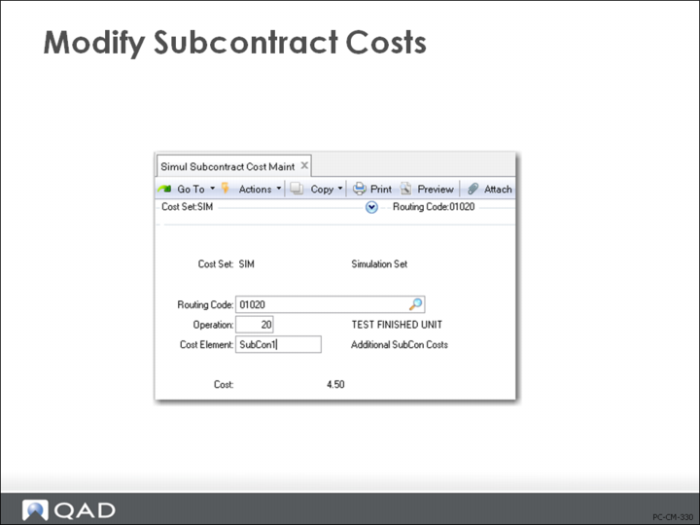
All subcontract costs are associated with cost element Subcontr. To split Subcontract into more than one cost element—for example, fixed and variable costs—do this manually using Simulation Subcontract Cost Maintenance.
Here, you only specify the routing code, operation number, subcontract cost element, and amount. All of the other routing information (for example, setup and run times) comes from the standard routing.
Let the System Calculate Costs
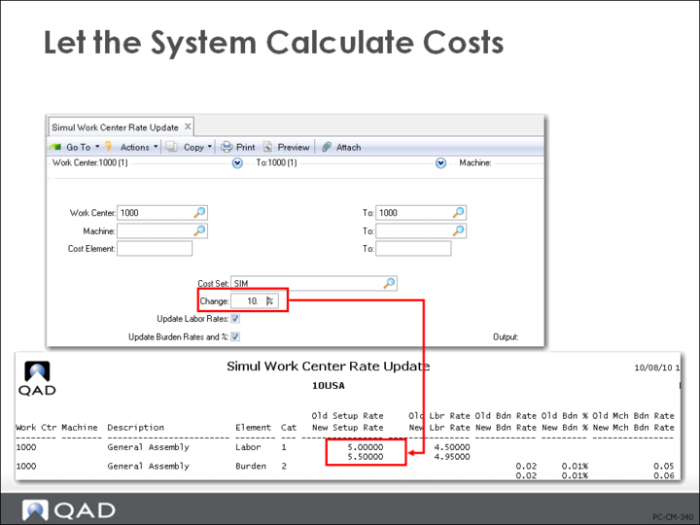
As we have seen, all costs can be changed manually, but additionally, update functions let you adjust costs up or down by a given percentage.
• Simulation Work Center Rate Update (30.13.16) updates work center labor and/or burden rates (shown in figure above). You can update all or some work centers and machines. Perhaps labor rates in one work center have gone down by 5% (enter a minus sign before the percentage change, -5%) or all costs have gone up by 10%. The cost update can quickly make the change.
• Simulation Item-Element Cost Update (30.13.8) lets you adjust the cost of one or more cost elements. This can be done for all items in a cost set, or you can select them by item number, product line, and item type. For example, you can increase Freight element costs for items of type FGI (finished goods), or decrease Duty by 100% on all intra-EC sourced items, increase Factory Overhead by 5% on all Fabricated items, or increase the purchased material cost of just one item.
Once changed, these are the rates used for simulation cost calculations.
Copy Costs from Another Source
As you have already seen, you can use Cost Set Copy to Cost Set (30.3) to copy item costs from a GL or current cost set to a simulation (this function is likely to be password controlled).
You can also use the following copy functions.
• Simulation Copy to Simulation Copy (30.13.21) allows new simulations to be based on old ones. To establish a new simulation, create it in Cost Set Maintenance (30.1). Then copy the data from an existing simulation to the new one as a starting point. Item, work center, and operation (subcontract) costs can all be copied.
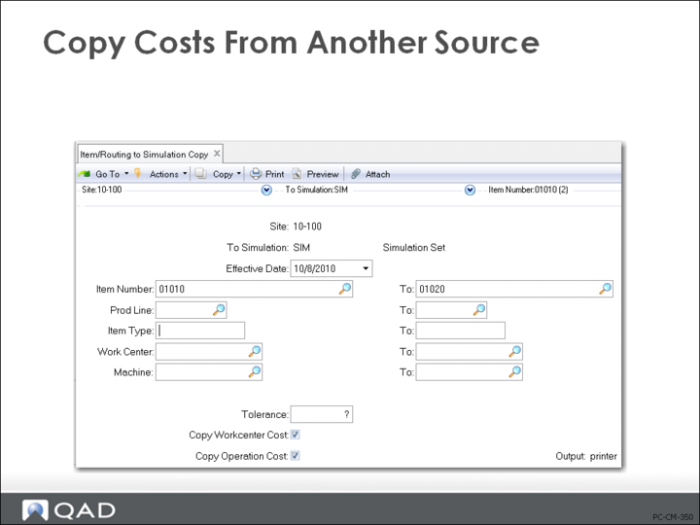
• Use Simulation Item-Element Cost Copy (30.13.9) to copy item costs from one simulation to another. This transaction provides more selection criteria for item costs.
• Use Item/Routing to Simulation Copy (30.13.23) to copy work center labor and burden rates, and subcontract costs to the simulation from the production data.
Simulation Cost Roll-Ups
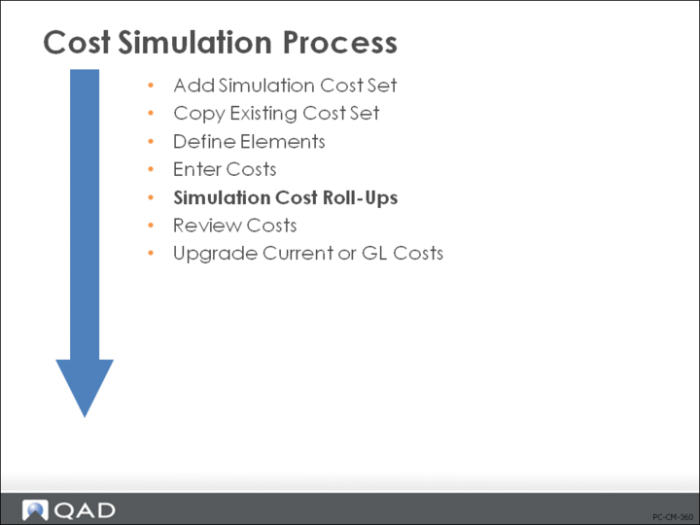
Use Simulation Cost Roll-Up (30.13.18) and Simulation Structure Cost Roll-Up (30.13.19).
Once all of the simulation costs have been established, roll-up functions are used to calculate total item cost: this-level plus lower-level costs. The calculations are exactly the same as in the regular Product Structure and Routing Cost Roll-Up functions. The only difference is that you cannot process current or GL cost sets in the simulation roll-up functions.
Similar to regular cost roll-up functions, you should calculate manufacturing costs prior to calculating component costs, which means that you should run the Simulation (Routing) Cost Roll-Up (30.13.18) prior to running the Simulation Structure Cost Roll-Up (30.13.19).
Review Costs
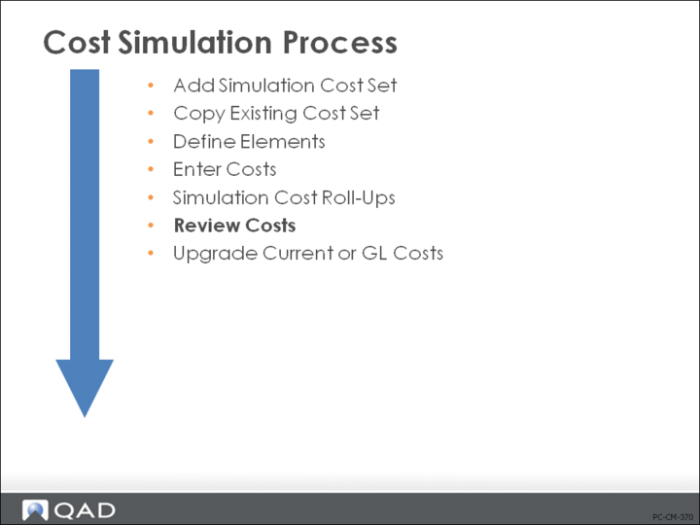
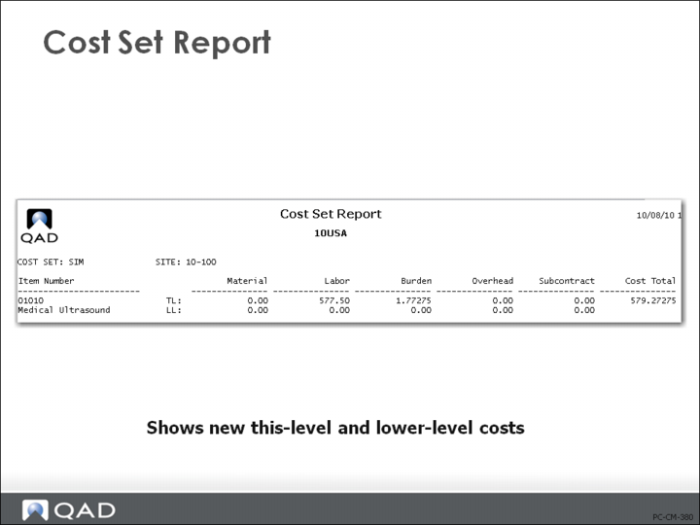
Use Cost Set Report (30.21) and Cost Set Comparative Report (30.22) to review costs.
Cost Set Report
Simulated costs can be reviewed using any of the standard reports and inquiries. In particular, you can use the following reports.
• Cost Set Report (30.21) (see figure above)
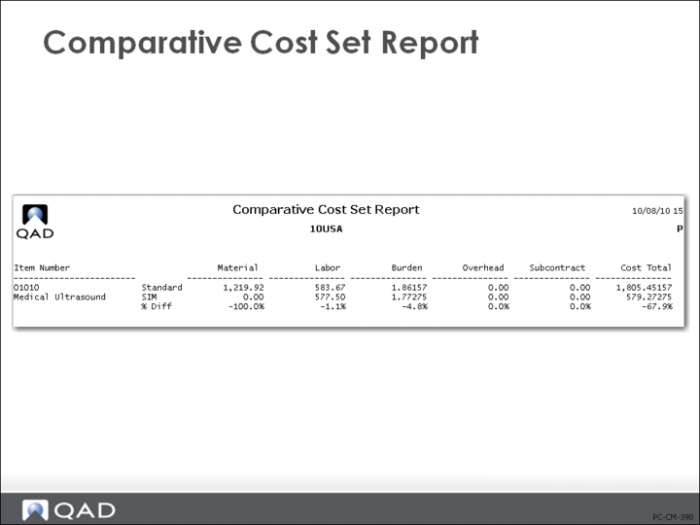
• Comparative Cost Set Report (30.22) (see next page)
Comparative Cost Set Report
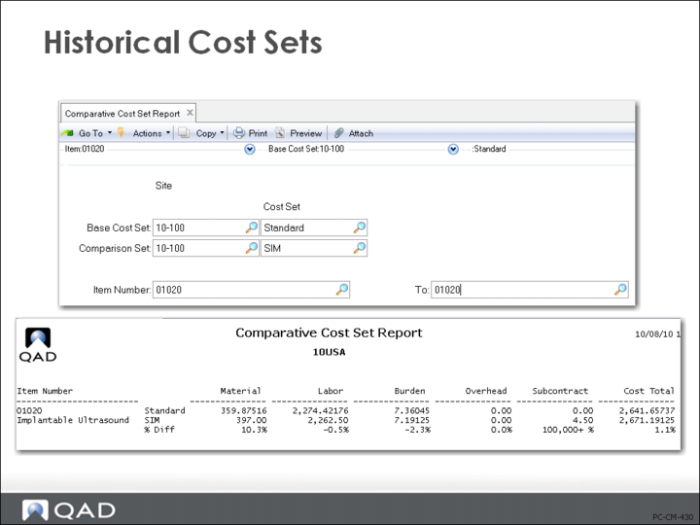
After you have made changes to item costs, rates, or routings in the SIM cost set, you can quickly compare that cost set to the GL and Current cost sets by using Comparative Cost Set Report (30.22).
Update Current or GL Costs
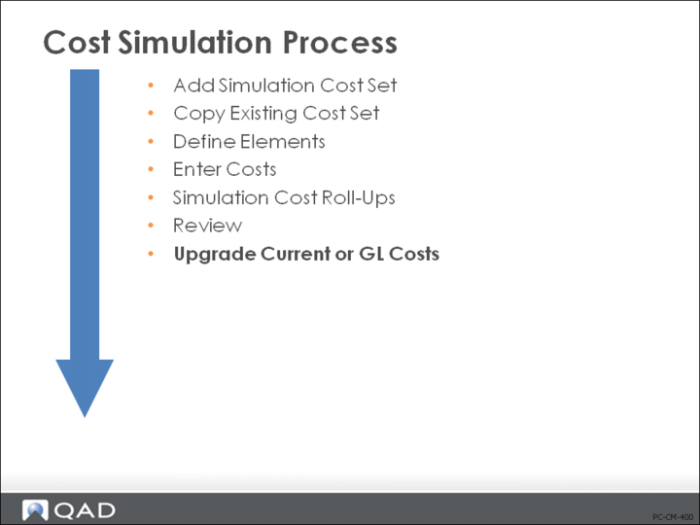
Use Simulation to WC/Routing Copy (30.13.22) and Cost Set Copy to Cost Set (30.3).
Copy Simulations to Items and Sites
You can use the simulated cost to update current or GL costs (simulated cost sets cannot be used directly as current or GL costs).
Copy Work Center and Subcontract Costs to Production Database
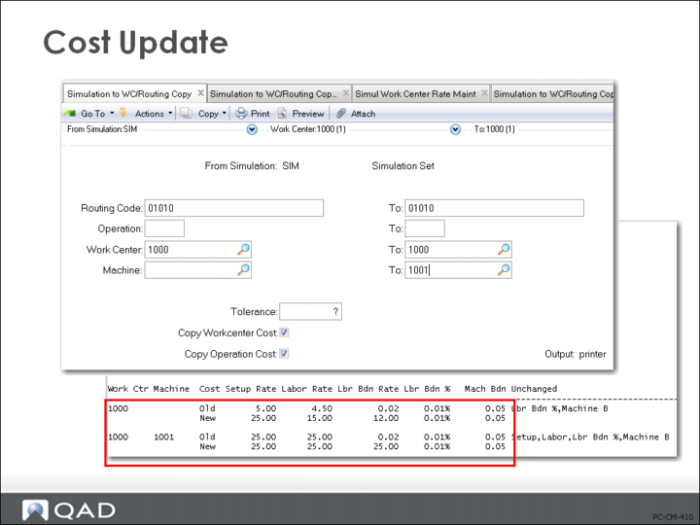
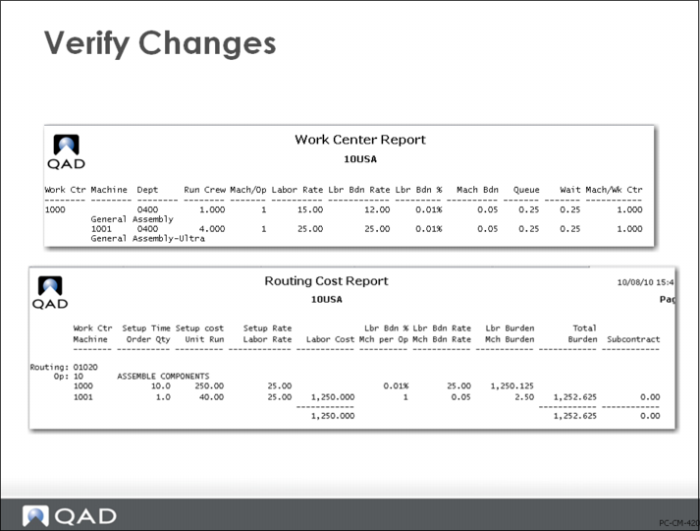
Use Simulation to WC/Routing Copy (30.13.22) to copy the work center and subcontract costs to the production database. The program copies the work center setup rate, labor rate, burden rate, machine burden rate, and labor burden percentage to user-specified work center records. It also copies subcontract costs to the specified routings. You can run the Work Center Report (14.7) and the Routing Cost Report (14.13.14) to verify that expected changes have been made.
Copy Simulation Costs to GL Cost Set
Use Cost Set Copy to Cost Set (30.3) to copy the simulation data into another GL cost set. This ensures that you maintain a copy of your previous standard costs. Then use Cost Set to Site Assignment (30.9) to replace the standard cost set at that site with the new GL cost set. This will update the inventory value if the GL cost set is updated. All changes will cause an update to Inventory with the offset to the Cost Revalue account of the item. Once the GL cost set is updated, run WIP Material Cost Revaluation (16.22) to update WIP and the work order bills for unissued material, Run Sales Order Revaluation if the Sales Gross Margin Report is used.
You can use either the Cost Set Report (30.21) or the Item Cost Report (1.5.6) to review the data. The Item Cost Report shows both the current and GL cost data for items.
Verify Changes
After moving simulation costs to the GL, use Work Center Cost Report (14.7) and Routing Cost Report (14.13.14) to verify that expected changes have occurred.
Historical Cost Sets
You can compare the active GL cost set with either simulated cost sets or previously active GL cost sets. For example, you can compare “Qtr 1/10” with “Qtr 2/10.” The system gives you the capability to retain an unlimited number of inactive cost sets and to make comparisons between them or between them and simulated cost sets.
For example, the figure above shows the screen for requesting a comparison between cost sets for the standard and a simulation cost set.